Microsoft Teams Ticketing System: Setup, Tools, and Limits
Microsoft Teams ships no native ticketing system. There is no support-ticket lifecycle, no SLA response timer, and no routing logic in the product itself, so those capabilities come from Power Automate, Approvals, SharePoint, or a third-party app. What Teams does have is company-wide adoption, which makes it where internal requests already begin.
Teams-native desks post real numbers once the queue has structure behind it. Monzo automates 60% of its inbound support requests and keeps acknowledgment under an hour. Qonto traced a single VPN problem generating 20 to 30 requests a week and cut those tickets by 80% after fixing the root cause. Swile now runs support across 50 teams and 320 users.
This guide covers both routes: building a queue from native Microsoft tools, and the dedicated apps worth comparing when the DIY build stops scaling. Either way, running support in chat only works when something behind the thread tracks what is open, stuck, and resolved.
TL;DR:
- Microsoft Teams ships no native ticket lifecycle, but channels, Forms, Microsoft Lists, and Power Automate can stand up a working Teams ticketing system quickly.
- Native setups work well for lower-volume queues with simple request patterns; past that, manual triage, brittle flows, and missing SLA tracking start costing you real time.
- Dedicated tools range from lightweight Teams-only apps like Desk365 and TeamsWork to Tikit's ITIL-aligned ladder; judge them on cross-department routing, native integrations, and AI triage that classifies from the whole request text.
- Whichever route you take, Siit runs the full request lifecycle inside Teams, with AI triage, cross-department approvals, and admin-only licensing, so the queue scales without the rebuild.
Why Teams Works as a Ticketing Front End
Teams works as the front end because requests already start there. Tools built for the portal era pull employees out of chat, and the adoption gap that follows is what sinks most internal support tools. Keep intake in Teams and three things follow immediately: request, response, and resolution stay in one thread; issues get handled in real time, with no bouncing between tools; and people actually submit requests because there is no new interface to learn. The Teams mobile app extends that to iOS and Android, so requests and status checks work away from a desk.
Monzo runs its Tech Ops desk this way and automates 60% of inbound support requests, with acknowledgment under an hour.
One caveat before you build: not everyone lives in Teams all day. Contractors, deskless staff, and external partners usually start with email, so any intake you design needs a path for requests that never touch a channel. Otherwise, side requests become invisible work.
The Best Microsoft Teams Ticketing Tools Compared
Compare these on Teams depth and process fit.
Siit is an AI service desk that runs the full ticket lifecycle inside Teams: AI reads each request, classifies it, sets priority, and routes it, while approvals and cross-department workflows run without leaving the chat. Licensing is admin-only, so you pay for resolvers, never for the employees submitting requests. That makes it a fit when the queue spans multiple departments beyond one help desk inbox.
Desk365 converts Teams messages into tickets directly and catches email, portal, and web-form requests alongside Teams, so one queue holds everything. Entry-level plans cap monthly ticket volume, so confirm the current limits before using it as your long-term baseline. Deeper workflow and control options sit on the higher plans.
Tikit by Cireson is built for Microsoft-centric help desks, with a tier ladder that starts at Teams-only ticketing and grows into an agent and requester portal, email-based tickets, multi-department support, and Intune and Power BI integrations. There is no self-serve entry point, and larger licensing conversations route through sales. It is strongest when your team wants Teams intake but also expects more formal workflows across Microsoft tools.
TeamsWork's Ticketing as a Service is priced by organization, so adding resolvers does not add licenses. It runs entirely within Teams, with chatbot notifications and multi-language support on every plan. The trade-off is depth: the essentials for a serious queue sit on the higher plans.
SysAid is a traditional ITSM suite with a Teams integration layered on top, sold by tier across Help Desk and ITSM packages. The Teams app handles intake and updates while the rest of the lifecycle runs in SysAid's own interface. It suits IT departments already committed to a conventional platform and a longer buying cycle.
Zammad open-source help desk is the open-source pick: self-host it, or take hosted plans. It connects to Teams through webhooks and notifications, with no native bot, so employees work outside Teams for anything beyond alerts. That trade-off can work for technical teams that want control and accept maintenance overhead.
How to Build a Microsoft Teams Ticketing System, Step by Step
The whole build runs on apps most Microsoft 365 plans already include. The standard connectors for SharePoint, Microsoft Lists, Forms, and Teams are covered by the common business and enterprise plans (Business Basic, Business Standard, Business Premium, E1, E3, E5), so a basic build adds no license cost. Premium connectors such as SQL or HTTP need a standalone Power Automate plan. Budget an afternoon for a working queue and a second session for notifications.
Step 1: Create the Intake Channel
Create a channel named IT-Support in the team everyone already belongs to, and pin it so it is visible organization-wide. One channel, one front door. Resist the urge to split by request type on day one, because routing is easier to add later than to un-fragment.
Announce it once with a single instruction: post here, do not DM IT. The channel is the behavior change; everything after this is plumbing.
Step 2: Build the Submission Form
In Microsoft Forms, create a form whose fields match the columns you are about to create. Keep it to five:
- Issue Type (choice): Access, Hardware, Software, Network, Other
- Description (long text)
- Priority (choice): P1 through P4, with a one-line definition next to each so requesters do not mark everything urgent
- Affected system or app (short text)
- Requester email (auto-populated from the sign-in)
Form-first intake is the main experience difference between a DIY build and a paid app. Dedicated tools let someone describe the problem in plain language and extract the fields automatically; Forms makes them fill in the fields themselves.
Step 3: Create the Ticket Database
Use Microsoft Lists, which is SharePoint-backed and included in the same plans. This is what turns the channel into a Microsoft SharePoint ticketing system with a real record behind it. The built-in Issue Tracker template is the fastest start and ships with rules that email people based on Priority and Progress.
Create these columns:
Index the Status and Assigned To columns now, before you have data. Microsoft documents a 5,000-item list view threshold, and unindexed views simply fail once they exceed it. Lists hold 30 million items, so the threshold is a view problem, not a storage one, but it arrives quietly, and it arrives mid-sprint.
Step 4: Wire the Intake Flow
In Power Automate, build the flow that turns submissions into tickets:
- Trigger: When a new response is submitted (Microsoft Forms)
- Action: Get response details
- Action: Create item (SharePoint), mapping each form field to its column and setting Status to New and Date Received to the submission timestamp
- Action: Post a card in a chat or channel (Microsoft Teams), targeting IT-Support
Test with four or five real requests before announcing anything. The most common failure is a field mapping that silently drops the priority.
Step 5: Make the Channel Card Actionable
A plain notification means somebody still opens the list to do anything. Use an Adaptive Card in that final step instead, with buttons for Claim, Escalate, and Reassign. Each button writes back to the list through an Update item action, so a resolver can take ownership without leaving the thread.
This is the step most DIY builds skip, and it is the difference between a queue people work and a channel people scroll past.
Step 6: Add Status-Change Notifications
Build a second flow so requesters stop asking for updates:
- Trigger: When an item or file is modified (SharePoint)
- Action: Get changes for an item, then a condition on whether the Status field changed
- Action: Notify the requester by email or Teams message, including the new status and the assignee
The condition matters. Without it the flow fires on every edit and trains everyone to ignore it. Use Power Automate here, since flows can include the actual ticket details and the list's built-in alerts cannot.
Step 7: Surface the Queue Inside Teams
In the IT-Support channel, add a tab, choose SharePoint, and select your tickets list. Create saved views for My open tickets, Unassigned, and P1 and P2, then set the tab default to Unassigned. Resolvers now see the live queue beside the conversation, which is the whole point of building this in Teams.
Step 8: Scope Permissions
Set list permissions so requesters can submit and read their own items while resolvers get full access. This is the fiddliest part of the build and the reason some teams move to SharePoint directly, where item-level permission scoping is easier to reason about.
Using SharePoint as a Ticketing System Directly
You can also build the ticketing system directly in SharePoint. It is the better route when permission scoping is a real requirement, when you are already on Microsoft's IT Help Desk site template, or when ticket history needs a more durable home than a chat thread. The build mirrors Steps 3 through 6 above with the same schema, then embeds the list back into Teams as a tab so resolvers still work in one place.
Know the ceiling before you commit. A SharePoint ticket system gives you no built-in SLA management, no automatic assignment, and no knowledge base, and reporting means building Power BI dashboards yourself against the list data. Requester-only visibility is genuinely fiddly to configure. Treat it as a solid backend for a small queue and a maintenance project past that.
Two Platform Changes That Break Older Builds
Both are recent, and both quietly break ticketing builds that predate them:
- Office 365 Connectors are retired. Any ticketing notification built on connector-based webhooks must move to Power Automate Workflows, or it stops firing. Private channel support for Workflows webhooks completed rollout in April 2026.
- SharePoint 2013 workflows were removed on April 2, 2026. If your queue still runs on one, Power Automate is the migration path.
Where a DIY Teams Ticketing System Stops Scaling
The native setup works well for lower-volume queues run by a small IT help desk with straightforward requests. Past that point, three things start breaking, and they all land on you:
- Power Automate flows get brittle. Every new routing rule, exception, or department adds complexity, and when a flow fails silently, requests just disappear. Conditional logic across multiple departments turns into a web of flows nobody fully understands and one person can't fix.
- Manual triage stops keeping up. Reading each message, deciding who handles it, and setting priority takes real time. At higher volume, that's a meaningful chunk of someone's day spent on work that an AI triage layer handles quickly.
- SLA tracking becomes guesswork. Dataverse and SharePoint dashboards can show status, while proactive breach warnings typically require configuring Dataverse/Dynamics SLA warning actions or Power Automate/SharePoint alert workflows, since a dashboard alone will not do it. Without automated SLA management, you're tracking response times through memory and manual checks.
Other signs you've outgrown DIY:
- Requests needing multi-department approval force you to manually chase each step.
- You can't pull resolution time, volume by category, or SLA hit rate without exporting spreadsheets by hand.
- People DM you directly because the official channel feels slower than just asking.
- Non-IT requests pile into one channel with no routing logic.
- Requests outside Teams depend on manual forwarding, so they stay invisible until someone chases them.
Choosing Between DIY and a Dedicated Tool
Stay with DIY while the queue is small and the request patterns are simple. Move when triage, approvals, and SLA reporting start eating your day. If your Microsoft 365 plan already covers the connectors, the native build costs nothing beyond your existing license, and for a solo admin with straightforward requests, that is often enough. The leaner alternatives sit well below enterprise suites on setup time when you outgrow it.
What to Look for in a Dedicated Teams Ticketing Tool
If you have hit those limits, four criteria separate a service desk from a notification layer.
Triage that reads the request, not keywords. Most apps route on dropdowns or matched keywords, which breaks when request language varies, or categories overlap. Look for triage that classifies the request, sets priority, and assigns a resolver automatically. This is the single biggest lever on manual work.
Cross-department workflows, not single-team queuing. Onboarding needs HR data and device provisioning; access requests need a budget approver. Without multi-step approvals, every request that crosses a team boundary becomes manual follow-up.
Native integrations with your real stack. A tool that cannot pull context from your identity and device systems forces a tab-switch on every ticket. Confirm native connectors for identity, devices, employee records, and knowledge, since API access means custom development.
Reporting that proves your case. Request volume by category, resolution trends, and SLA hit rate are what you need when leadership asks whether the desk needs headcount or better tooling. Look for per-priority targets with alerts before a breach, not after.
Two things worth verifying before you sign: whether the tool holds Microsoft 365 app certification, which is Microsoft's security, privacy, and compliance review and a useful first filter for anything touching identity data, and whether SOC 2 Type 2 scope covers the AI features or only the core app. If you are moving employee data through Teams, also switch on SSO and MFA via Entra ID, set retention and audit policies in the Microsoft Compliance Center, and confirm where ticket data physically lives before an EU rollout.
How Siit Turns Teams Into a Production-Ready Desk
Most of the tools we covered treat Teams as a channel to post into. Siit treats it as the interface. The request starts as a message, the AI reads it, and the work executes across your systems without anyone opening a portal, a form, or a second tab. Employees learn nothing new, which is the whole reason Teams was worth building on.
For a Microsoft shop, the loop closes natively. Intake happens in the Teams app. Directory context and group membership come from Microsoft Entra ID, so group changes execute from the ticket. Device inventory comes from Microsoft Intune, with lock and wipe available on the record, so the resolver sees the machine without switching tools. That covers the Microsoft stack end to end with no custom flows to bridge it, inside 500+ connectable apps that also reach Okta, Jamf, BambooHR, and Workday.
What that changes in practice:
- Triage reads the request, not keywords. The AI classifies it, sets priority, and routes to the right resolver, so nobody sorts a queue by hand.
- Approvals cross departments inside the thread. An access request collects manager sign-off and a budget approver on one sign-off path without email chains or a Power Automate build.
- Context arrives attached. Employee record, device, and current access come from the identity and MDM connections, so resolving routine work stops, meaning six open admin tabs.
- SLA targets are set per priority tier with breach alerts ahead of the deadline and no post-mortem after it.
- Onboarding runs as one workflow. A new hire triggers device provisioning, access setup, and team notifications together, with no four-way chase.
- The desk works with AI switched off. Turning the agents off leaves a functioning service desk, not a dead queue.
Pricing follows the same logic as the architecture: you pay for the people resolving requests, never the people submitting them. Siit charges for admins only, so requesters, approvers, and followers stay unlimited at every tier, which matters for a Teams rollout specifically, since the point is that the whole company files requests.
Swile scaled to 50 teams and 320 users from a rollout that took weeks, cut account creation from 40 minutes to 5, and now triages 100% of IT tickets through an AI agent while sustaining 99% employee satisfaction across three years of scaling. The point is not faster intake; it is one operating model for work that used to be scattered.
Where a Teams-Native Desk Beats the Alternatives
Knowing When the DIY Build Has Run Out
Build the native queue first if yours is small. A free Teams ticket system built this way holds up for a while: Forms, Lists, and Power Automate may cost nothing beyond your existing Microsoft 365 license and can be live the same week. The signal to move is not volume itself but where your hours go: when admins spend longer coordinating tickets than resolving them, the DIY build has stopped saving time and started consuming it.
Three symptoms usually arrive together. Cross-department handoffs turn into manual chasing, SLA tracking depends on someone remembering to look, and requests that start outside Teams stay invisible until somebody complains. None of those is fixed by another Power Automate flow.
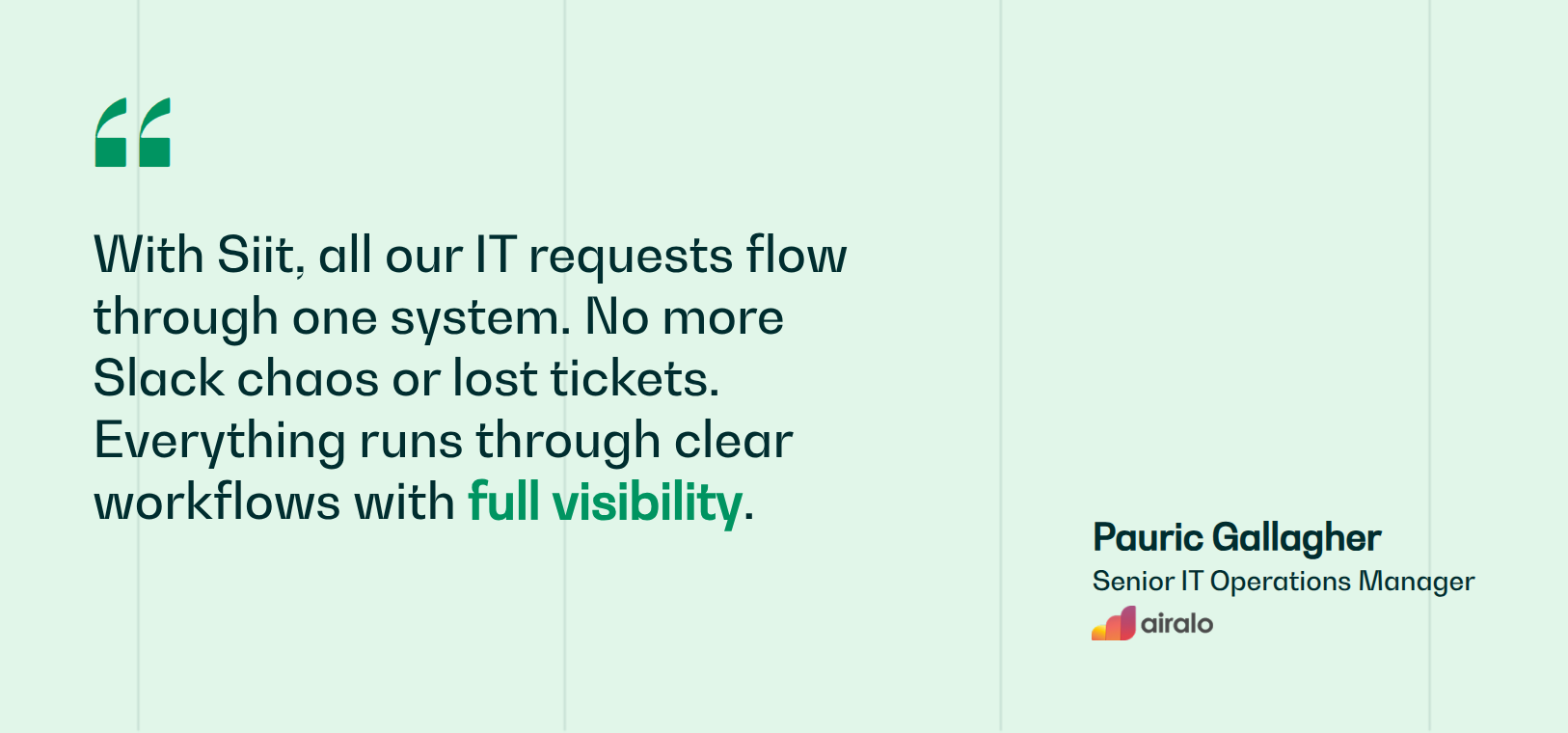
Airalo hit that point and moved its IT requests onto a single tracked system and stopped rebuilding the queue. Ticket volume tripled through its first year while IT held a 90% satisfaction score, because a workflow absorbed the growth.
Book a demo to see AI triage and cross-department workflows running inside your own Teams setup.
.png)


FAQ

It is any setup that converts Teams messages into trackable requests with an owner, a status, and a resolution path. Teams provides no such thing natively, so a Teams ticketing system is either assembled from Microsoft parts (a channel for intake, Forms for structured submission, Microsoft Lists or SharePoint as the ticket store, Power Automate for routing and notifications) or added as a dedicated app that runs inside Teams. The distinction that matters when comparing them is whether the tool tracks the full ticket lifecycle, including priority, SLA timers, and reassignment, or simply posts notifications into a channel while the actual tracking still happens in someone's head.
Yes, within limits. A channel plus Forms plus Lists plus Power Automate gives you intake, a ticket record, assignment, and status, and if your Microsoft 365 plan already includes those connectors it costs nothing extra. What you do not get is automated triage, SLA breach alerts, approval chains that cross departments, or an email path for people who never open Teams. Those gaps are manageable at low volume and become the job itself as the queue grows.
Export the Microsoft List or SharePoint library before you switch, since what matters is the ticket ID, requester, timestamps, and resolution notes. Most dedicated tools will import that as historical tickets or hold it as a read-only archive. Agree which fields map where before migration day, and keep the old list read-only for a quarter, because rebuilding a status taxonomy afterward is guesswork nobody can audit.
The intake pattern transfers, but the permissions model does not. HR queues need private routing because a public channel exposing personal questions is a compliance problem, and Finance approvals need multi-step chains, so single-resolver assignment does not fit. Running those as separate DIY channels means separate forms, boards, and flows, each maintained by whoever built them. Dedicated tools run separate queues with separate permissions on one platform, which is usually the point at which the DIY approach stops being cheaper.
Silent failures, in roughly this order: form triggers that stop firing without alerting anyone, connector authentication expiring, Power Automate flows timing out once conditions get complex, and Microsoft Lists hitting the list view threshold as ticket history grows. The last one is worth pre-empting by indexing your Status and Assigned To columns and archiving closed tickets before you reach the limit, since the symptom is views failing rather than an error anyone sees.