
Changelog
Stay up-to-date with our product's latest updates and changes.
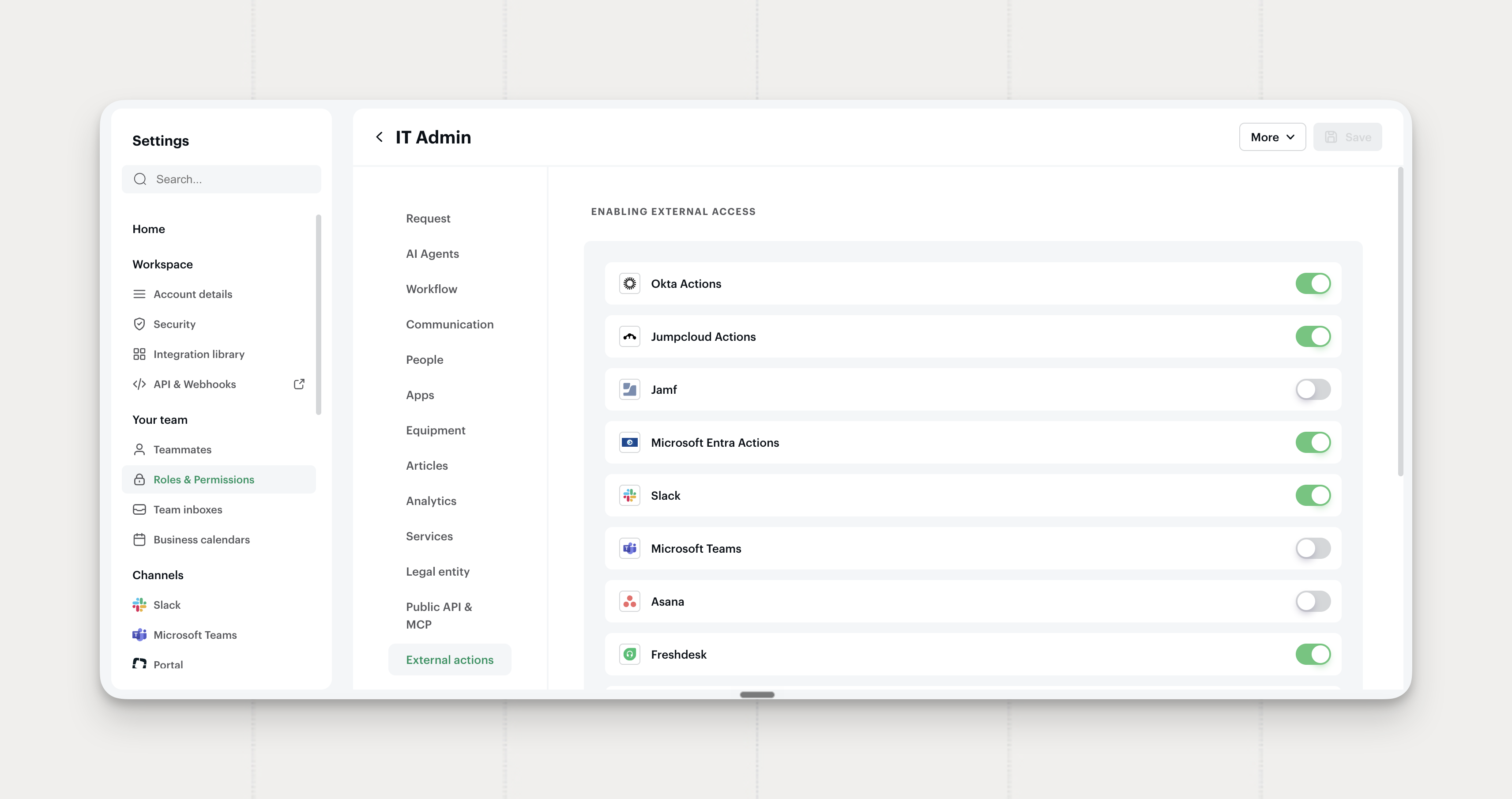
Control Which External Actions Each Role Can Run
Choose, role by role, which connected integrations your admins can act on.
- One toggle per integration. The new External actions tab in each role’s permissions lists every connected integration with at least one action: identity providers, MDM, Slack, Microsoft Teams, and the tools you escalate requests to.
- Side panel and workflows. People in a role see and run only the external actions you turn on, in the request side panel and in workflow actions.
- Assist follows the same rules. Assist only runs the external actions your role allows.
Sensitive actions, like suspending an account or setting a temporary password, stay with the roles that should run them.
Heads up: Existing roles keep access to every integration, so nothing changes until you edit a role.
Where to find it: Settings → Roles & Permissions, then a role’s External actions tab
Available on all plans.

Get Locked-Out Google and Entra Users Back In
When an employee is locked out of Google Workspace or Microsoft Entra ID, issue them a temporary password or access code from Siit, or let the IT Agent or Assist do it. Each code is sent privately to the requester or shown to you once, and every action is logged.
- Temporary Access Pass (Entra). Generate one so an Entra user can sign in after losing access to their sign-in methods.
- Temporary password (Google and Entra). Set one for a user who’s lost theirs, generated by Siit or typed in.
- Backup verification code (Google). Issue a single code for a user who’s lost their second factor, the way back in when your organization enforces 2-Step Verification.
- Invalidate backup codes (Google). Revoke a user’s current backup verification codes.
Setup note: The Temporary Access Pass appears once you reconnect the Microsoft Entra Actions integration, which grants it a new Microsoft Graph permission.
Where to find it: the request side panel and the workflow editor
Available on all plans.

Resolve a Request with Assist
Assist now works on the request in front of you. Click Resolve with Assist on any request, and Assist reads it, proposes how to solve it, and runs the steps with your approval.
- One click from the request. The button sits on every request and works at any point in its life, from the first message to the last follow-up.
- Context already loaded. Assist opens with the requester, the conversation, and the linked apps and equipment in view, so you don't have to explain the problem again.
- Actions in your identity provider. Assist can run user actions in Okta, Microsoft Entra ID, Google Workspace, and JumpCloud: reset a password, add someone to a group, suspend an account.
- You approve every action. Assist asks before it changes anything outside Siit, and each step it runs is logged on the request.
- Your rights, nothing more. Assist acts with your permissions, so it can only run what you could run yourself.
A locked-out employee, a missing group, a stuck account: describe the fix once, approve it, and move to the next request.
Available on all plans. On Essentials and Standard, each admin gets 10 Assist conversations a week. On Pro, Assist is included within fair use.

Daily and Weekly Summaries Are Retired
The Daily summary and Weekly summary notifications for admins are retired with this release. Both digests stop, in Slack and by email, and their settings go with them.
Heads up: Nothing changes for employees, and there is nothing to do on your side. For a recurring view of volume and SLAs, schedule a digest from Reporting instead.
Connect Any API to Siit with Custom Actions
Connect an internal tool or a third-party API that Siit doesn't integrate with natively, and turn its endpoints into actions your team can run from Siit.
- Custom integrations. Add the API once: name, documentation link, base URL, and authentication. Stored credentials stay masked; you can replace them, not read them back.
- Actions built like a form. Describe what the action does, the inputs it needs, the call it makes (HTTP method, path, JSON body with variables), and the outputs it returns.
- Outputs you can reuse. Map any field of the API response, including nested ones, to an output that later workflow steps can read.
- Available where you work. Run an action from the request panel, drop it into a workflow, or use it as a provisioning or deprovisioning action on an app access role.
- Draft, then Active. Save an action as a draft while you test it, and activate it when it's ready for the team.
The tool your company built in-house, or the SaaS without a native connector, now works inside Siit the same way Okta or JumpCloud actions do.
Where to find it: Settings → Integration library, then your custom integration's Actions tab
Available on the Standard and the Pro plans.
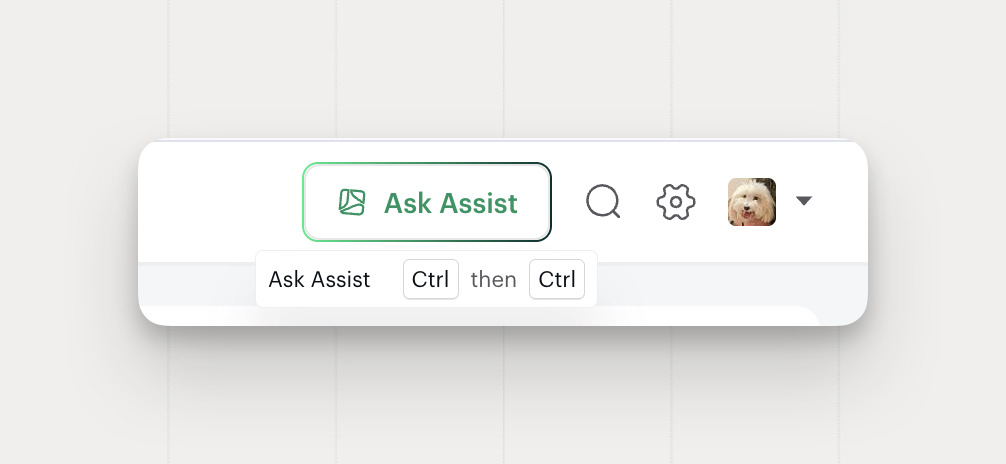
Open Assist Faster
Assist is now a double-tap away.
- Keyboard shortcut. Double-tap
Ctrlto open Assist from any page, even halfway through a reply, and double-tap again to close it. Your reply stays exactly where you left it. - Easier to spot. The Ask Assist button in the top bar is larger and carries the Assist icon.
- Personalization from your profile. Your standing instructions and MCP servers sit under Assist personalization in the profile menu.
Available on all plans.

Set Up Your Service Desk from Assist, the API, and MCP
Your service desk setup is now reachable from Assist, the Public API, and the Siit MCP server. Ask Assist to tighten a response target and the SLA rule itself changes, the same rule your team sees in the app.
- Inboxes. Create an inbox for a new team and manage who works in it.
- SLA rules. Set response and resolution targets, and the working hours they follow.
- Approval policies. Decide who approves and in what order.
- Services. Update a service's default assignee and the SLA rule it follows.
Available on all plans.
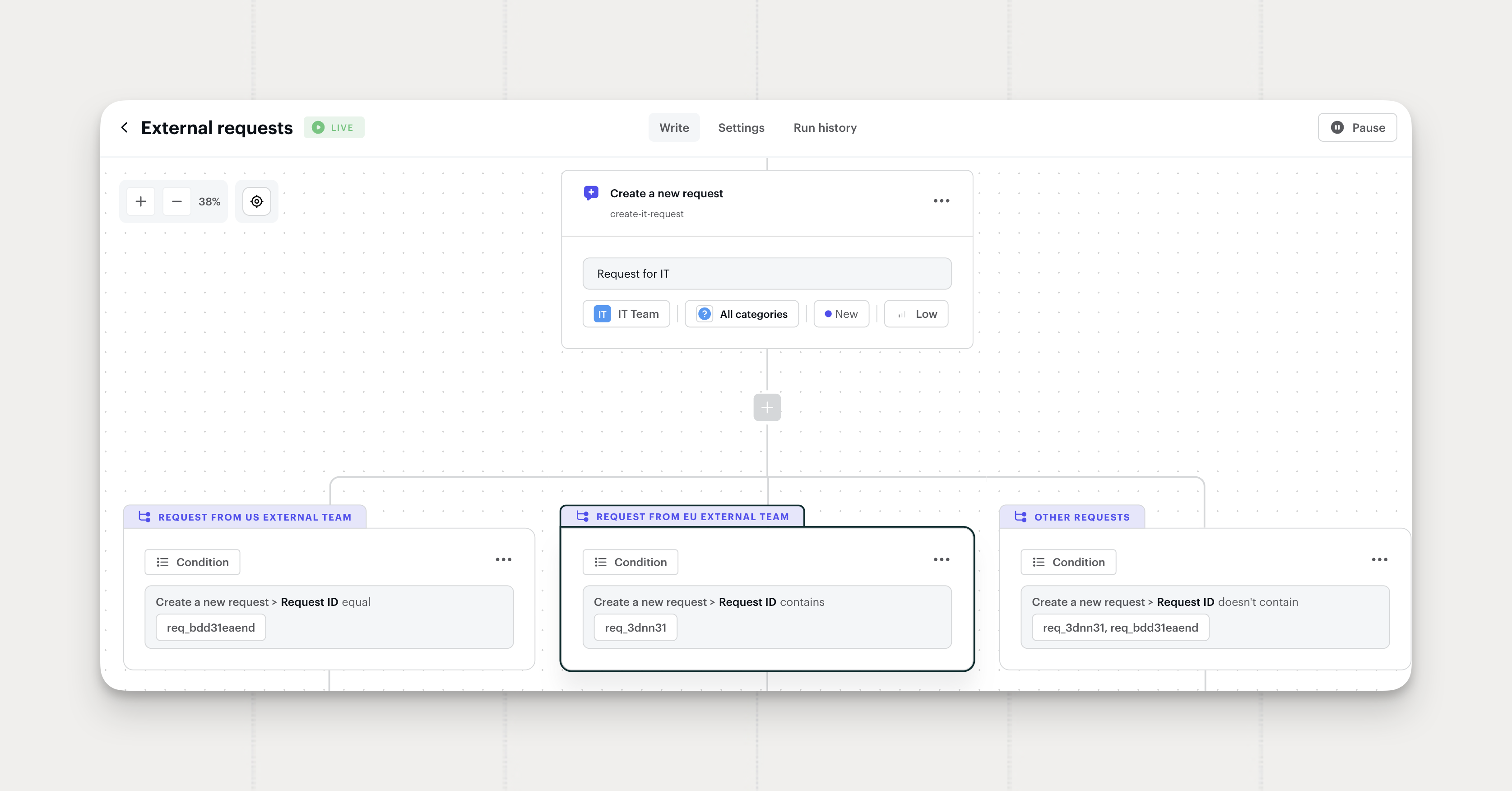
Branch a Workflow on What a Previous Action Returned
Your workflows can now react to what actually happens along the way, as well as to what triggered them.
- Branch on results. Send a workflow down a different path depending on what an earlier action returned, such as an integration action.
- Reuse results in later steps. The same values work in any step that follows, like dropping the ID of a request the workflow created into a reply. Each action shows its identifier under its name; that's what you reference.
- From MCP too. Workflows built through the Siit MCP server read earlier results the same way.
Where to find it: the conditions of any branch in the workflow editor, and the variables of any step that follows
Available on the Standard and the Pro plans.
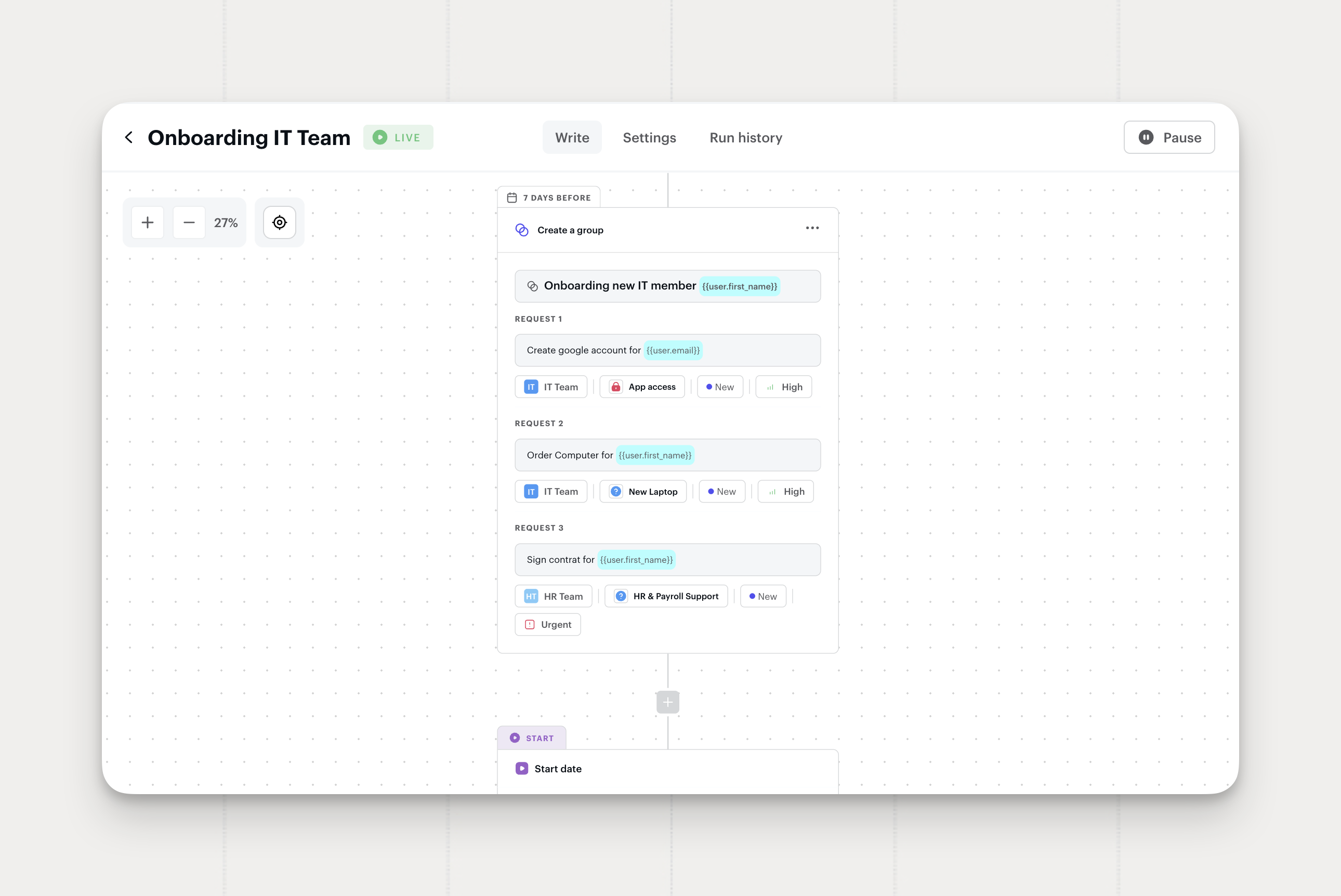
Create a Group Request from a Workflow
A single workflow step can now open several related requests as one group. An onboarding workflow hands IT, Facilities, and People Ops their own request, all under the new hire's name.
- A request for every team. Each request in the group carries its own assignee, service, and priority.
- One group to follow. The requests show up together in your request list, so you can reply, assign, or change priority for all of them at once.
- Every kind of workflow. Onboarding, offboarding, date-based, and app access workflows can all open a group request.
Where to find it: Create a group in the action list of the workflow editor
Available on the Standard and the Pro plans.

Get Locked-Out JumpCloud Users Back into Their Account and Computer
Locked-out JumpCloud users can now get back into their account or their computer straight from a request, and IT can send the credential without ever seeing it.
- Back into their account. Reset the user's password from a request or a workflow. Siit generates a temporary one.
- Back into their computer. Send the recovery key of a JumpCloud-managed computer to the employee from a request, the computer's equipment page, or a workflow.
- Private by choice. With Send it to the requester privately on, the password or key reaches the employee alone, in a private message in Slack, Microsoft Teams, or the portal, and the password stops being readable after an hour. Turn the toggle off to see the value yourself.
- IT keeps track. The request records who received what and when.
Where to find it: Reset user password in the JumpCloud actions on a request and in the workflow editor, and Show recovery key on the computer's equipment page
Available on all plans with the JumpCloud actions integration connected.

Sync Your Identity Provider on Demand
After fixing a group or a manager in your identity provider, start a sync from Siit and see the change right away, without waiting for the next scheduled cycle.
- Synchronize from the integration card. Available on every identity provider: Okta, Microsoft Entra ID, Google Workspace, and JumpCloud.
- Safe to click twice. While a sync is already running, the action stays disabled and says so.
Where to find it: the ⋯ menu on your identity provider card, in Settings → Integration library under the IdP tab
Available on all plans.

Your Siit App in Microsoft Teams, Under Your Name and Icon
Tenant admins can now rename the Siit app and replace its icon for their employees in Microsoft Teams. And when an employee writes while a triage thread is still open, the busy message now carries a button to end that thread and start fresh.
- Custom app name and icon. Employees find the service desk in Microsoft Teams under the name and icon your IT team already uses.
- End triage thread button. One click closes the open conversation with the Triage Agent. The button disappears once the thread is closed.
Employees open the tool they recognize: your IT team's name and logo, right where they already chat.
Where to find it: app customization in your Microsoft Teams admin center, for the Siit app on Microsoft Teams V2. The End triage thread button appears on its own.
Available on all plans.
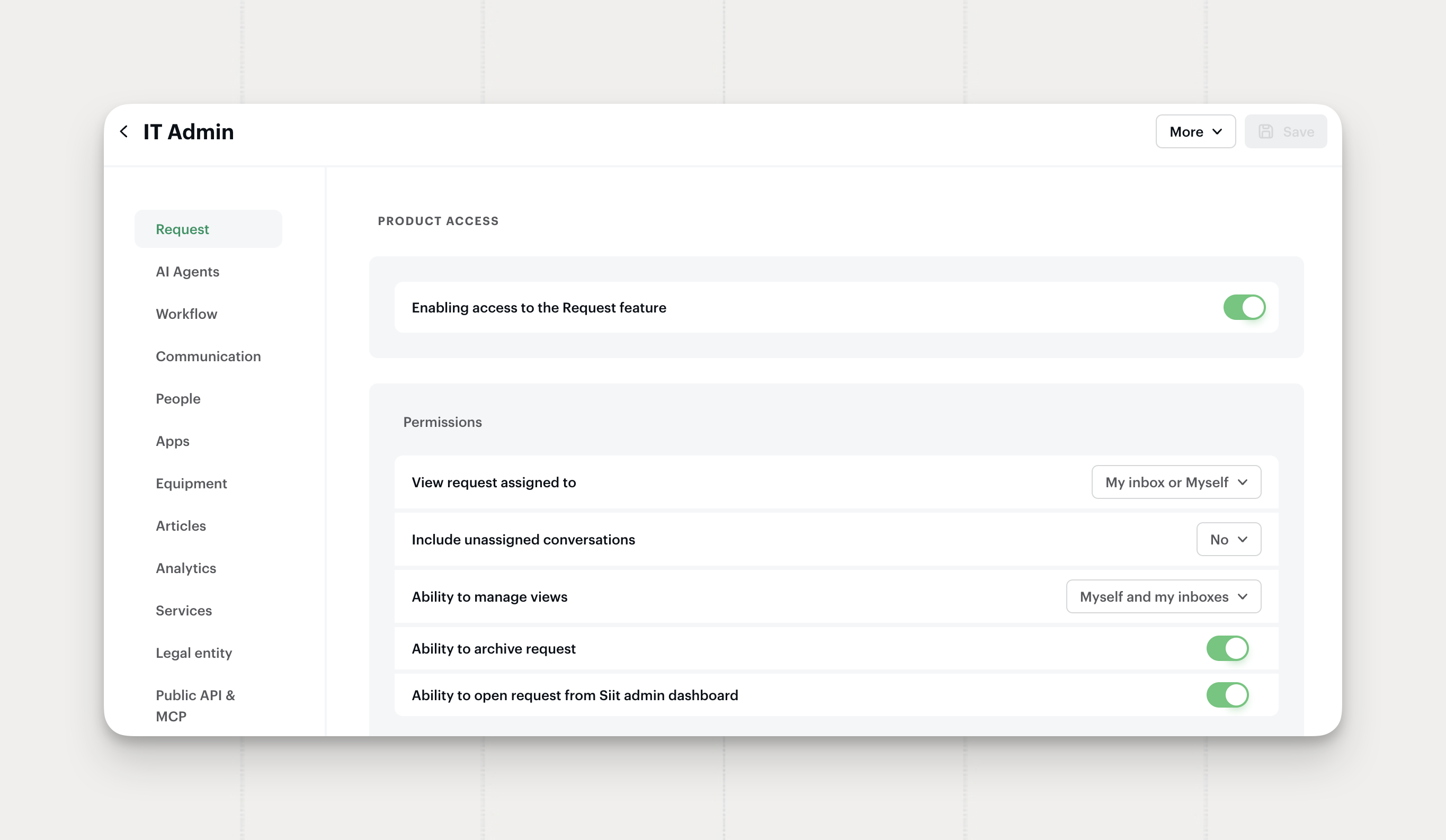
Control Who Can Archive and Create Requests
Two new permissions let you decide which admins can archive requests and which can open new ones from the admin dashboard. Adding a teammate who isn't in Siit yet now ends in an invite.
- Ability to archive request. Only admins who hold it see archive in the request ⋯ menu, the shortcut, and bulk actions.
- Ability to open request from Siit admin dashboard. Only admins who hold it see the New Request button on the requests view.
- Invite from Add a new admin. When your search finds nobody, invite that email as a new admin from the same modal, and add several people in one pass.
Teams that give agents access to the inbox but want requests to come through the portal, Slack, or Microsoft Teams can now enforce it. Archiving stays with the people who own the cleanup.
Where to find it: Settings → Roles & Permissions, on the Request tab of each admin role. The invite appears in Add a new admin when no user matches.
Available on all plans.

Onboard Late Hires Without Losing a Step
A people workflow step scheduled before the start date now still runs when the employee lands in your HRIS late. Choose, per step, whether it runs on the exact day or catches up as long as the start date hasn't passed.
- Within. The step also runs when its scheduled day has already passed, as long as the trigger date hasn't. Exactly keeps the current behavior: the step runs on the scheduled day only.
- Per action. Set the choice on each action that carries a delay before the trigger date.
Add an employee to the HRIS three days before their first day, and every step planned two weeks ahead, the laptop order, the account creation, the welcome message, runs the moment the record lands.
Where to find it: the delay setting on any action scheduled before the trigger date, in the people workflow editor
Available on Standard and Pro plans.
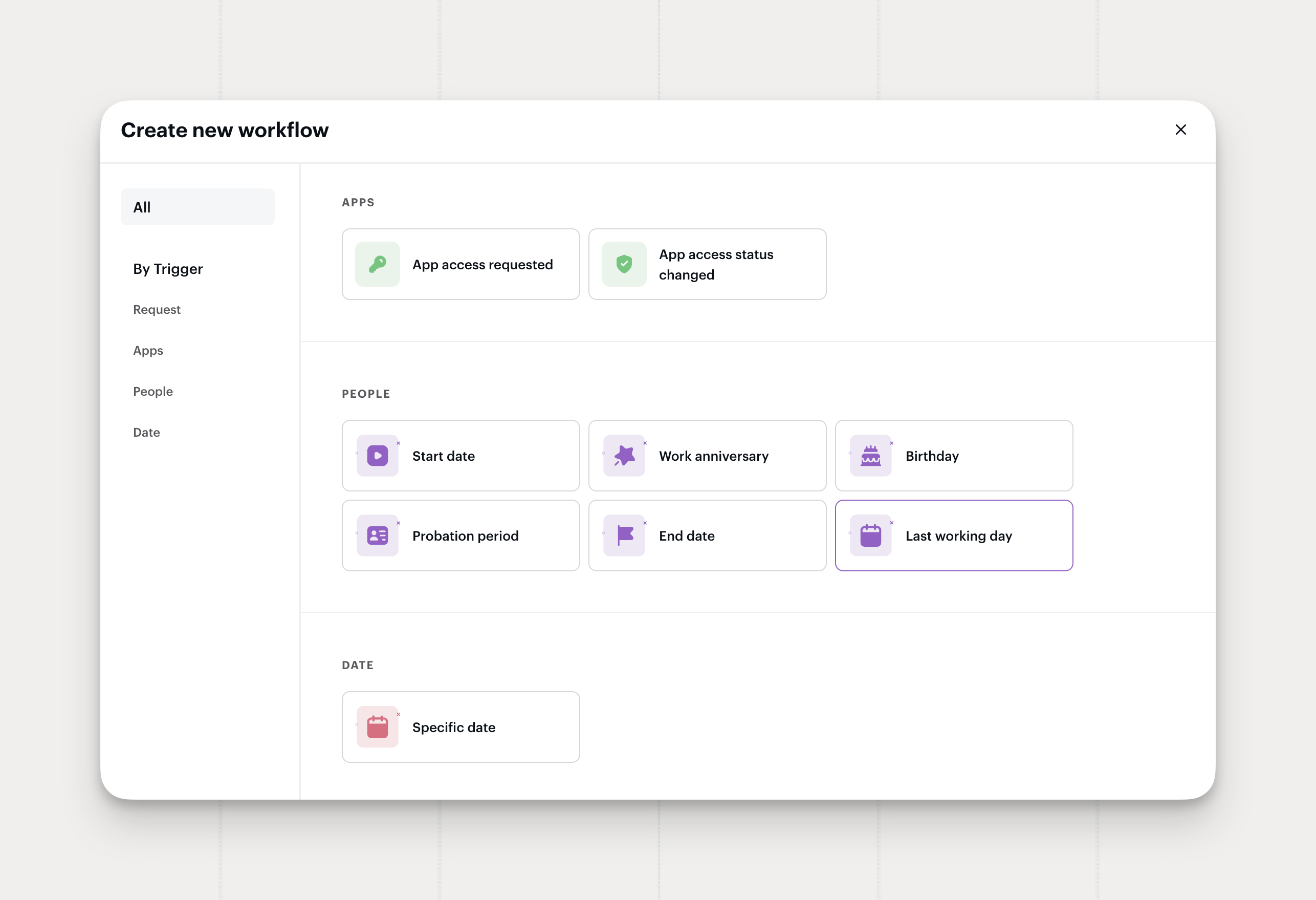
Last Working Day as a People Workflow Trigger
People workflows can now start on an employee's last working day, which often comes before their end date. Offboarding runs on the day the person actually leaves.
- Last working day trigger. Start an offboarding workflow on the employee's last working day.
- Separate from the end date. Keep your end date workflows as they are and run a second one on the last working day: suspend accounts on the last working day, archive the profile on the end date.
Notice periods and garden leave can put weeks between the last working day and the end date. An offboarding workflow can now close access on the day the person walks out.
Where to find it: the People section of the trigger picker when you create a workflow
Available on Standard and Pro plans.
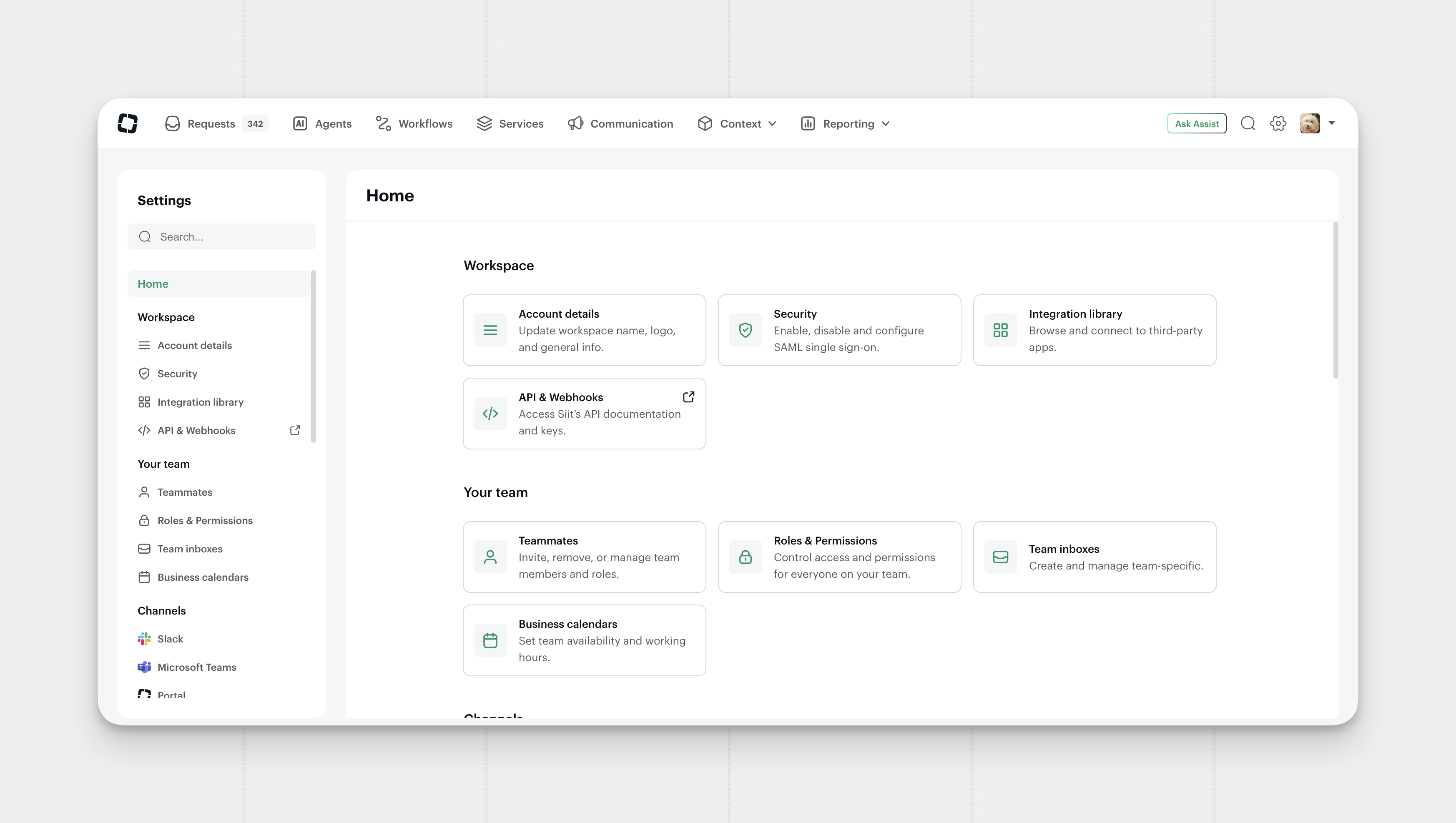
Settings Now Follows Your Organization Layers
Settings now follows the layers you actually work in: the workspace, your team, and the requests in front of you. Request behavior arrives with it, one place for the small defaults that govern every request.
- Organization layers. Sections group by workspace, by your team, and by requests, so where you look matches what you configure.
- Request behavior. On-behalf settings, satisfaction surveys, and resolution rules now sit in one area.
- Four new defaults. Assign yourself to a request when you first reply, follow a request when you reply, follow it when you add an internal note, and move it to In progress when the first reply goes out.
- People groups. Employee groups becomes People groups, in Context management and everywhere else the label appears.
Each default is a single toggle for the whole workspace, covering the small moves an admin repeats all day and forgets once.
Where to find it: Settings → Request behavior
Available on all plans.
Manage a Whole Request Group from the API and MCP
Grouped requests now take bulk operations from outside the app. Send one message to everyone in a group, move the whole set to In progress, or hand the group to another admin, in a single call from the Public API or the Siit MCP server.
- Message the whole group. One public message reaches every requester, each in their own Slack thread, Microsoft Teams chat, or email. One internal note lands on every request in the group, visible only to your team.
- Status, priority, and assignee in one call. Apply the change once and every request in the group follows.
- Tag, archive, or snooze the whole group. The bulk operations from the app, available to your integrations.
- A timeline that stays readable. The group records one bulk event, so a bulk action leaves one line rather than one per request.
A laptop rollout, a site-wide outage, or an onboarding wave moves as one object from a script, a workflow, or the Siit MCP server in Slack.
Where to find it: the request group endpoints on the Public API, and the request group tools in the Siit MCP server
Available on all plans.
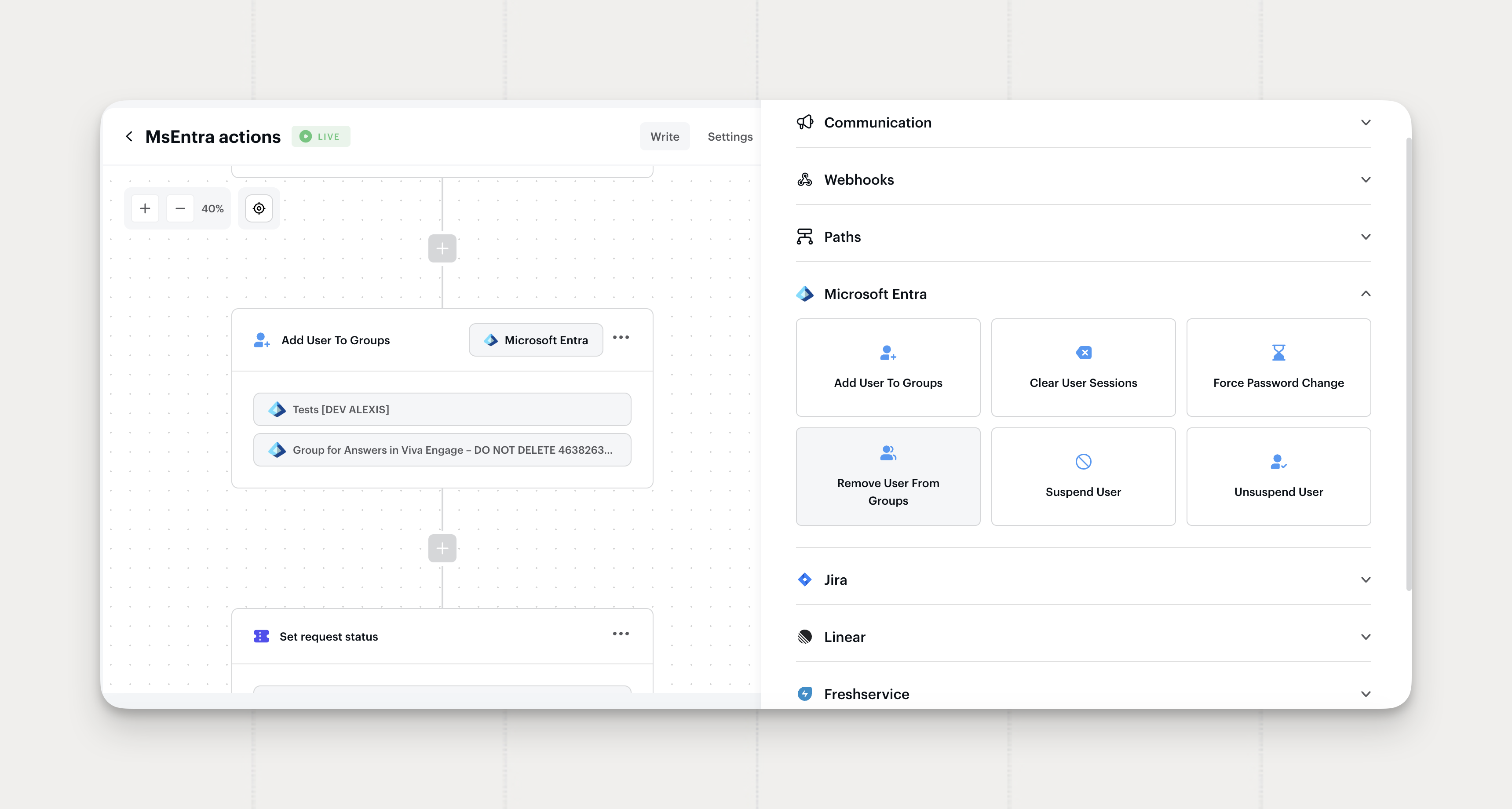
Suspend, Reset, and Revoke Microsoft Entra ID Accounts from Siit
Cut off a Microsoft Entra ID account without leaving the request you are working in. Run the action from the user panel, or drop it into a workflow as a step.
- Suspend user. Disables the account in Microsoft Entra ID.
- Force password change. Requires the user to set a new password at their next sign-in.
- Clear user sessions. Revokes active sign-in sessions and refresh tokens.
- Open profile in Entra ID. Opens the user directly in the Microsoft Entra admin center.
An offboarding workflow can close an Entra account on the last working day on its own. A compromised account takes one step: clear the sessions, force a new password, and the request keeps the record of who did it and when.
Where to find it: the Actions menu on a user's Microsoft Entra block, and the Microsoft Entra action list in the workflow editor
Available on all plans.

Assist Is Now Available to Every Workspace
Assist builds your Siit configuration with you. Describe what you need in plain language and it does the work in your workspace.
- Configuration by conversation. Ask for a service, a workflow, or an inbox, and Assist creates it, then walks you through what it changed.
- Answers from the documentation. Setup questions get answered from the Siit docs and help center, in the conversation.
- Attachments it can read. Drop a screenshot of a form your team uses today and Assist turns it into a service catalog form.
- Guidance and controls. Each admin writes their own standing instructions, workspace guidance sets the rules everyone works under, and a dedicated permission governs who manages Assist. Sensitive settings stay with the workspace owner.
- Your own MCP servers. Connect an external MCP server and Assist can use its tools alongside Siit's own.
Assist works inside the workspace rather than beside it, so the configuration it produces is the configuration your team runs on.
Where to find it: Ask Assist, in the top bar of the admin console
Available on all plans. On Essentials and Standard, each admin gets 10 conversations a week. On Pro, Assist is included within fair use.
Leaving Type as a People Workflow Condition
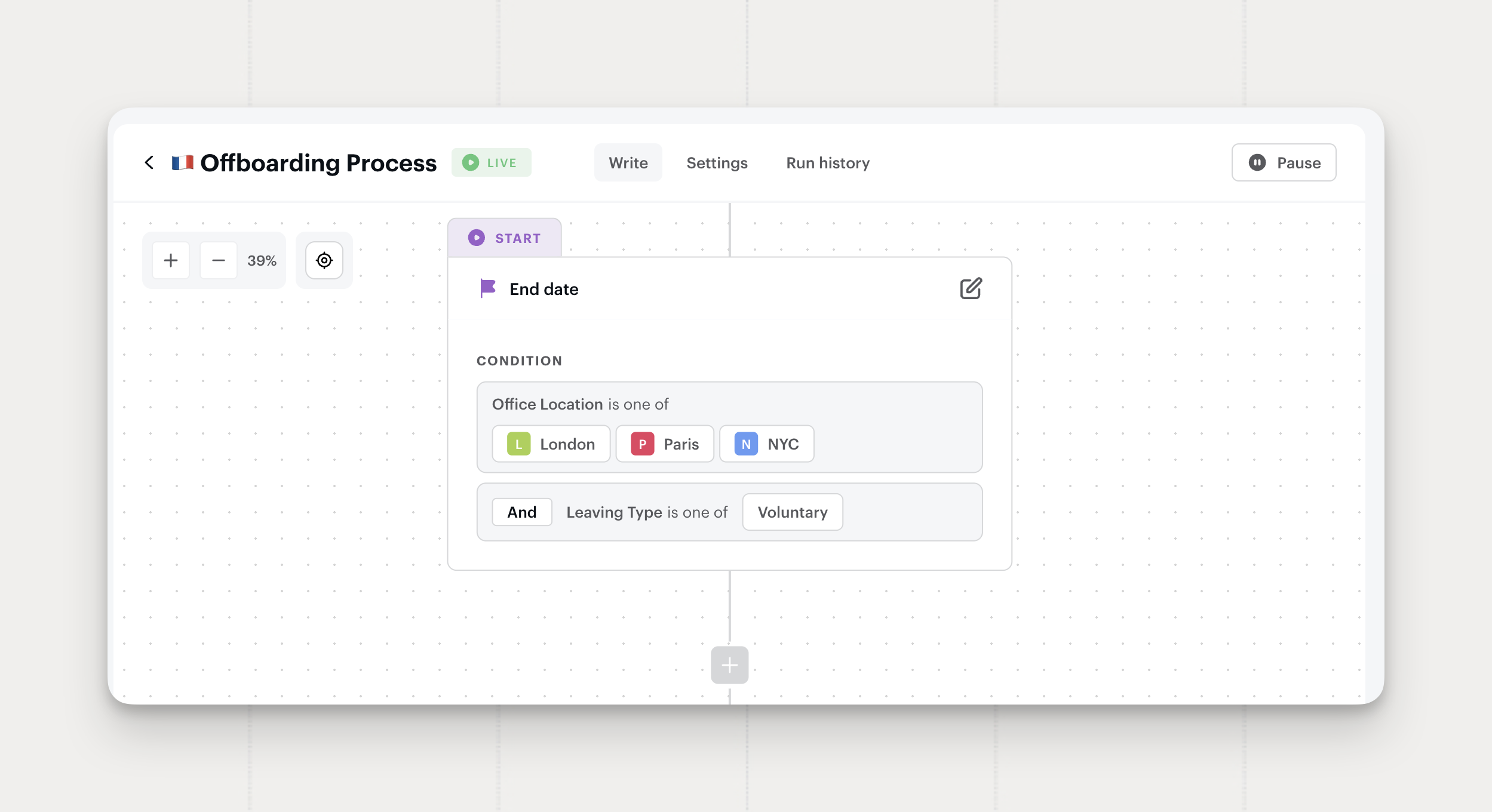
People workflows can now branch on leaving type. A resignation and a dismissal can follow different offboarding paths from the same trigger.
Add Leaving Type as a condition when you build a people workflow on the End date trigger, and one workflow covers every exit reason, routing on the leaving type carried by the event.
Where to find it: the condition picker in the people workflow builder
Available on Standard and Pro plans.
Equipment Table Sorting
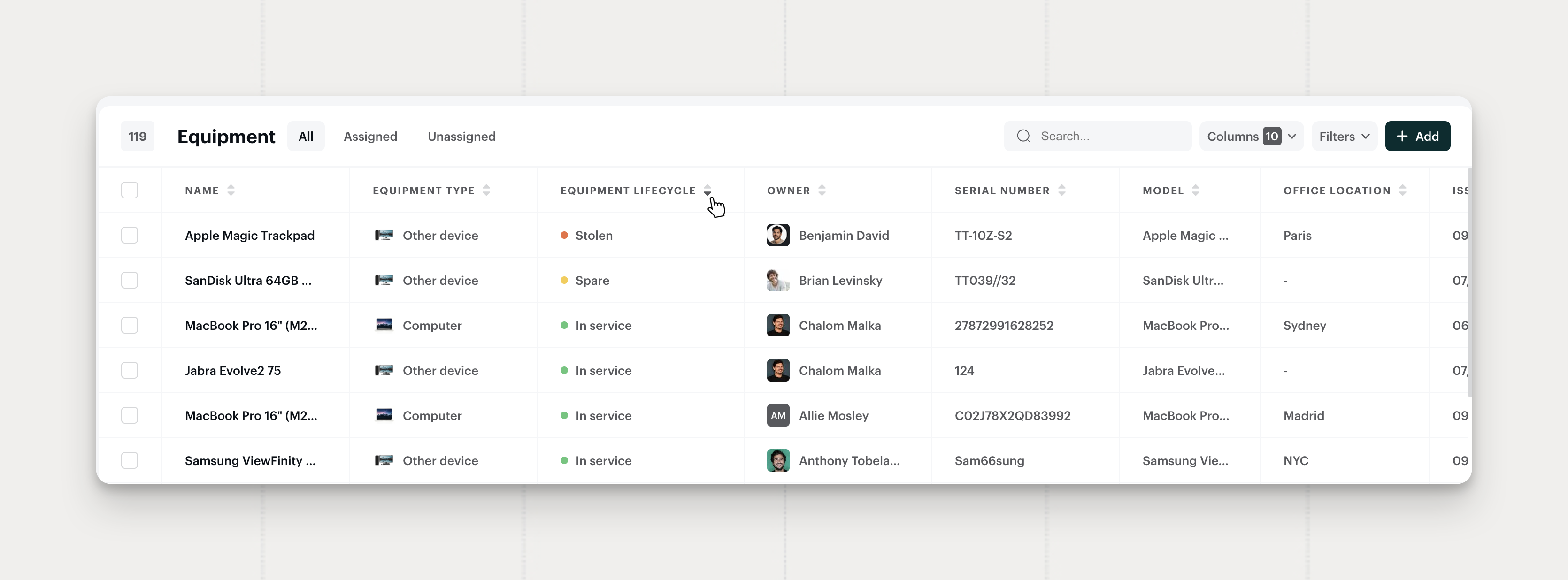
The equipment table now sorts on any column: equipment type, lifecycle, owner, serial number, model, office location, last report date, and last contact date.
Sort by last contact date to find equipment that stopped reporting, or by owner to review everything one person holds.
Where to find it: Context → Equipment
Available on all plans.
App Access Triggers for Workflows
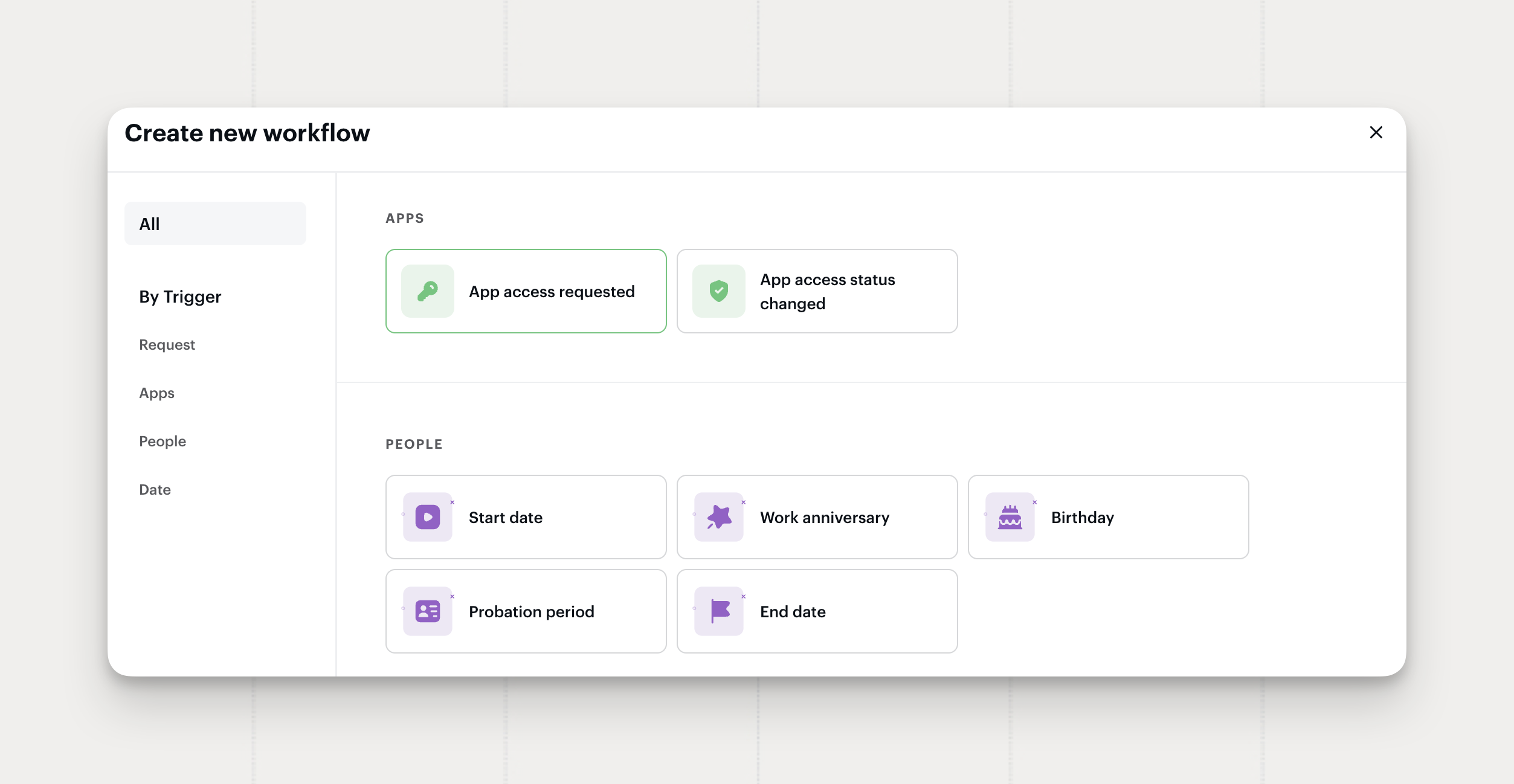
Two new workflow triggers fire on app access events. A workflow can start when someone requests access to an app, or when an existing app access moves to a new state.
- App access requested. A workflow runs when an app access record is created.
- App access status changed. A workflow runs when an app access moves to a new state.
- Role conditions. Both triggers condition on the role requested, next to the request conditions you already use.
A workflow can post to the app owner's channel, open a task, or notify the requester as soon as access lands.
Where to find it: the trigger picker when you build a workflow
Available on Standard and Pro plans.
App Discovery from Microsoft Entra ID SSO Sign-Ins
Siit now reads Microsoft Entra ID SSO sign-in activity to work out who actually uses an app.
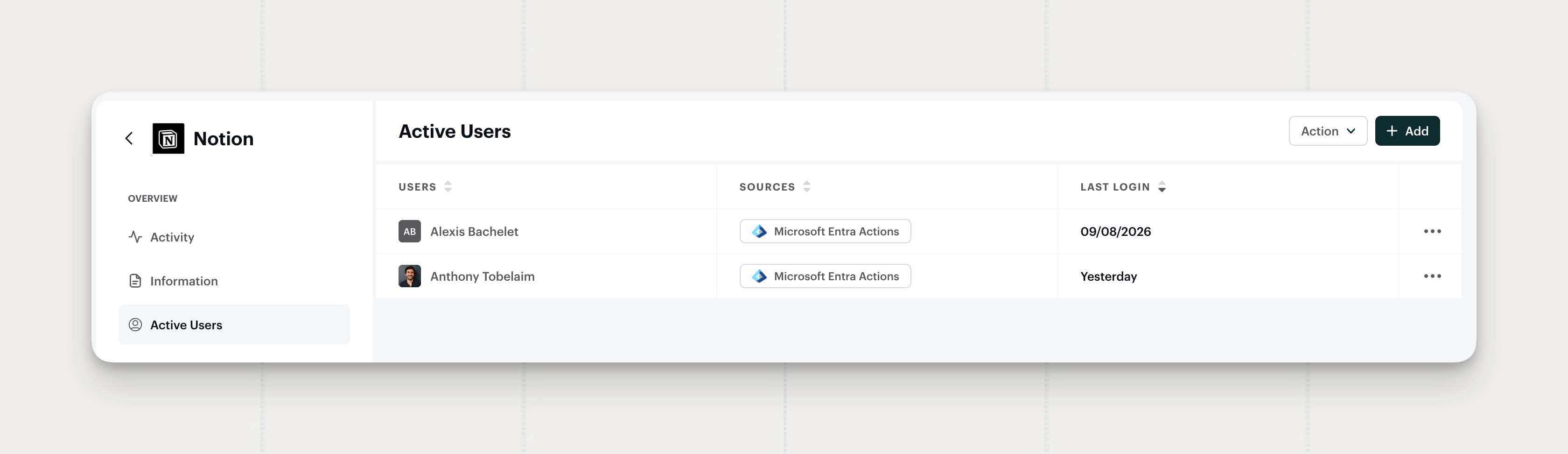
- Sign-in based discovery. Someone who reaches an app through SSO without being assigned to it shows up in Siit as a user of that app.
- Expiring memberships. Unused SSO memberships expire, so an app's user list tracks real usage over time.
Shadow usage that only appears in sign-in logs now reaches your app inventory, so license reviews run against who actually signs in.
Where to find it: the Active Users list on any app
Available on all plans.
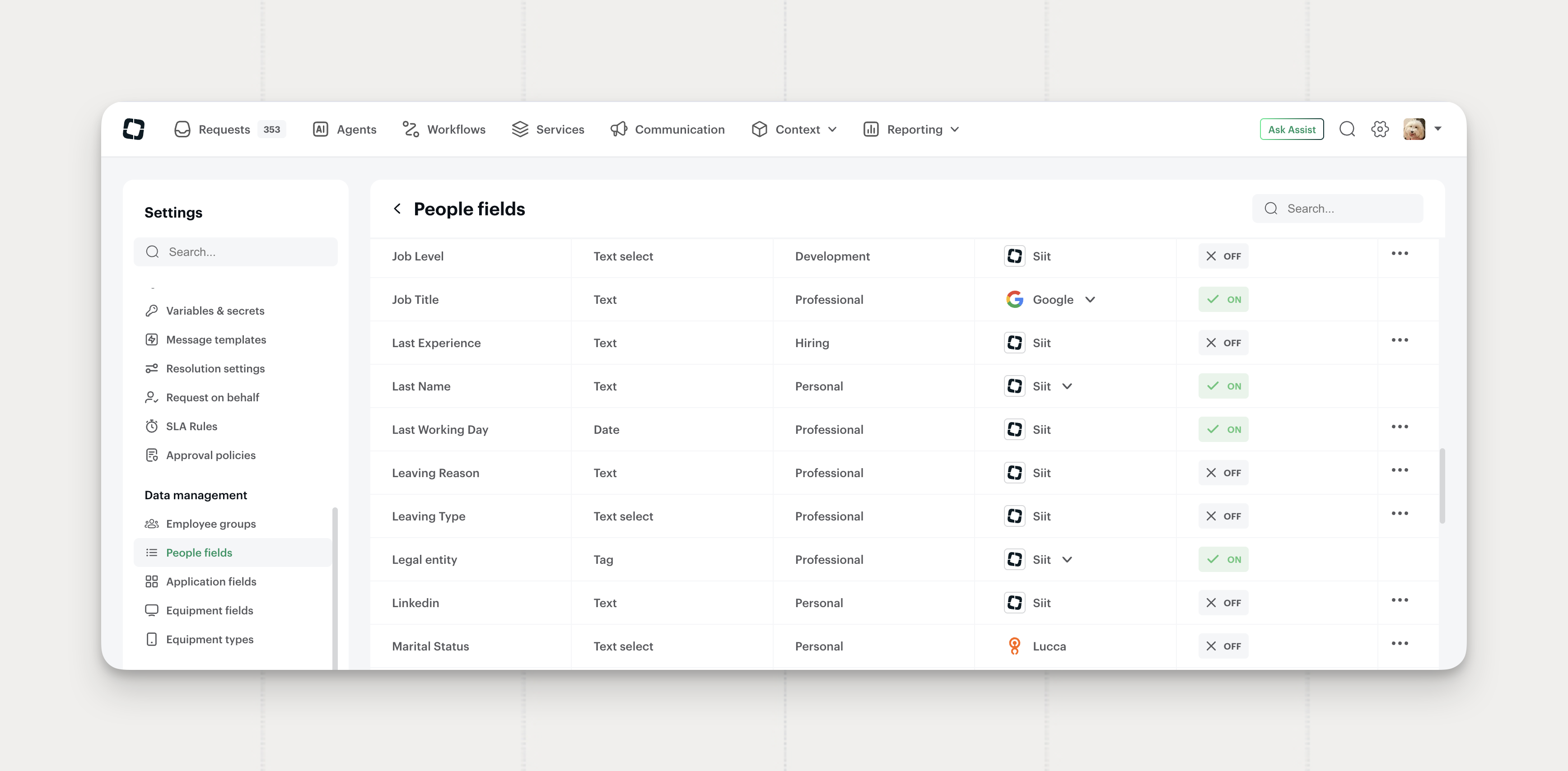
Directory Fields from Google Workspace and Microsoft Entra ID
Google Workspace and Microsoft Entra ID now sync directory attributes into People fields, and either one can act as the priority source. Teams running their directory as the record of truth get complete People profiles from the integration they already have.
- Directory attributes sync. Department, manager, job title, start date, location, and phone number flow from Google Workspace and Microsoft Entra ID into People fields.
- Priority source selection. Pick Google Workspace or Microsoft Entra ID as the priority source on a People field, the same way you already pick an HRIS.
Where to find it: Settings → People fields, then the source selector on any field
Learn more: Google Workspace and Microsoft Entra ID
Available on all plans.
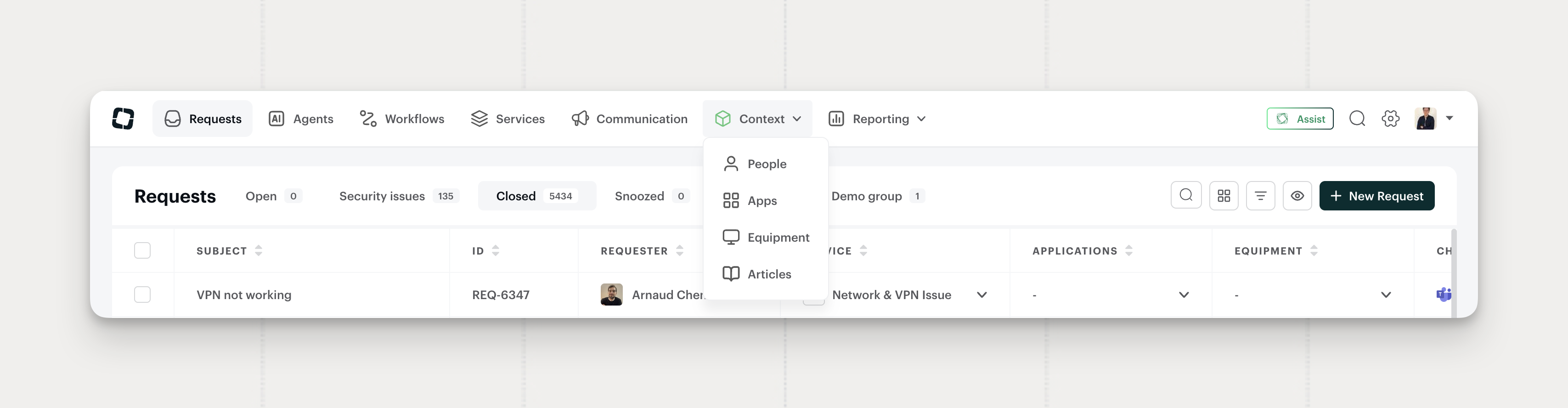
Services in the Navbar, Resources Becomes Context
The top-level navigation changes shape. Services moves up next to the other destinations, and the Resources section becomes Context, under a new icon.
- Services at the top level. Reach the service catalog straight from the navbar.
- Resources is now Context. The section keeps every page it had, People, Apps, Equipment, and Articles, under a name that says what the content does for the agent.
Every page you used yesterday sits in the same place, under the two new labels.
Available on all plans.
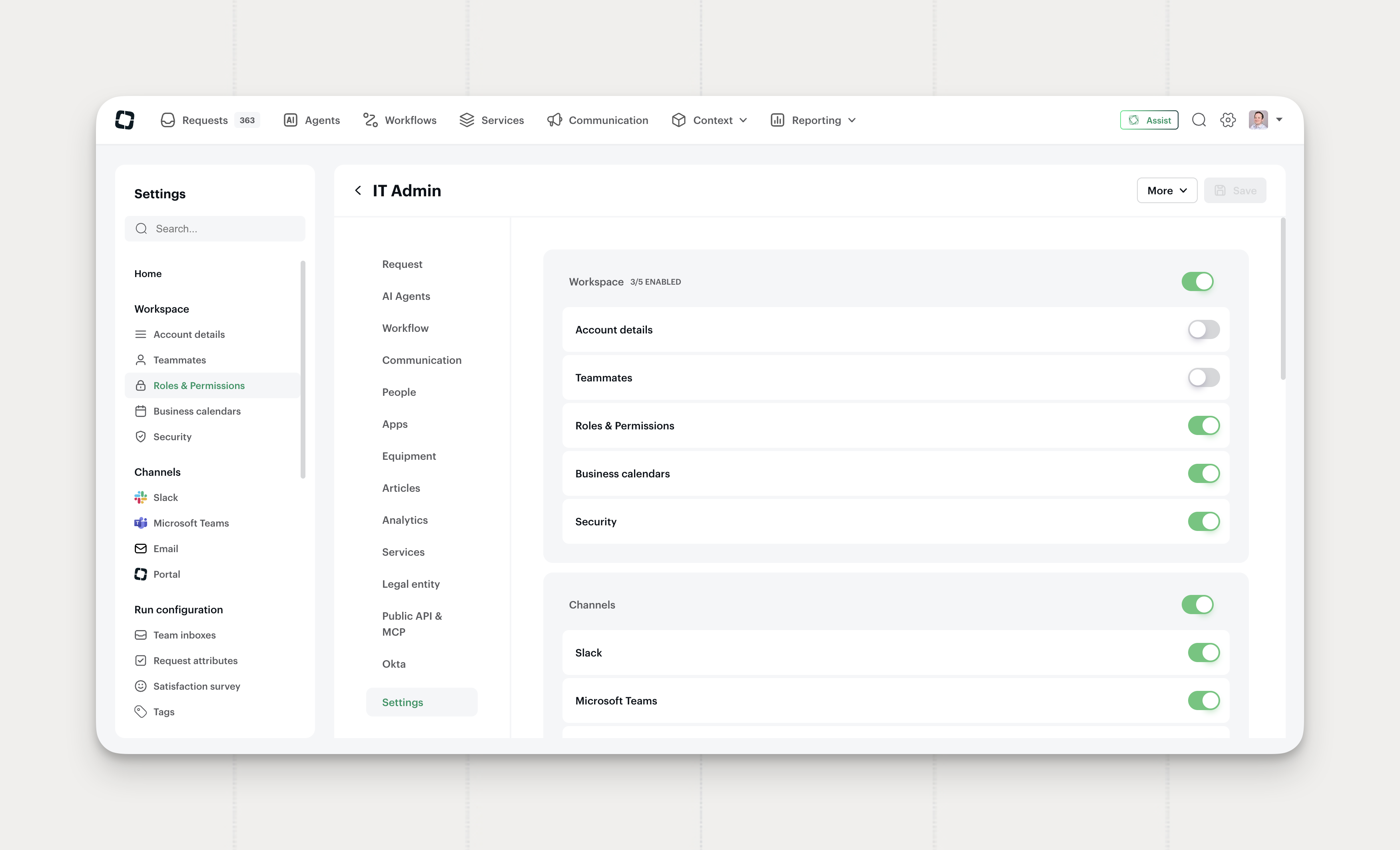
Granular Settings Permissions
Admin roles now carry Settings permissions one element at a time, instead of opening a whole section at once.
- Per-element permissions. Pick exactly which Settings elements a role reaches, with a counter per category showing how many are enabled.
- A quieter Settings menu. Siit hides a category name when the role sees none of the elements inside it.
IT leads sharing Settings access with People Ops or Finance can hand over a single element, like approval policies, without opening everything next to it.
Where to find it: Settings → Roles & Permissions, then a role's Settings tab
Available on all plans.
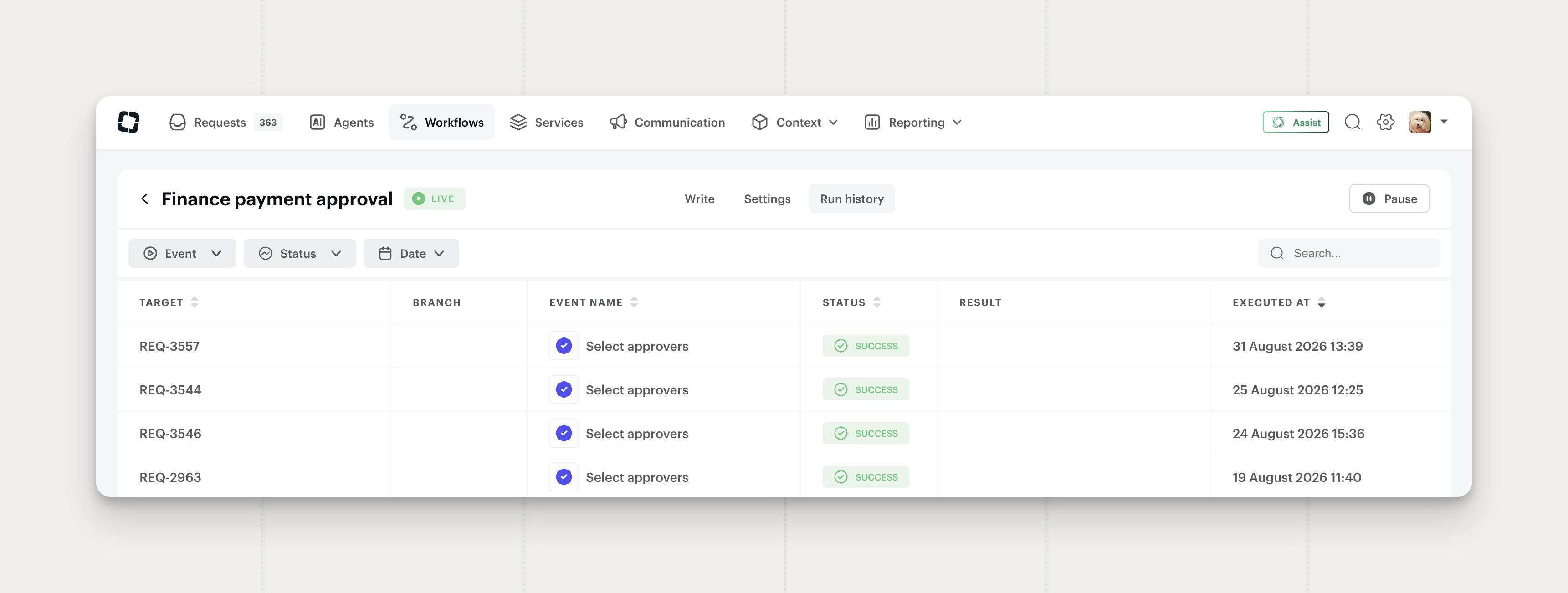
Workflow Execution Logs in the Siit MCP Server
The Siit MCP server now reads a workflow run's execution log, so you can debug a workflow from your MCP client without opening the run in the UI.
- Trigger and timing. The event that started the run, with its timestamp.
- Every step in order. Each action marked success, failure, or skipped.
- Inputs and outputs. What each step received and what it returned.
- Error detail. The failure reason on any step that didn't complete.
Ask Claude why last night's onboarding workflow skipped the equipment step, and it pulls the run and points at the step where it went wrong.
Available on all plans.
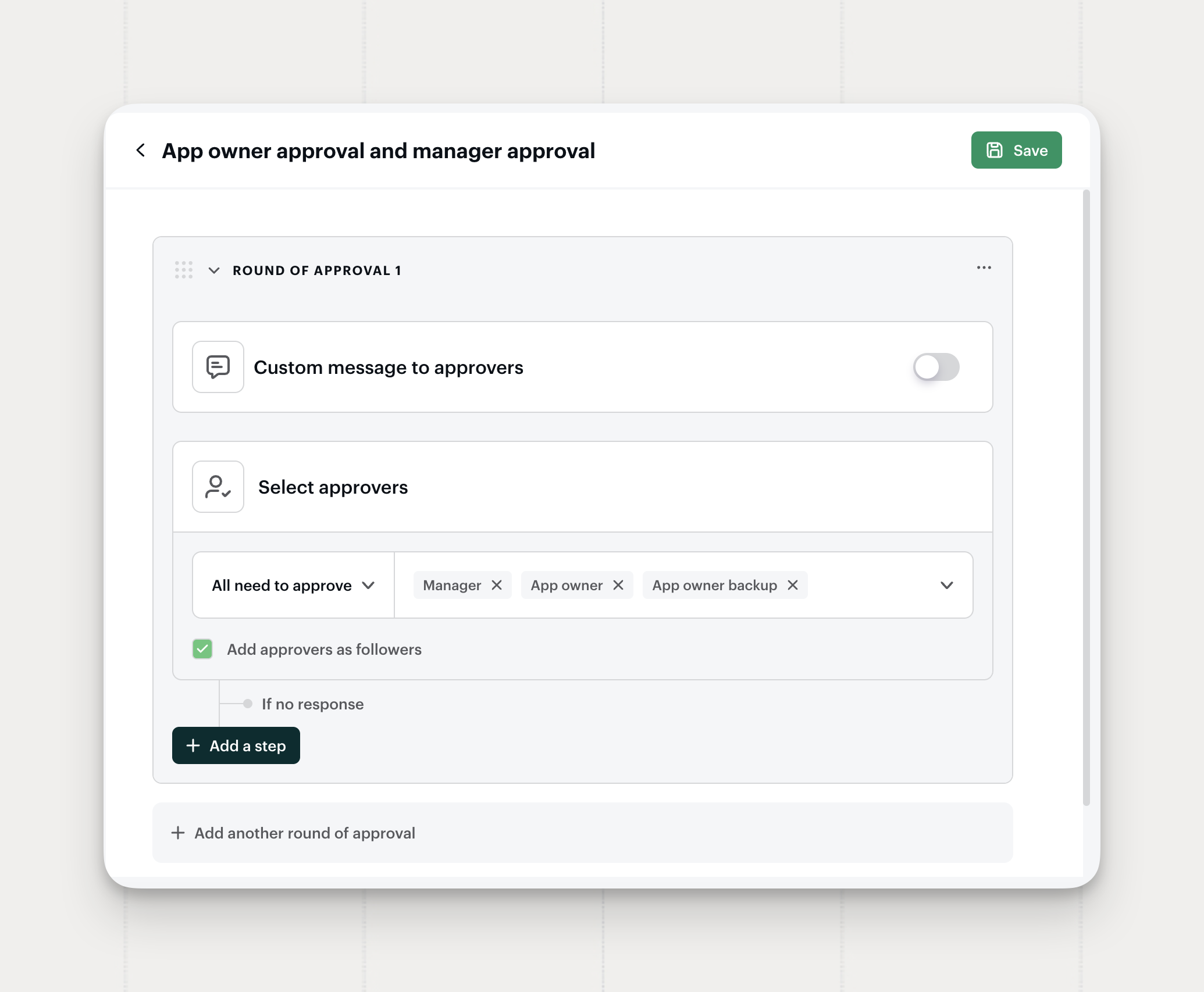
Followers on Approval Policies
An approval policy can now add its approvers as followers on the request. Tick Add approvers as followers in the policy editor and everyone in the approval cycle keeps following the request after they sign off, the same way workflow approval steps already do.
Where to find it: Settings → Approval policies
Available on all plans.
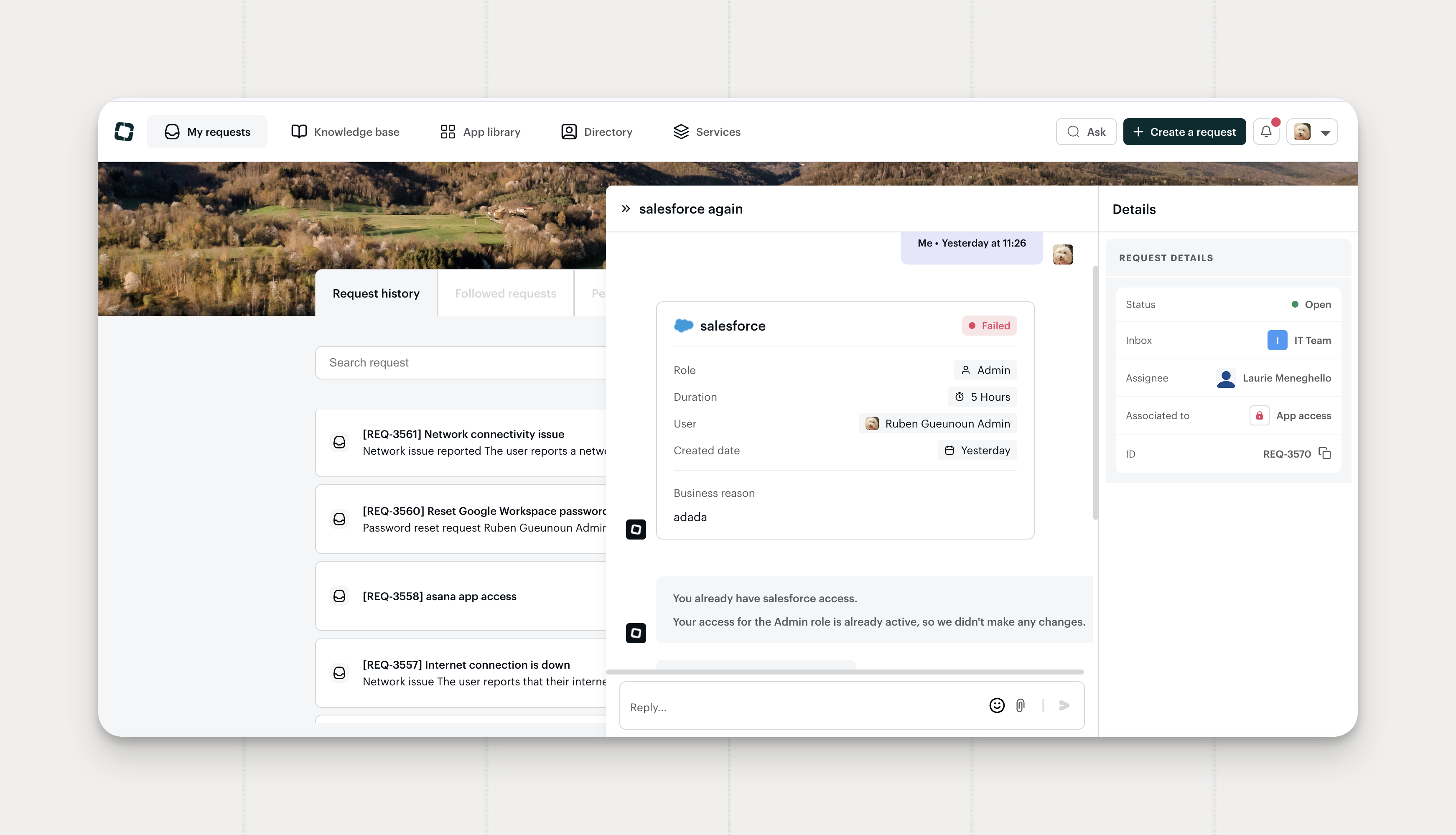
Partial Provisioning Now Resolves Correctly
An app access request with several provisioning actions now resolves on the actions that actually remain.
- Partial success resolves as provisioned. When one action targets a group the employee already belongs to, the other groups still provision and the app access ends as Provisioned.
- Manual actions keep their turn. If a manual action remains, the app access moves to Waiting provisioning.
- Plain language for access you already hold. The requester reads that their access is already active for the role they asked for, in place of a provisioning error naming groups or the identity provider.
Admins see the real outcome, and employees get an answer that matches the access they already have.
Available on all plans.
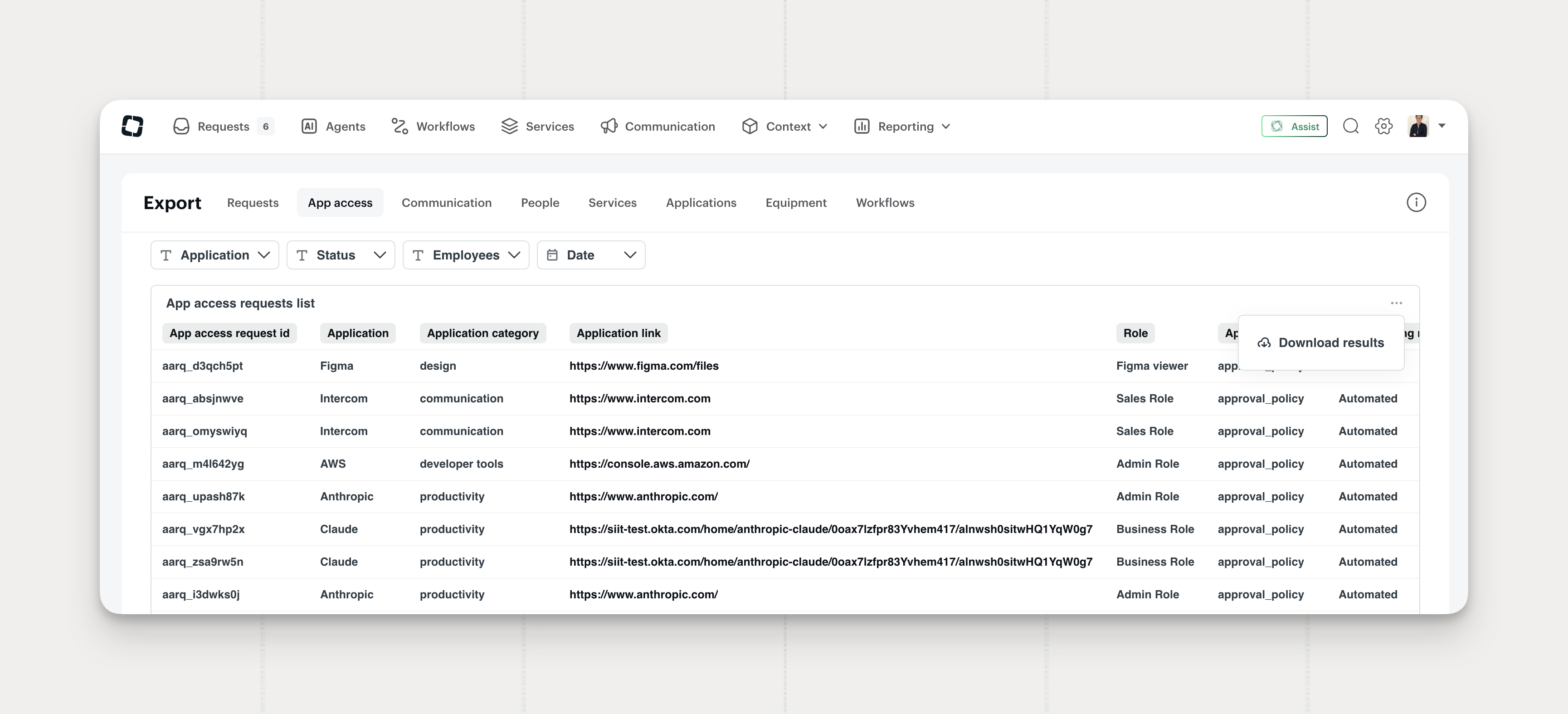
App Access Export
Reporting carries a new App access export. Each row is one app access request with its whole lifecycle attached, from the employee who asked through to provisioning, expiration, or deprovisioning.
- Full lifecycle timestamps. Submission, approval, provisioning started and completed, rejection, cancellation, expiration, failure, and deprovisioning dates, plus the complete state transition history.
- Cycle-time columns. Time to decision and time to provision, so you can measure where access requests stall.
- Failure detail. A reason key and message on every failed provisioning, for example when the employee already belongs to the target group.
- Context on every row. Department, office location, application category, role, approval mode, the connector that ran the provisioning, and the linked request with its id, subject, inbox, assignee, service, and URL.
An access review becomes an export: pick the period, filter on status, and read who holds what, who approved it, and what's due for deprovisioning.
Where to find it: Reporting → Export → App access
Available on all plans.
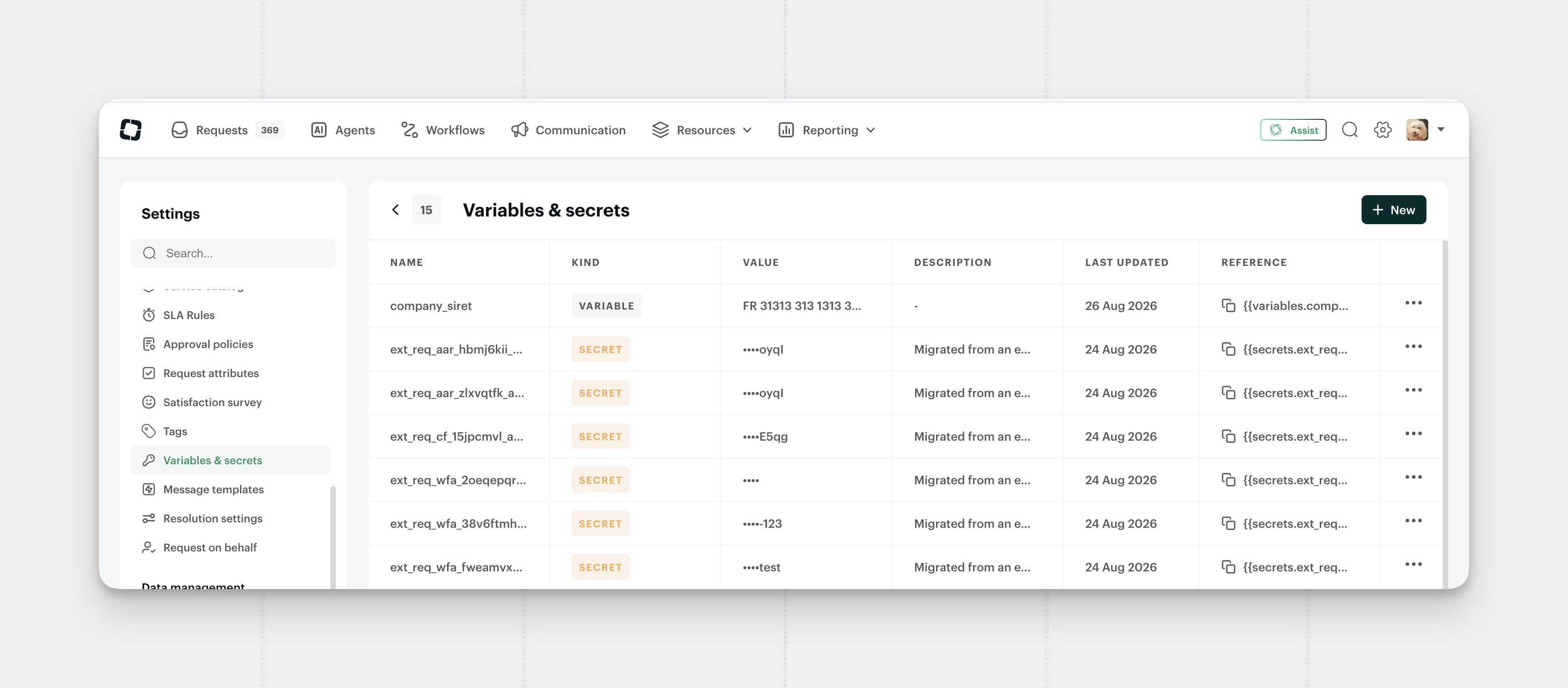
Variables and Secrets for Workflows
You can now store a value once in Siit and reference it from every workflow that needs it, so a credential lives in one place instead of inline in every external request.
- Variables and secrets in one page. Plain variables stay readable in settings. Secrets encrypt at rest, and Siit only ever shows their last four characters.
- Copy the reference. Each row carries the exact string to paste into a workflow:
{{variables.name}}or{{secrets.name}}. - Secrets scoped to external requests. Variables appear on every workflow action, secrets only on Send External Request, so a secret never renders into a message or a reply.
Change a credential in one place and every reference picks it up.
Where to find it: Settings → Variables & secrets
Available on all plans.
Attachments and Safe Retries in the Request Import API
The batch import endpoint now accepts attachments, so a migration off Jira carries the original files across with the requests. Retries are safe too: Siit recognizes a request it has already imported.
- Attachments on imported requests. Pass a file URL alongside the request payload and Siit fetches the file and attaches it to the imported request.
- Idempotent imports. A retry after a timeout or a partial failure lands cleanly, so a failed run is safe to repeat.
History comes into Siit whole, conversation and files together.
Where to find it: the import-past-requests reference on developer.siit.io
Available on all plans.
Grouped Requests in the Public API and MCP
Grouped requests now work outside the app. The Public API and the Siit MCP server both handle a group as a single object, so your existing scripts and agents can act on a group without iterating over the requests inside it.
- Groups on the Public API. Request endpoints understand a group, returning it together with its member requests.
- Grouped request tools on MCP. New tools create, read, and act on a group directly.
Available on all plans.
App Access Requests in the Public API and MCP
You can now read and decide app access requests programmatically, so an agent works through a backlog of pending access requests end to end.
- Read a request. New Public API endpoints return the app, the current status, and the full request timeline, and the matching MCP tool exposes the same detail to an agent directly.
- Approve or reject from MCP. Two new tools act on a pending app access request, so a decision can happen wherever the agent is running.
Where to find it: the app access reference on developer.siit.io
Available on the Pro plan.
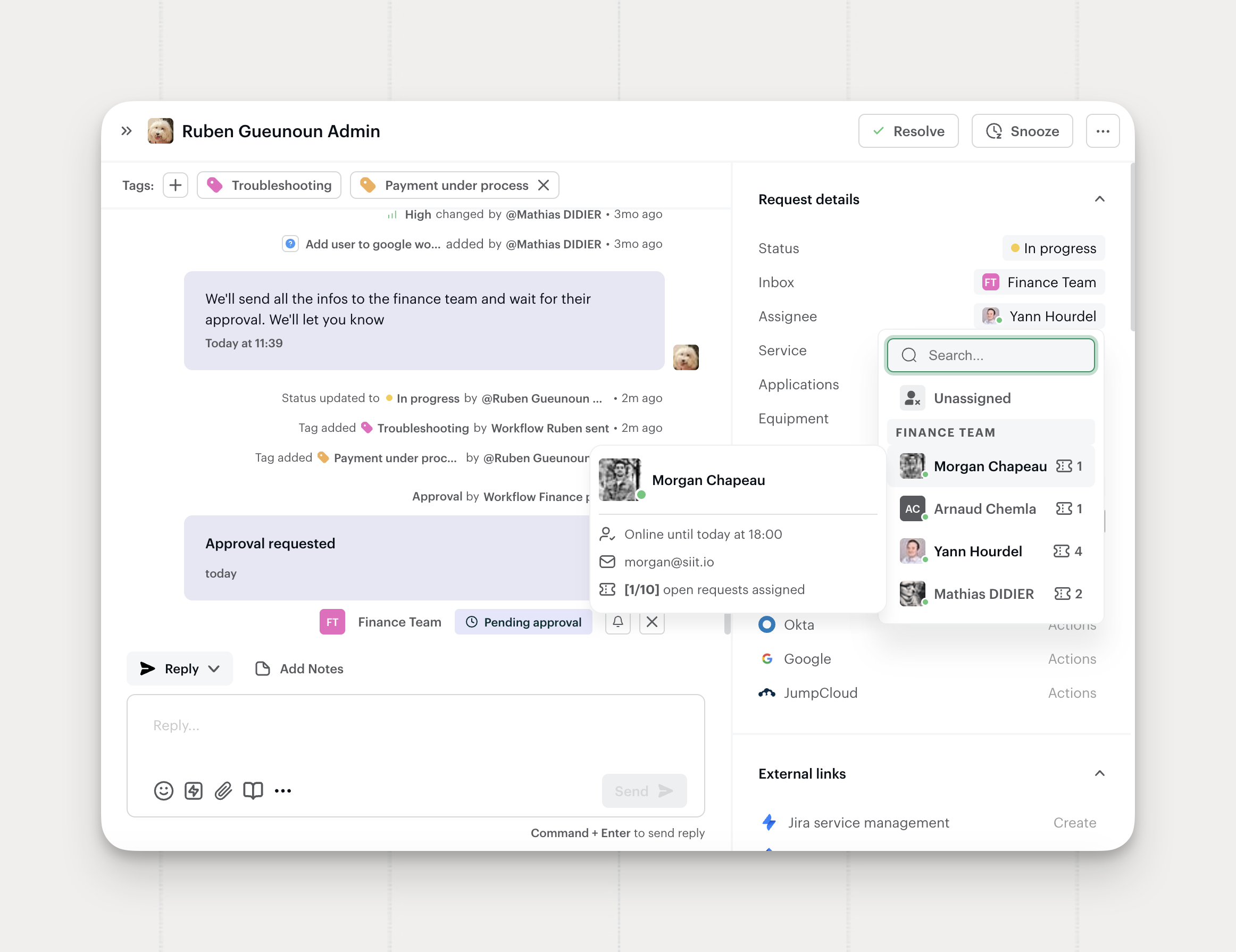
Workload and Availability in the Assignee Dropdown
The assignee dropdown now shows how loaded each admin is before you pick one. Every name carries a count of open requests, and hovering a name opens a card with their availability, their email, and their open-request maximum.
- Open request count on every name. A counter sits next to each admin, so relative load reads at a glance.
- Availability on hover. The card shows whether an admin is online or offline, and until when if an end time exists.
- Email and maximum. The same card carries the admin's email, plus their open-request maximum when someone set one.
- Discarded requests don't count. The counter leaves discarded requests out, so the number reflects live work.
Route a request to whoever has room to take it, right where you assign.
Where to find it: the assignee dropdown on any request.
Available on all plans.
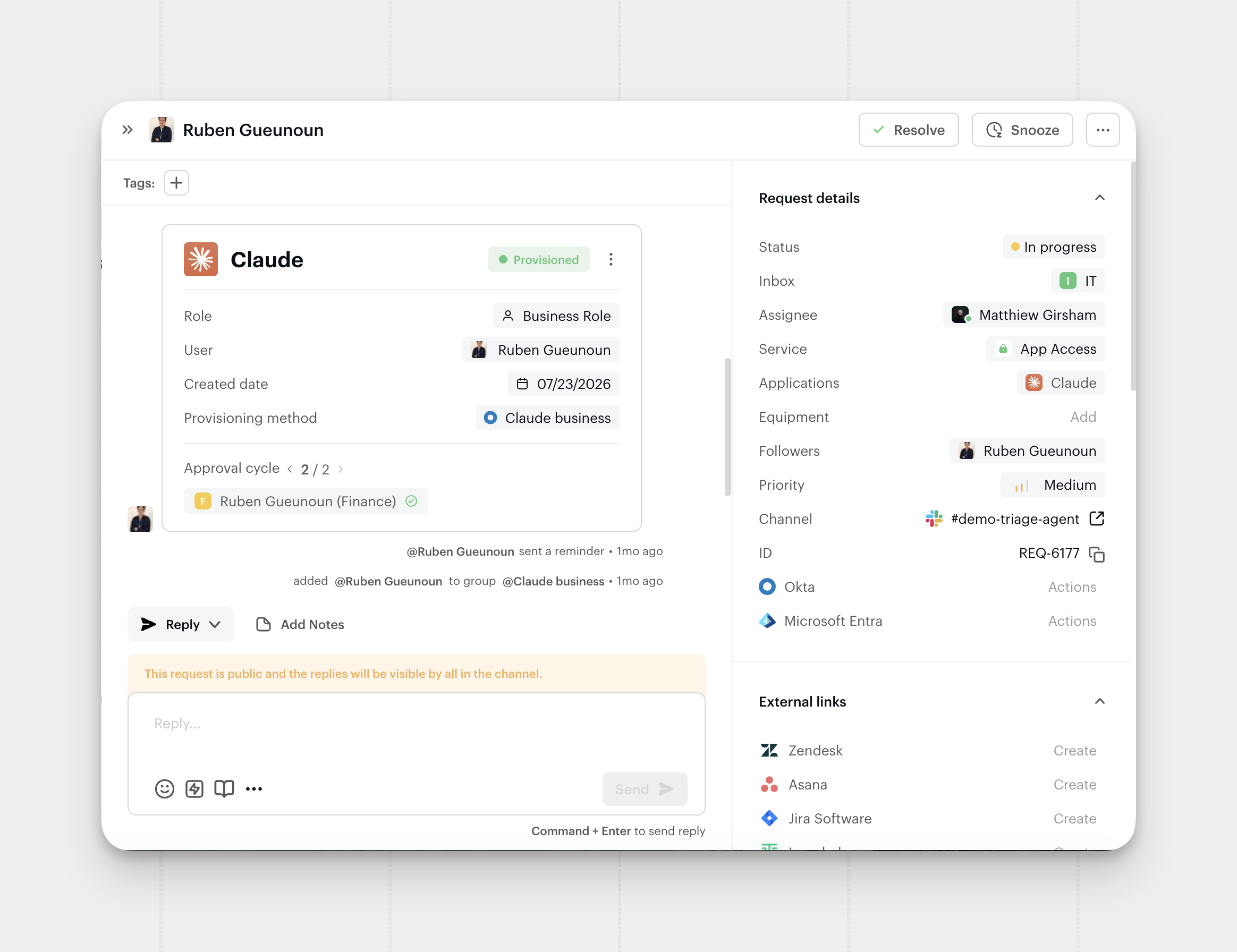
Approval Round History on the App Access Card
The App Access card now carries every approval round, not only the one in flight. Step back through the rounds that already closed to see who signed off and when.
- Move between rounds. The Approval cycle counter on the card gains arrows to step from the current round to any round that already closed, without leaving the card.
- Current and past only. Rounds that haven't started stay out of the card, so it shows only what happened and what's happening.
On an App Access that ran a two-round cycle, admins can check the first round's decision from the card instead of opening the activity feed.
Where to find it: the App Access card on any request or app.
Available on the Pro plan.
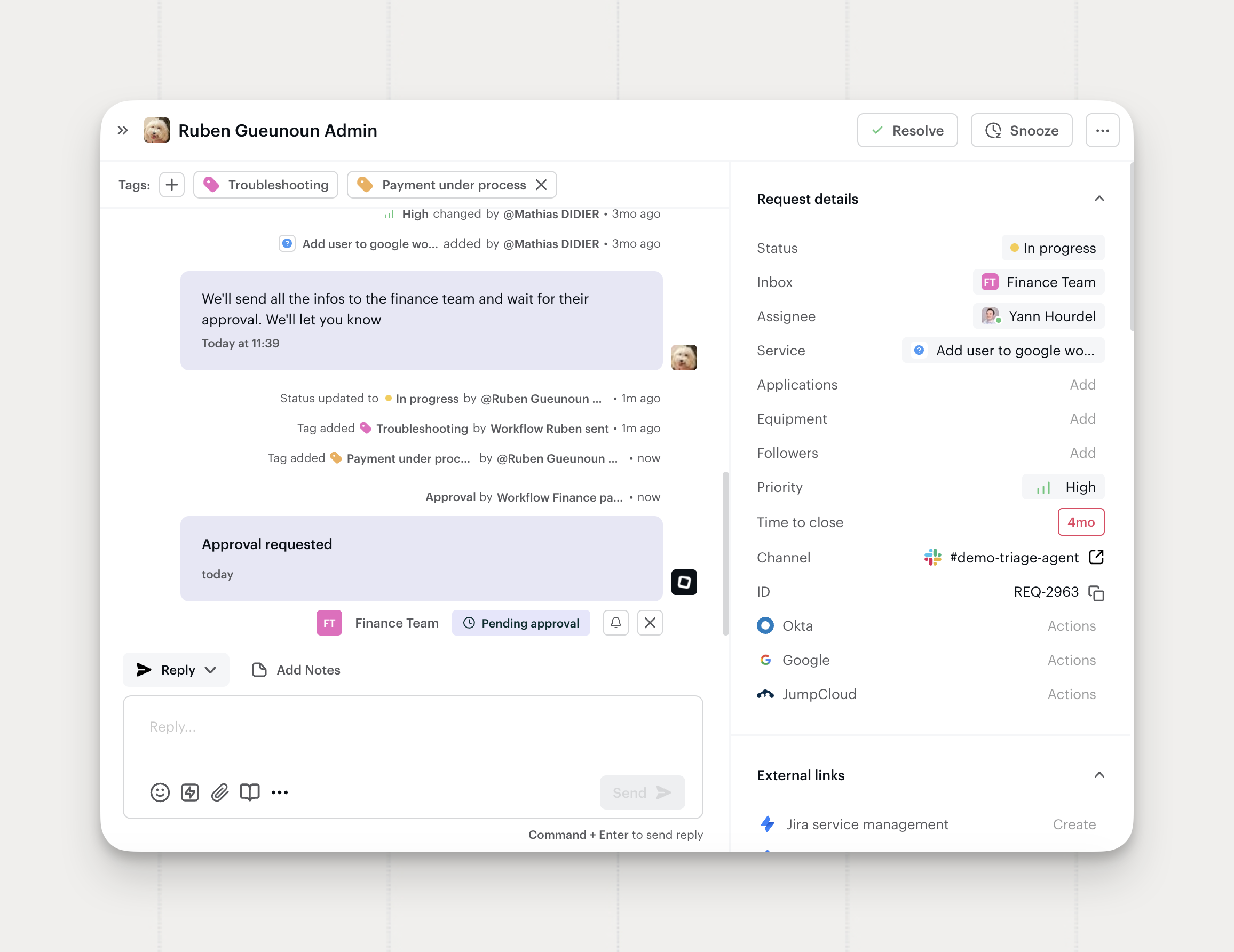
Cancel a Workflow-Triggered Approval
You can now cancel an approval that a workflow started, the same way you already cancel a manual one.
- Cancel from the approval card. The cancel control appears on workflow approvals, in the same place it already sits for manual approvals.
- The workflow stops at the approval step. Siit halts the run at the approval step rather than continuing down the approved or rejected branch.
- A confirmation that names the consequence. The confirmation modal spells out what cancelling does to the workflow run before you commit.
An approval sent to the wrong approver can be cancelled on the spot, and the team moves on.
Where to find it: any request carrying a pending workflow approval.
Available on Standard and Pro plans.
Manage Siit from Slack with the Slackbot MCP Client
You can now connect the Siit MCP server directly to Slackbot, so your team can run Siit straight from a Slack conversation, in plain language, without opening the Siit console.
- Siit actions in Slack. Ask Slackbot to look up, update, and act on Siit requests, workflows, and app access through the Siit MCP tools, right inside Slack.
- Create internal follow-ups on the spot. Turn a Slack conversation into a follow-up request in Siit in one step, so nothing gets lost once the thread moves on.
- Natural language, native to Slack. Describe what you need and Slackbot picks the right Siit tool, asking for your approval before it acts.
Where to find it: open a DM with Slackbot, click the Apps button, and add Siit.
Available now. Connecting an MCP server in Slackbot is managed by your Slack workspace, and admins can control which apps are available.
A New Slack Agent Experience, with Visible Reasoning
The Siit Agent now shows its work in Slack. When it resolves a request, you can follow its reasoning step by step, so it's clear how it reached the outcome, not just what it replied.
- See the resolution steps. The agent lays out what it checked and the actions it took on the way to resolving a request, so employees and admins can trust and verify the result.
- A more natural Slack experience. Built on Slack's new agent experience: the agent replies in thread, like chatting with a teammate.
- Siit now lives in your Direct messages. With this change, the Siit app moves from Slack's Apps section to Direct messages. Conversations with Siit sit in the standard Messages tab, alongside your other DMs.
Action required: to turn on the new experience, go to Settings → Integrations → Slack and click Refresh now.
Available on the Pro plan.
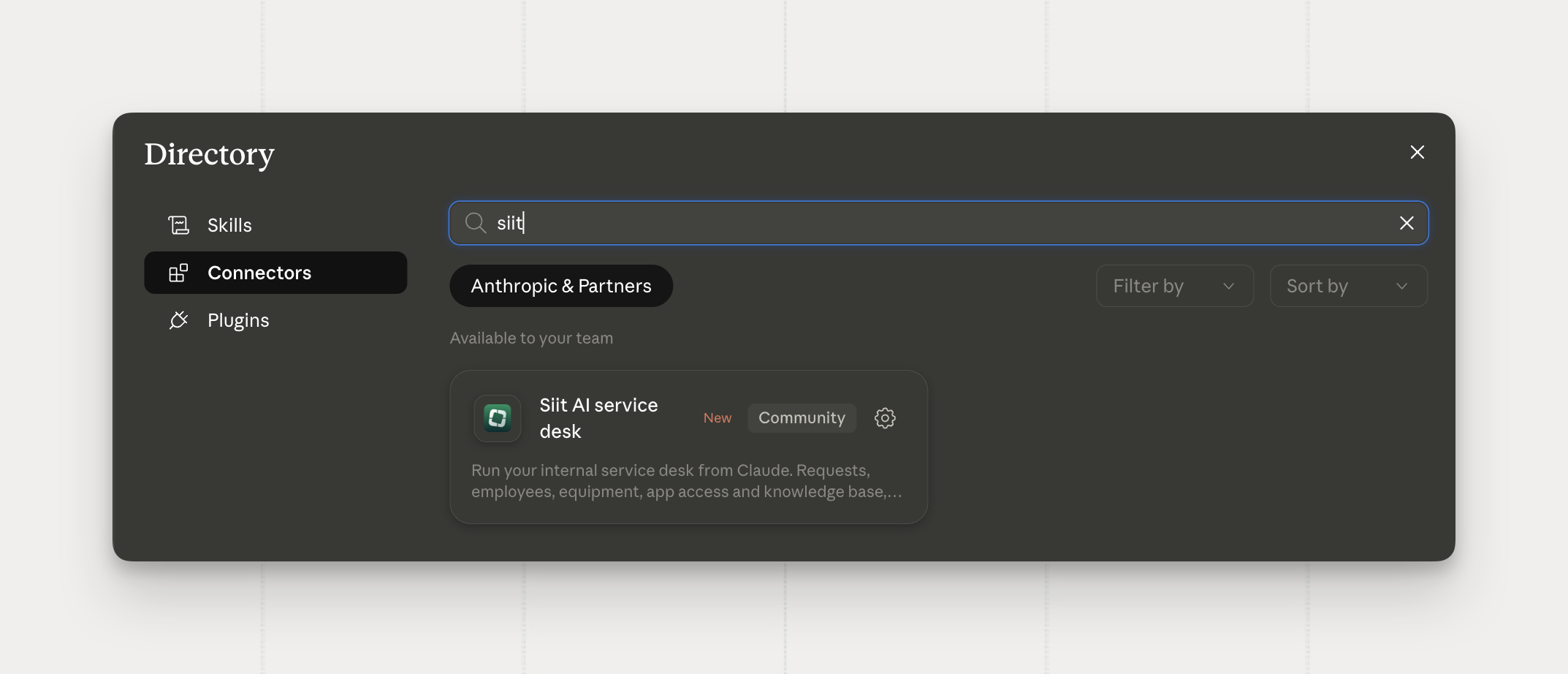
Siit Is Now in Claude's Connector Directory
The Siit MCP connector is approved and published in Claude's connector directory. Find Siit in the directory and connect it in a few clicks, with no manual server setup.
- One-click discovery. Browse to Siit in Claude's connector directory and add it, no URLs to paste or configuration to wire up by hand.
- Siit, inside Claude. Once connected, Claude works with your Siit requests, workflows, and app access through the Siit MCP tools, so you can triage a request or kick off a workflow right from a conversation.
Where to find it: the connector directory in Claude.
Available now.
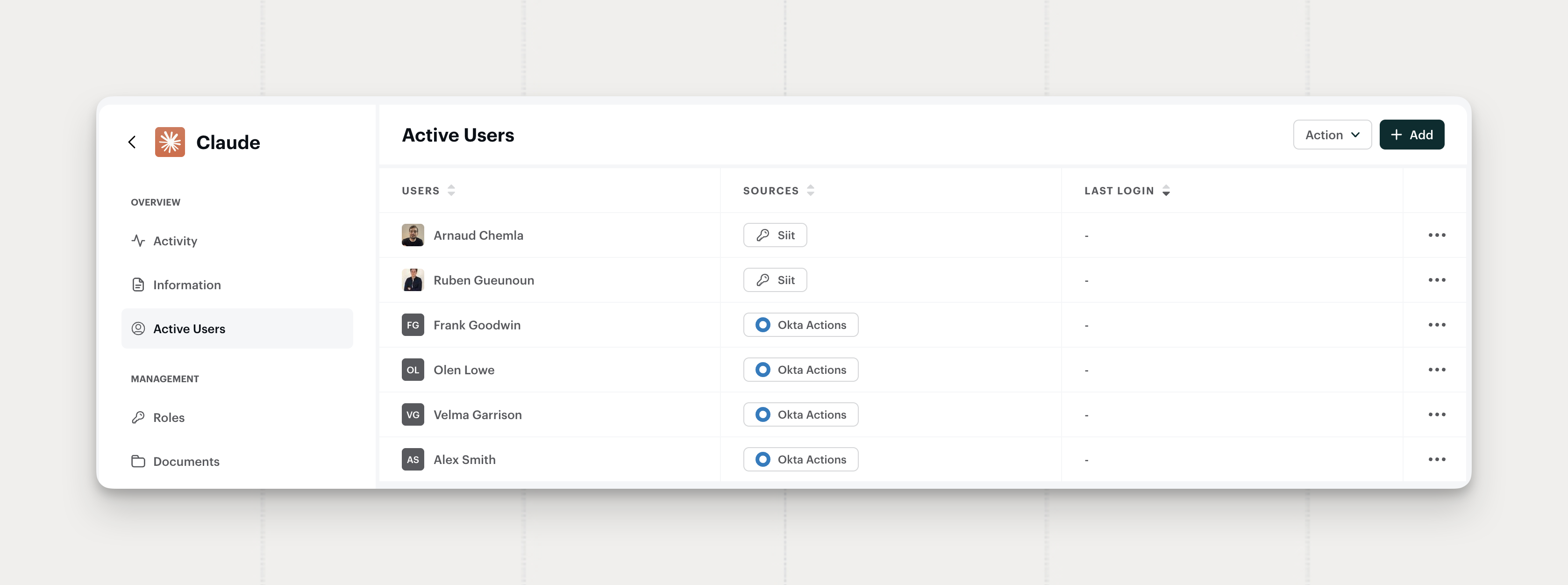
See Where App Access Came From
The Active Users list on an app now shows where each person's access originated. A Sources badge per user names what granted it: an identity provider, App Access, or a direct grant.
- Source badges. Each active user carries a badge naming the origin of their access.
- Several sources at once. A user granted through more than one path shows every source.
Reviewing who has access to an app now tells you how they got it, whether that's your identity provider, an approved request, or a manual grant.
Where to find it: the Active Users list on any app.
Available on Standard and Pro plans.
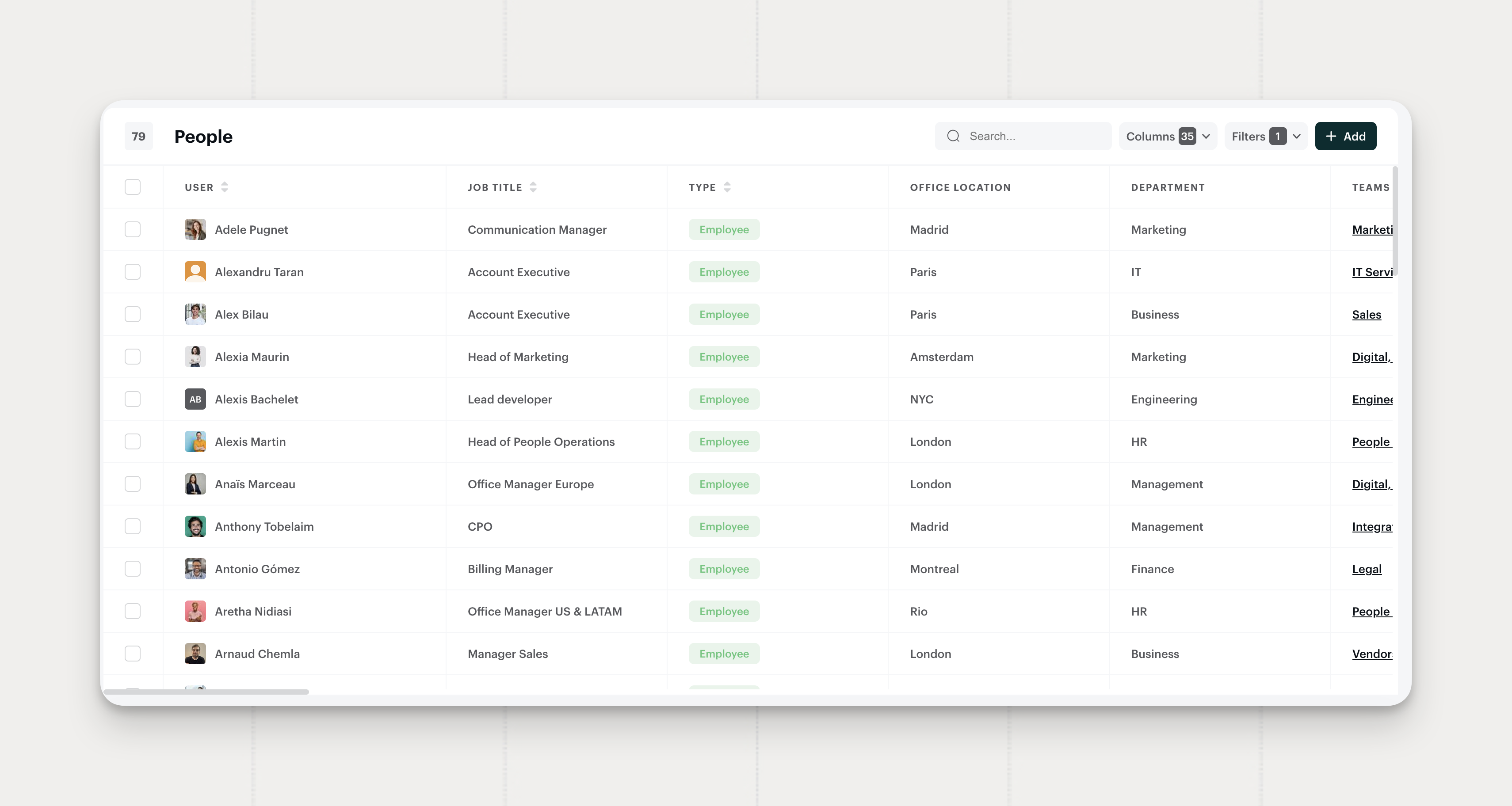
Okta & HRIS User Import Supports Email Aliases
User imports can now map additional email addresses alongside the primary one, so a person who appears under several email domains lands as a single profile.
- Aliases in the mapping. The employee custom mapping accepts an
aliasesattribute containing additional addresses. - Reconciliation on any address. An import matching an existing person on any of their addresses updates that person's profile.
One person, one profile, whichever integration brings them in, so approval routing always resolves to the right individual.
Available on Standard and Pro plans.
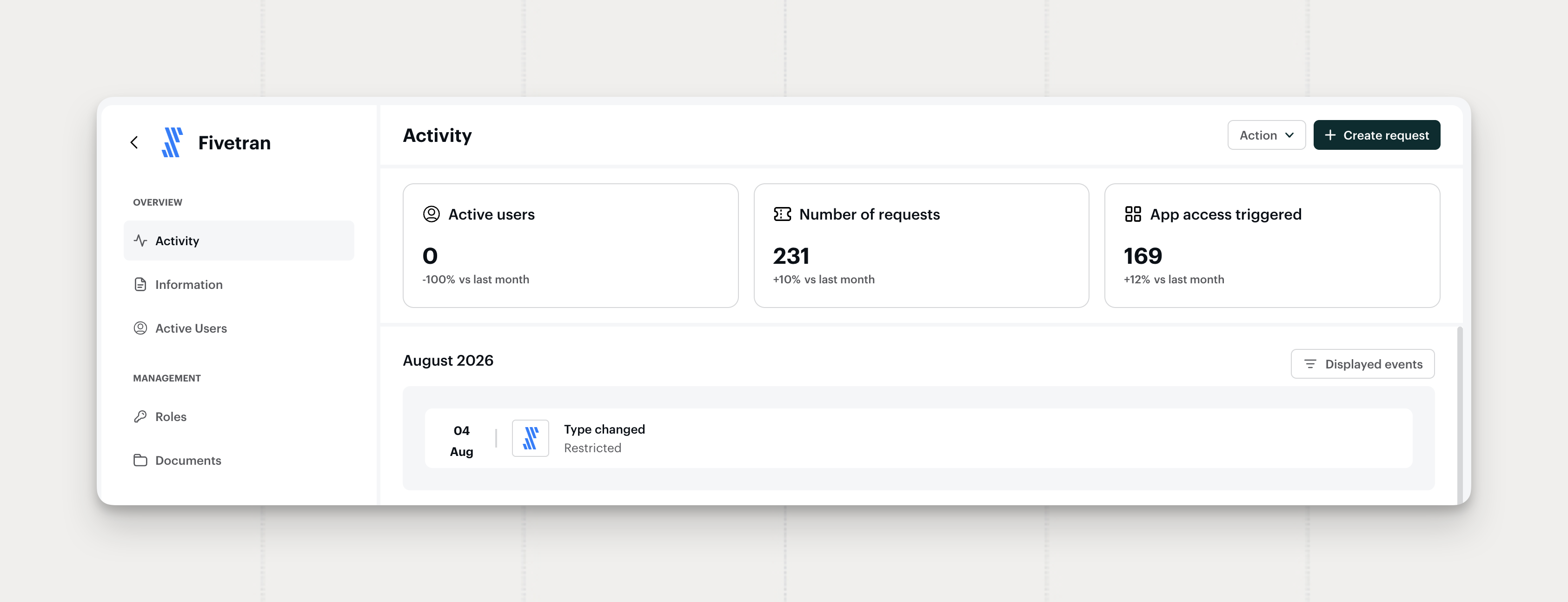
Okta App Removals Sync to Siit
Deleting an app in Okta now marks it Restricted in Siit automatically, keeping your catalog aligned with your identity provider.
- Automatic restriction. An app removed in Okta flips to Restricted on the next sync, and the change lands as a Type changed event on the app's activity.
- Scoped to Okta-managed apps. Only apps discovered and managed through Okta are affected. Apps added in Siit or from another source keep their status.
Available on Standard and Pro plans.
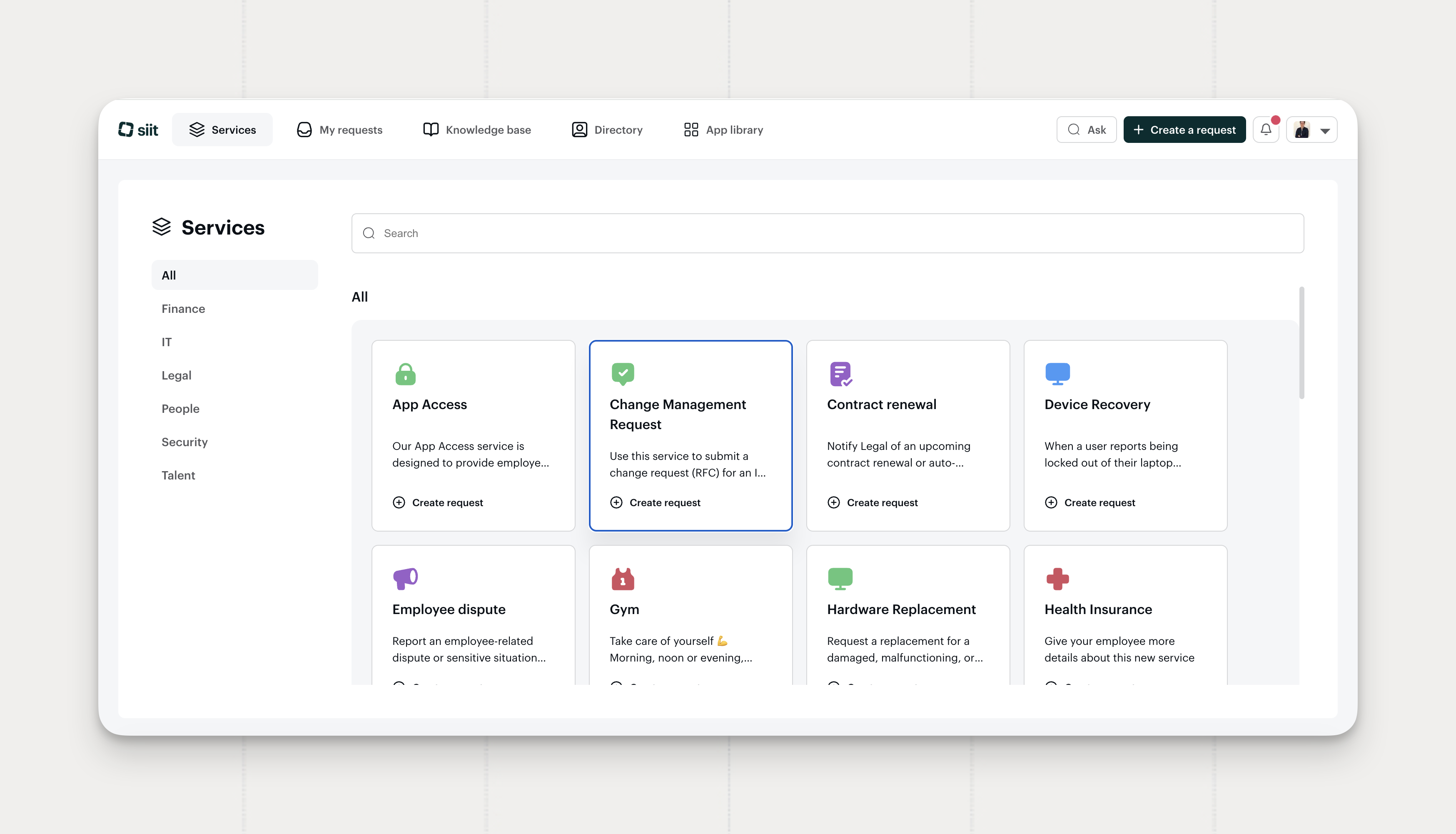
Portal Service URLs Preselect the Service
A service URL now opens the portal request creation form with that service already selected and its fields displayed. Requesters land straight on the form, with nothing to search for.
- Direct links. Sharing a service URL drops the requester into the matching form.
- Fields ready. The form fields tied to the service render immediately, ready to fill.
- Works embedded. The behavior holds in the Microsoft Teams version of the portal.
Teams can now put a link to a specific service in an onboarding doc, a Slack channel topic, or an email signature.
Available on all plans.
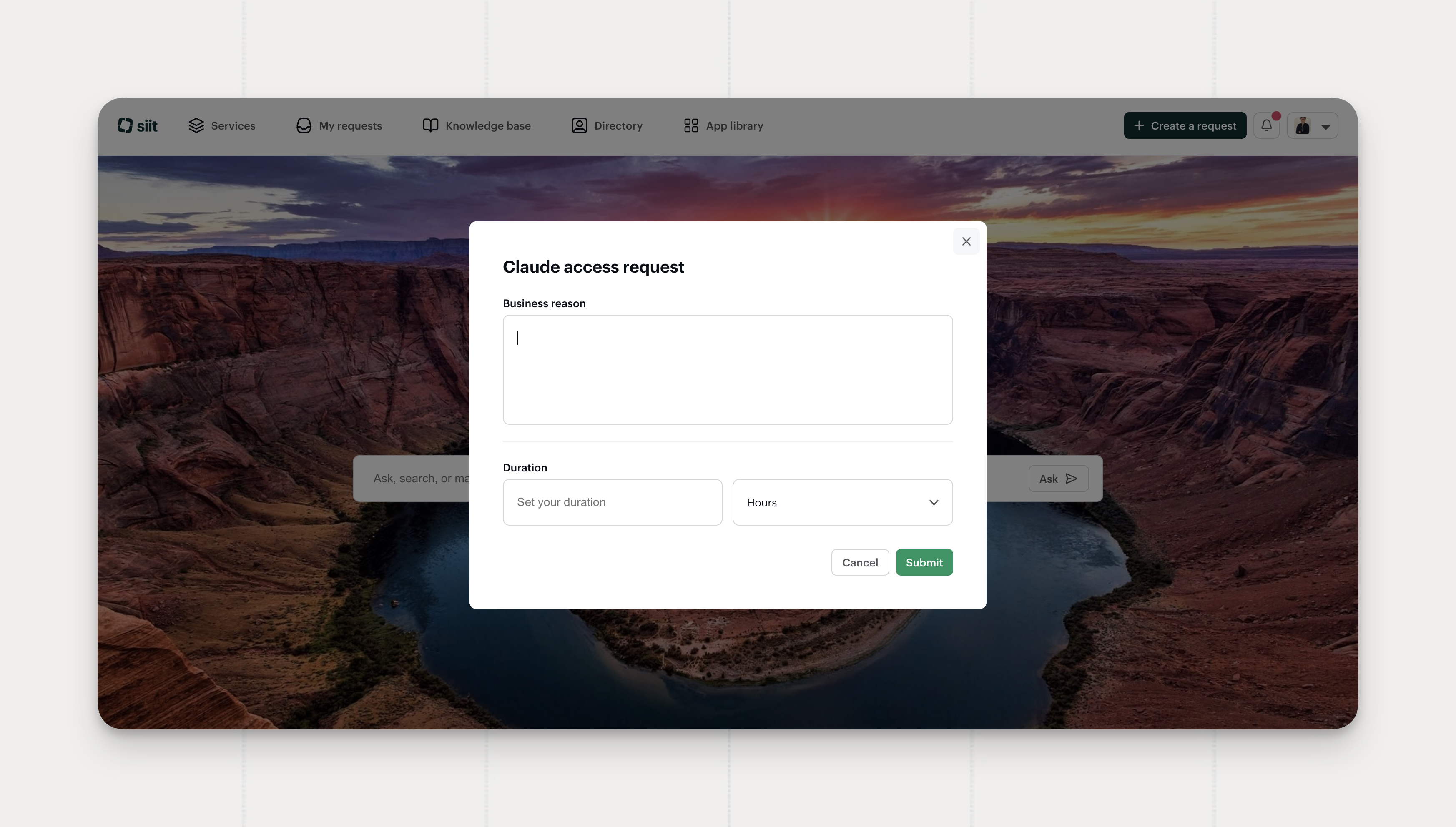
Request App Access Without Leaving the Form in the Portal
App access requests from the portal now collect everything in the request creation flow itself. Role, duration, and business reason each get their step inside the same form, one application at a time.
- One flow. Each selected application gets its own step in the request modal, in sequence.
- Roles prefilled. An application with a single available role fills it in for the requester.
- Only what's needed. Steps with no role choice, duration, or business reason to collect are skipped entirely.
The portal now matches the inline flow employees already have in Slack. Requests created from the Siit admin console keep the full completion form.
Available on the Pro plan.
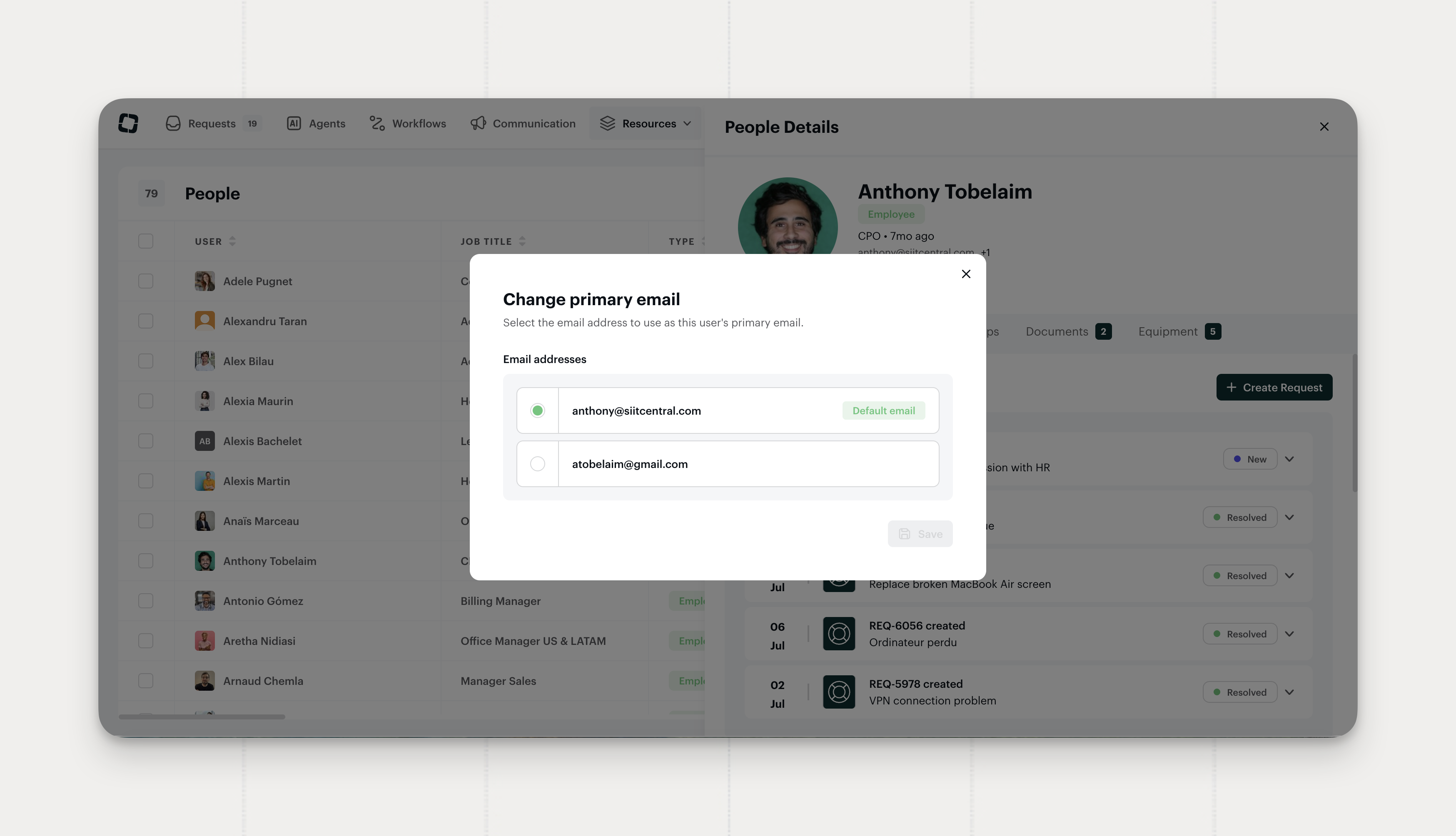
Primary Email Is Now Editable in People
When a person has several email addresses synced from your integrations, Siit holds one of them as primary. Admins with user-management permission can now change which one, straight from the People overlay.
- Change primary email. The
...menu on any person opens the list of their known addresses, with the current primary preselected. - Integration actions follow. Provisioning and group actions resolve against the new primary right away.
- Logged on the person. Each change records a timeline event naming the new address and the one it replaced.
Where to find it: the ... actions menu on any person in People.
Available on all plans.
Request Timeline Shows Tags Added
The request activity timeline now records tags. When someone adds a tag to a request, Siit logs a Tag added event with the tag and who applied it, so you can see who classified a request and when.
Available on all plans.
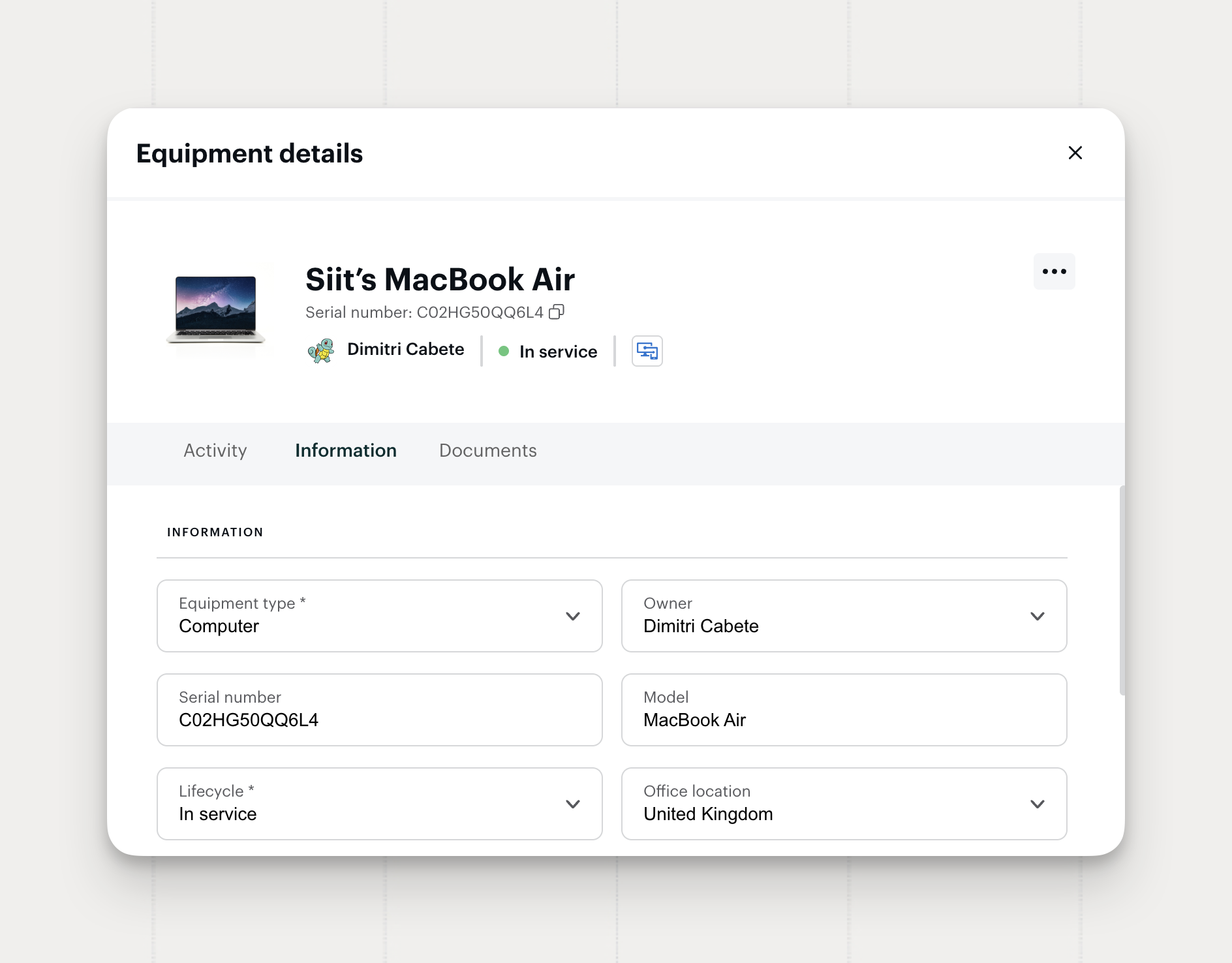
Equipment Data Sync
Equipment records now pull office location from your MDM and keep their lifecycle in step with ownership, two more fields that stay accurate on their own.
- Office location from your MDM. Siit maps office location from Jamf, Microsoft Intune, Kandji, and JumpCloud through the equipment field mapping.
- Jamf buildings. On Jamf, Siit resolves the location from the buildings it already syncs.
- Lifecycle follows the owner. Assign an owner to a spare device and Siit moves its lifecycle to In service, unless you changed it yourself in the same edit.
Fleets syncing hundreds of devices keep their spare count true to what's actually on the shelf.
Where to find it: the equipment field mapping on your MDM integration, and any equipment record.
Available on Standard and Pro plans.
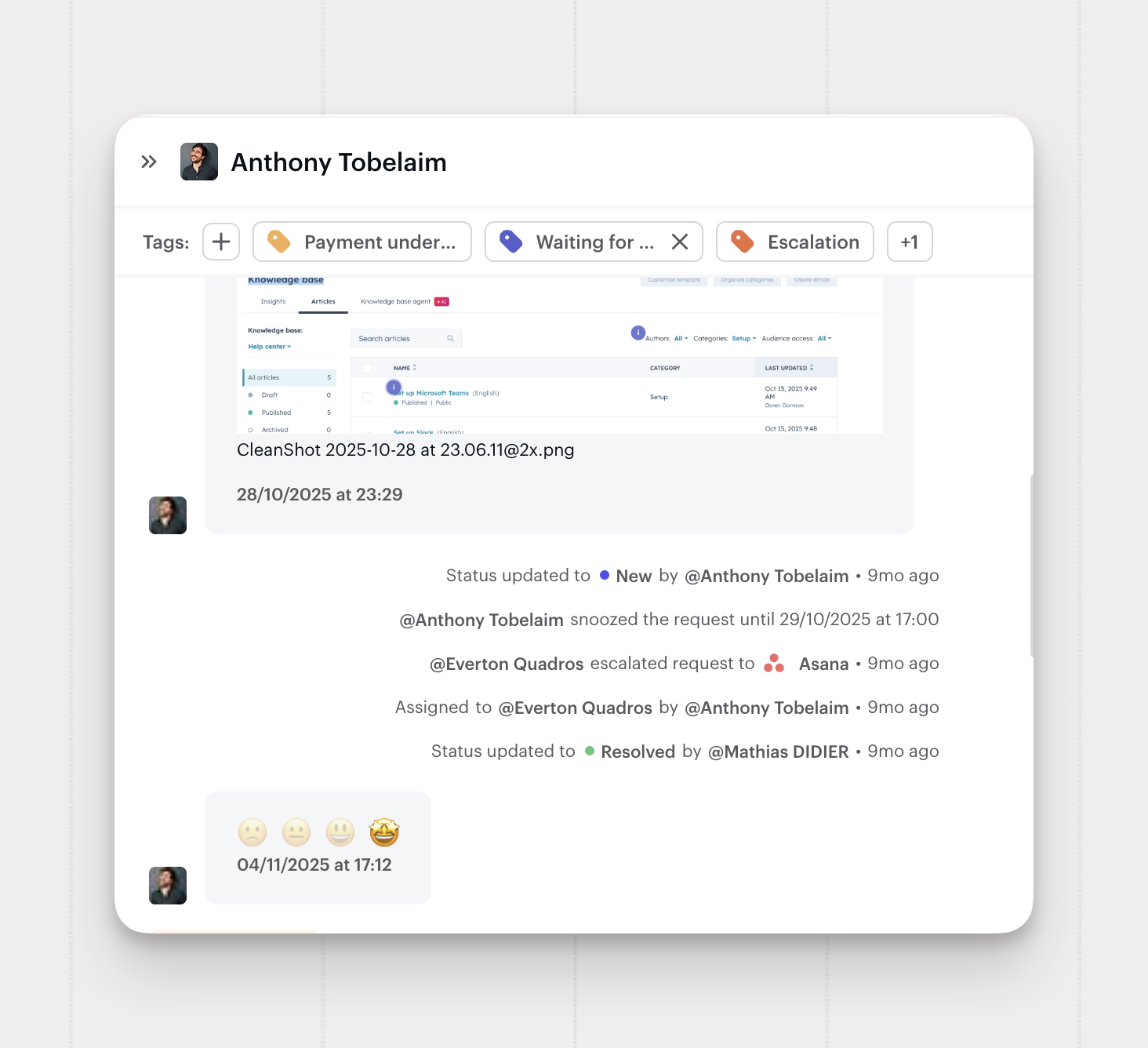
Satisfaction Survey Rating in the Public API and MCP
Requests returned by the Public API now carry their satisfaction survey rating. The field travels through the Siit MCP request tools too, so an AI client reads the rating alongside the rest of a request.
satisfaction_survey_ratingon requests. The field returns the rating an employee left after their request closed, andnullwhen no survey came back.- Same field over MCP. Siit MCP request tools return it with the rest of the request payload, no separate call needed.
Pull satisfaction ratings straight into external reporting instead of exporting them from the app.
Available on all plans.
App Access Activity Card and Events Log
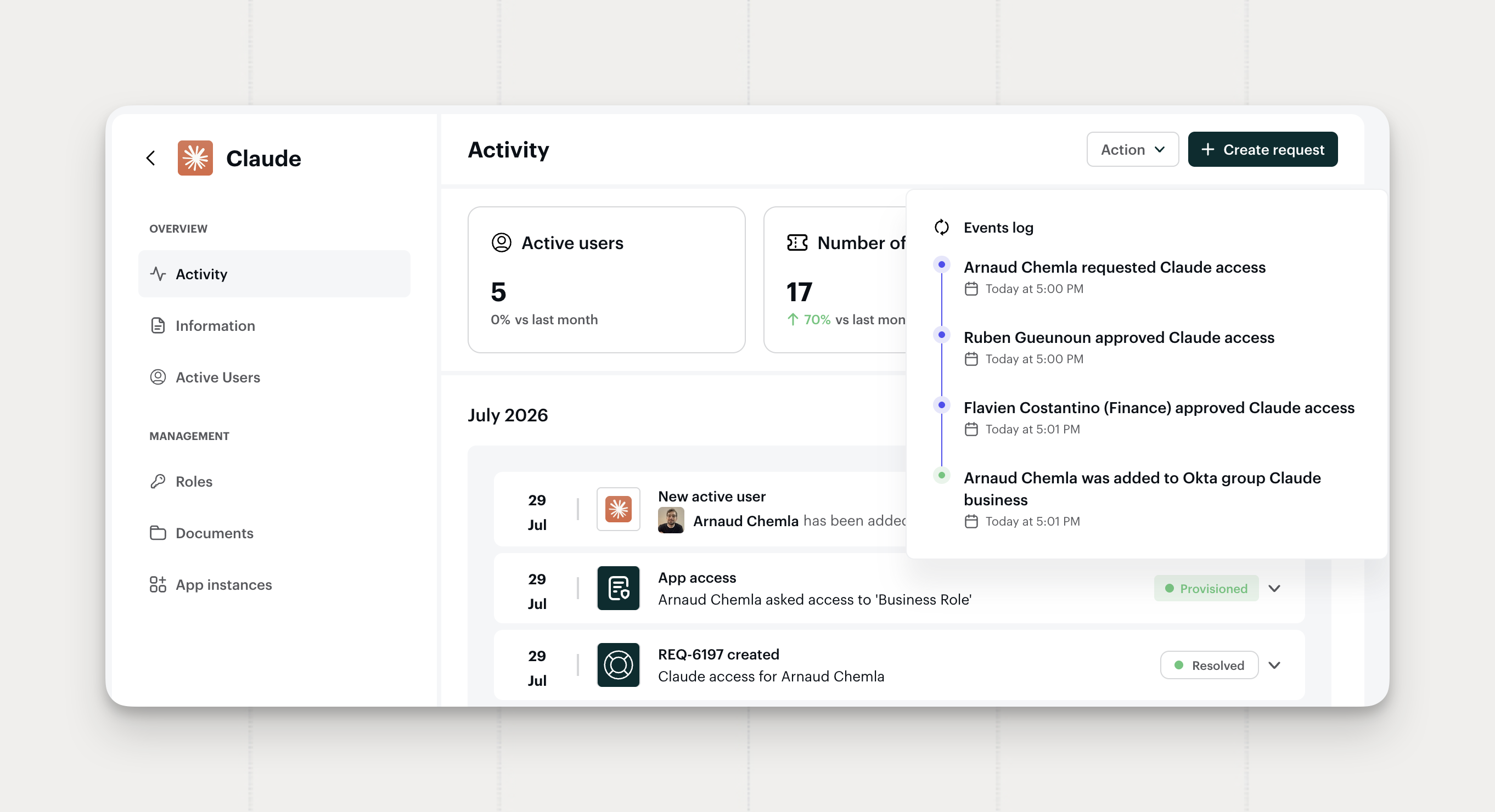
The App Access activity card now reads as an events log. Siit records each action that moved the access status and lists them in order, directly on the card.
- Only what changed the status. The card carries the events that moved the App Access status and leaves the rest out.
- Full action coverage. Events span request creation, every approval, manual and automatic provisioning actions, provisioning failures, cancellations, expirations, and planned deprovisioning.
- Older records too. Siit backfilled events onto existing App Access records, so past access history reads the same way as new.
Admins can trace why an access ended up granted, failed, or expired without leaving the app's activity feed.
Where to find it: the Activity feed on any app.
Available on the Pro plan.
Redesigned Approval UI
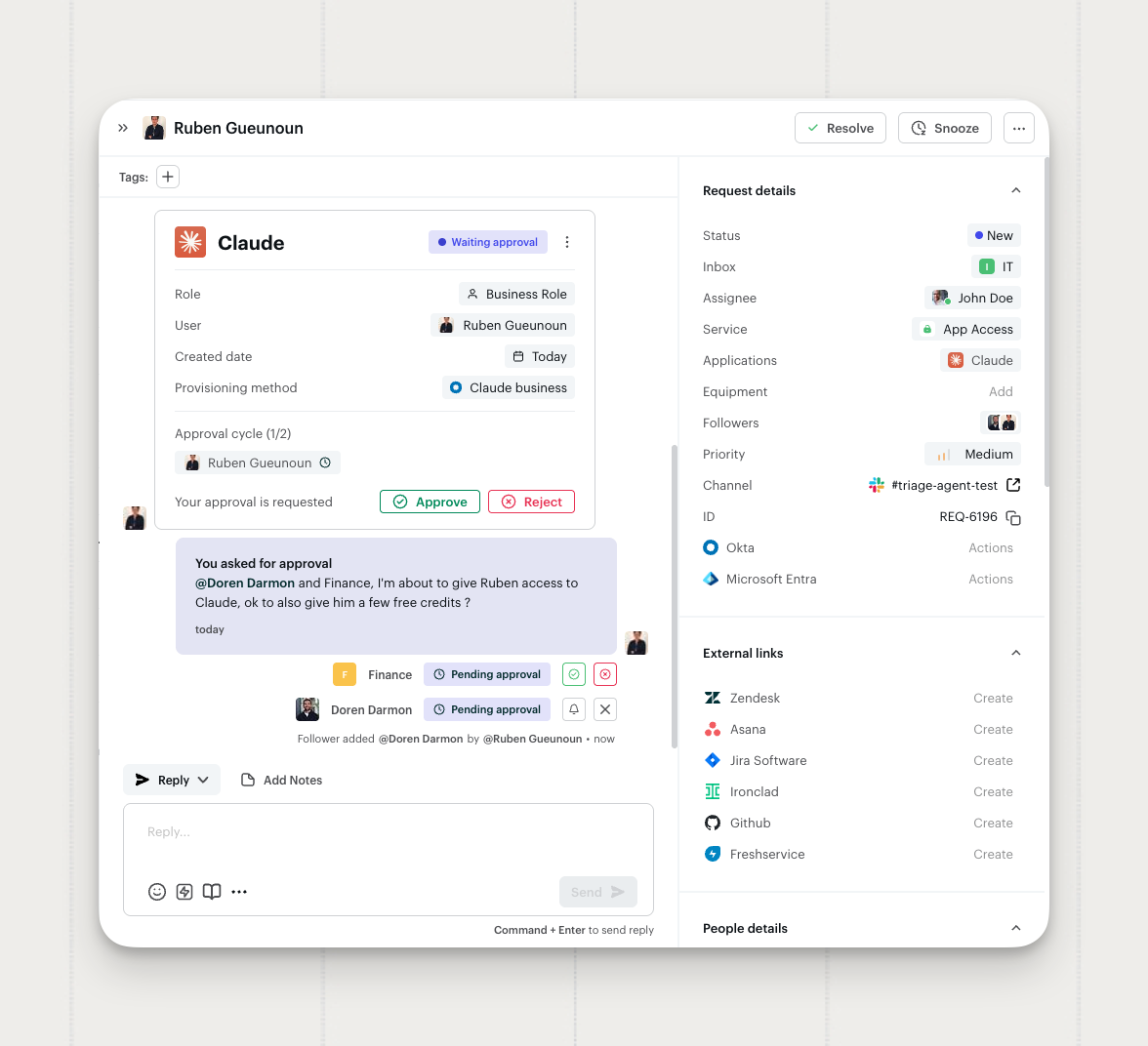
Approvers now act from the row that names them. Approve and reject sit inline on your own approver line, in both Siit and the Self-Service Portal, instead of two large buttons at the top of the request.
- Inline approve and reject. The actions sit on your own approver row, where the reminder and expire controls used to be.
- The approver message shows. App Access approvals now display the custom message an admin wrote for approvers.
- A clear prompt on App Access. A Your approval is requested title introduces the actions, so a pending approver knows the App Access waits on them.
- Portal parity. The same approval card renders in the Self-Service Portal request overlay.
On a request carrying several approval rounds, each approver finds their decision right next to their own name.
Where to find it: any request or App Access with a pending approval, in Siit or the Self-Service Portal.
Available on all plans.
Skip Approval for App Access
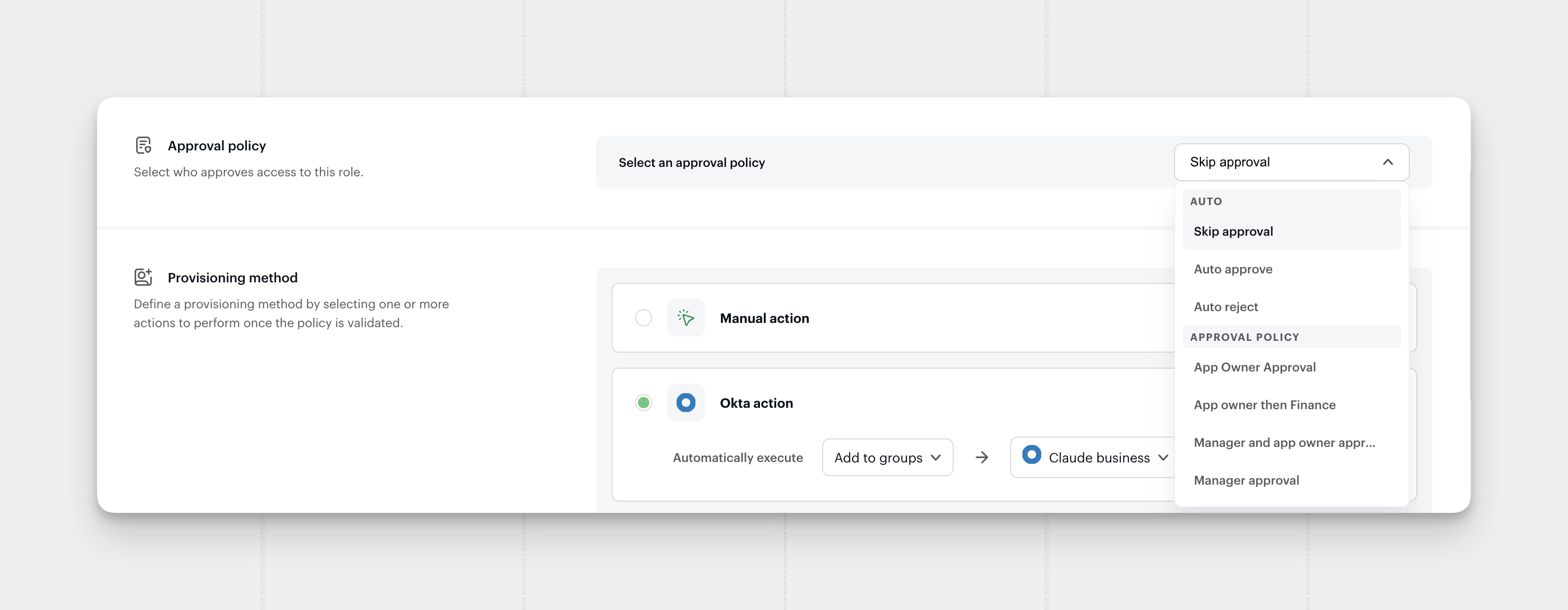
App Roles now offer a fourth way to handle the approval step. Pick Skip approval and Siit provisions the access without running an approval cycle at all.
- Skip approval on an app Role. Choose Skip approval in the Role's Approval policy setting, next to the existing options: Auto approve, Auto reject, or a named approval policy.
- No cycle runs. Siit moves straight to provisioning, with no approver notified and no approval round opened.
- A card that matches. The approval cycle section drops out of the App Access card when a Role skips approval, so the card shows only what actually happened.
Use it for the apps everyone gets by default, where an approval round adds a step without adding a decision.
Where to find it: App → Roles, under Approval policy.
Available on the Pro plan.
Filter Requests by Read and Unread
You can now filter any request view by read or unread, so you can jump straight to what you haven't looked at yet and keep the rest out of the way.
- Focus on what's new. Narrow a view to unread requests so nothing you haven't seen slips past.
- Switch back anytime. Flip the filter to read to revisit requests you've already opened.
Where to find it: add the Read / Unread filter to any request view.
Available on all plans.
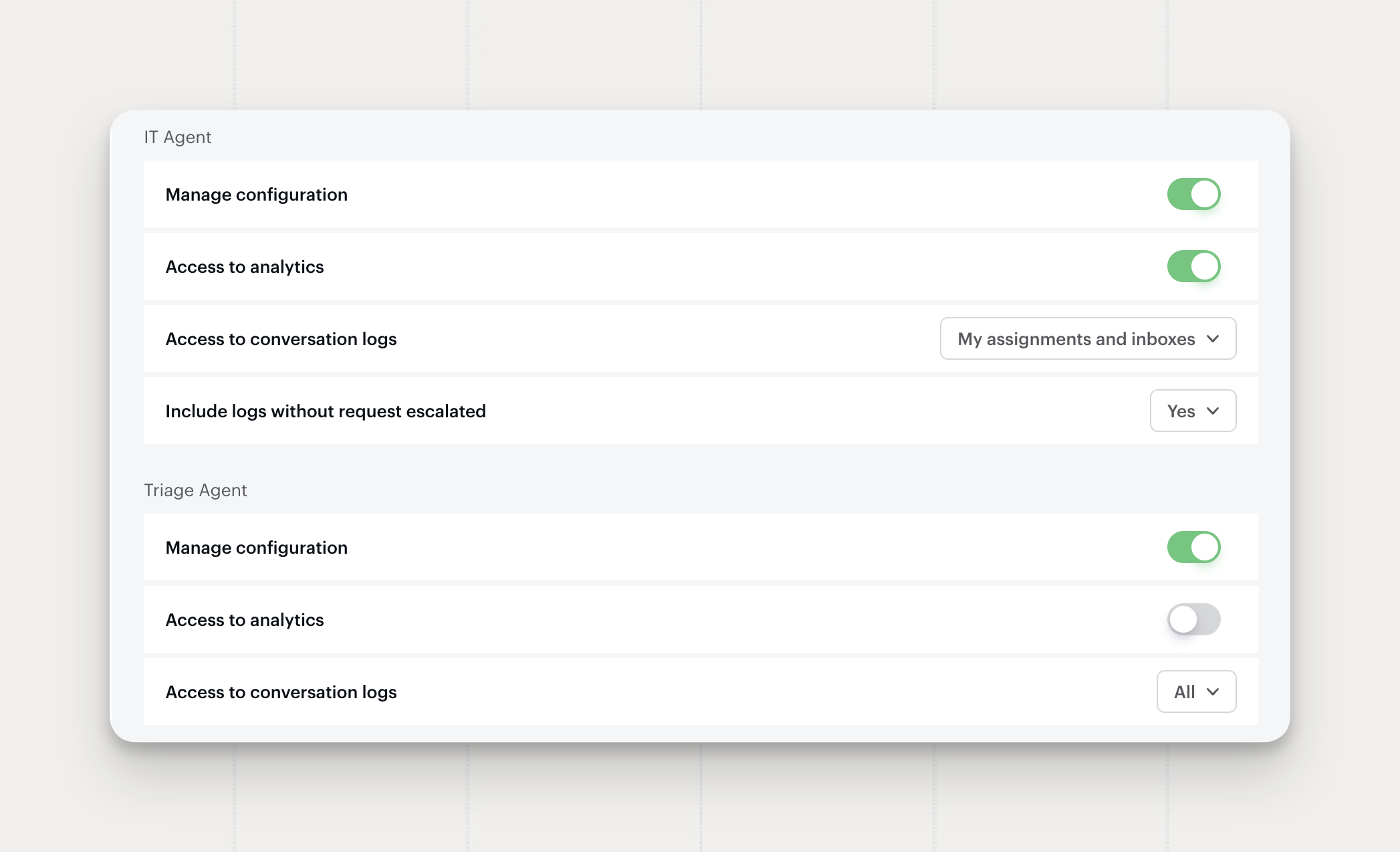
Restrict AI Agent Logs to Accessible Requests
AI agent conversation log access now follows request access. An admin sees the logs tied to the requests they can already open, instead of all-or-nothing access to an agent's entire history.
- Scoped by request access. Conversation logs respect the same access rules as requests, so an admin reads only the logs behind requests they can reach.
- Granular per role. Set log access per admin role to match each admin's request scope, from their own assignments and inboxes up to everything.
Reviewers and partial-scope admins get visibility into agent activity without opening up every request in the workspace.
Where to find it: Settings → Roles and Permissions
Available on the Pro plan.
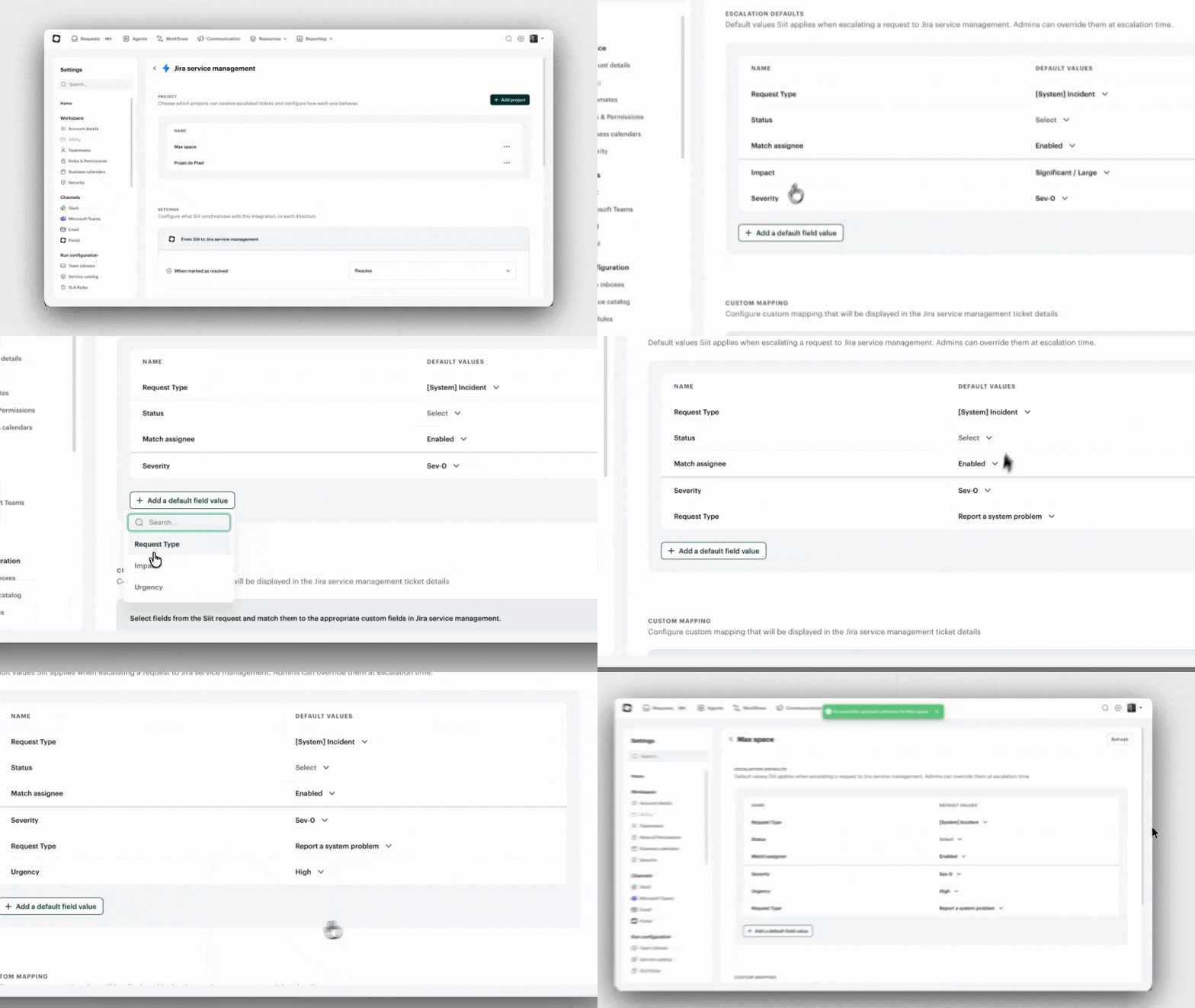
Jira Service Management: Request Type on Escalation
When you escalate a Siit request to Jira Service Management, you can now set the Customer Request Type directly, the field JSM uses to route and categorize tickets. Escalated tickets land as the right request type from the start.
- A proper Request Type picker. Choose the JSM Customer Request Type from a dedicated select, the way JSM itself treats it.
- Default per board. Pick a default Request Type for each board's escalation, alongside the status and type defaults you already configure.
- Override at escalation. Agents can change the Request Type on the spot when escalating a request.
Where to find it: Settings → Integrations → Jira Service Management for the escalation defaults, and in the escalation dialog on any request.
Available on all plans.
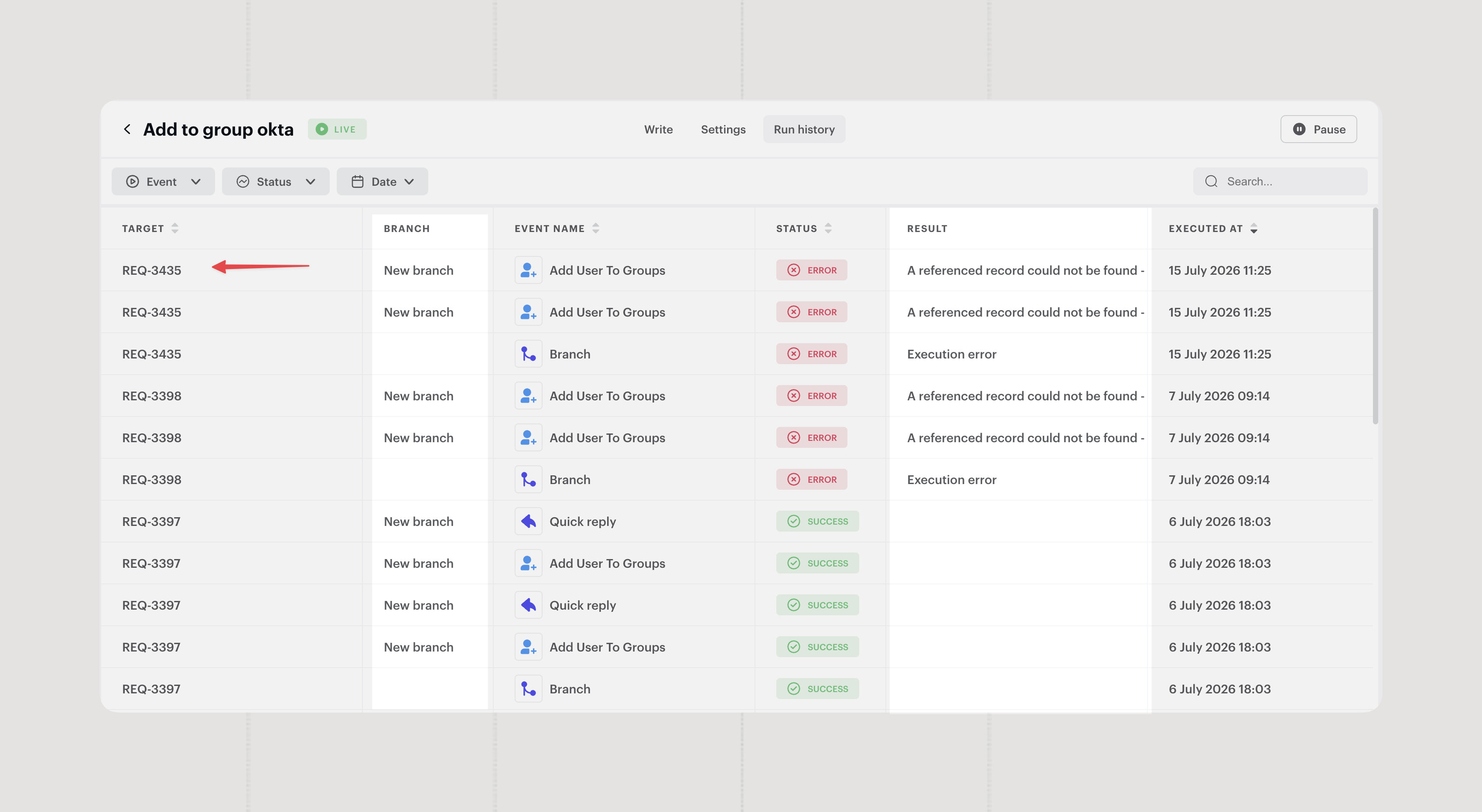
Workflow Run History: Branch Column & Clickable Request IDs
The workflow run history table now shows which branch each run took and lets you jump straight to the request behind it, so tracing what an automation did is faster.
- Branch column. Each execution row shows the branch it followed, so you can see at a glance which path a workflow took.
- Clickable request ID. Click a request ID to open that request in a new tab, without leaving the history.
Where to find it: open any workflow and go to the Run history tab.
Available on all plans.
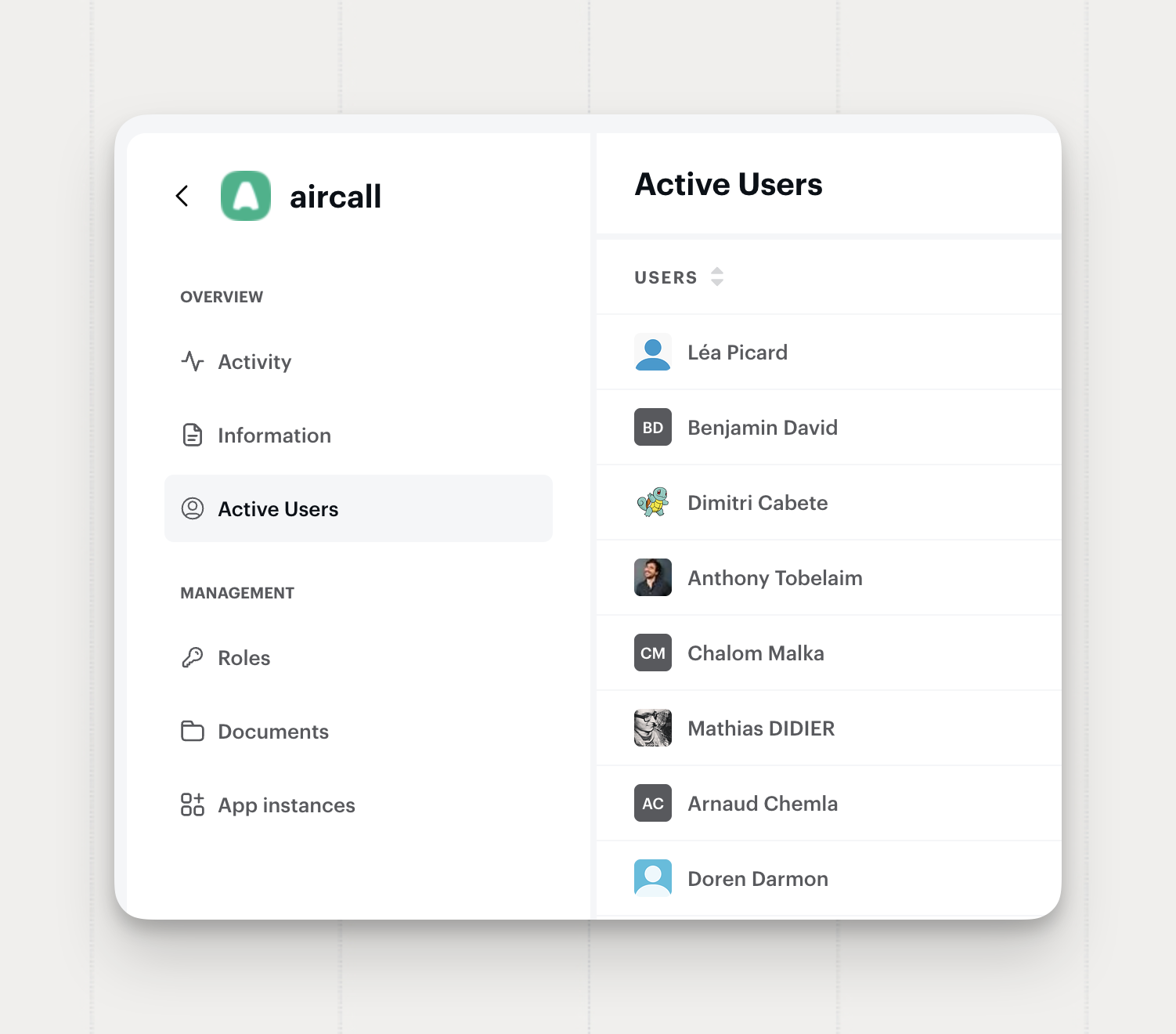
Full Sync Between App Access and Active Users
The Active Users list on an app now reconciles IdP membership and App Access in one place. Whenever Siit grants or revokes access through either source, the user appears or drops from the list right away, and you can see where each person's access comes from.
- Live sync across sources. IdP membership and App Access grants or revocations update the list immediately. Siit reference-counts access, so a user only drops off once their last remaining grant is gone.
- Access origin. Each user shows how they got access: through an IdP provider, App Access, or a direct admin add. One person can carry several origins at once.
- Activity timeline. App access actions appear as events you can follow, from request creation and approvals through manual and automatic actions, provisioning failures, cancellations, and planned deprovisioning.
This means admins can see why a user has access before revoking it, which matters for audits and clean offboarding.
Where to find it: the Active Users tab on any app.
Available on the Pro plan.
Configurable Approval Steps
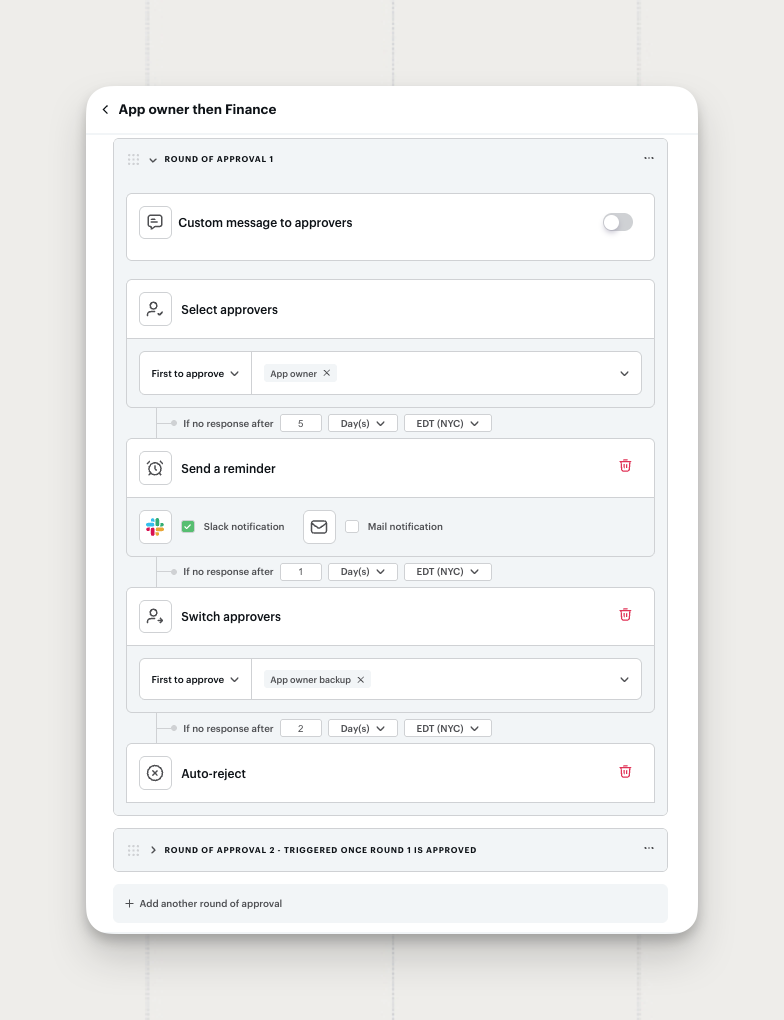
Approval steps now let you decide what happens while an approval waits. Add a reminder, switch to another approver, or resolve the approval automatically after a delay, on both workflow approvals and approval policies.
- Send a reminder. Nudge the current approver over Slack, Microsoft Teams, or email once no response comes in after a set delay.
- Switch approvers. Hand the approval to a different approver when the first one hasn't acted.
- Auto-approve and auto-reject. Resolve the approval automatically once the delay passes. No further step runs after it resolves.
- Approvers as followers. Keep the original approvers on the request as followers, even after a switch.
Delays run on a business calendar, so reminders and escalations respect your team's working hours.
Where to find it: Settings → Approval policies, and inside any workflow approval action.
Available on Standard and Pro plans.
Teams and Inboxes as Approvers
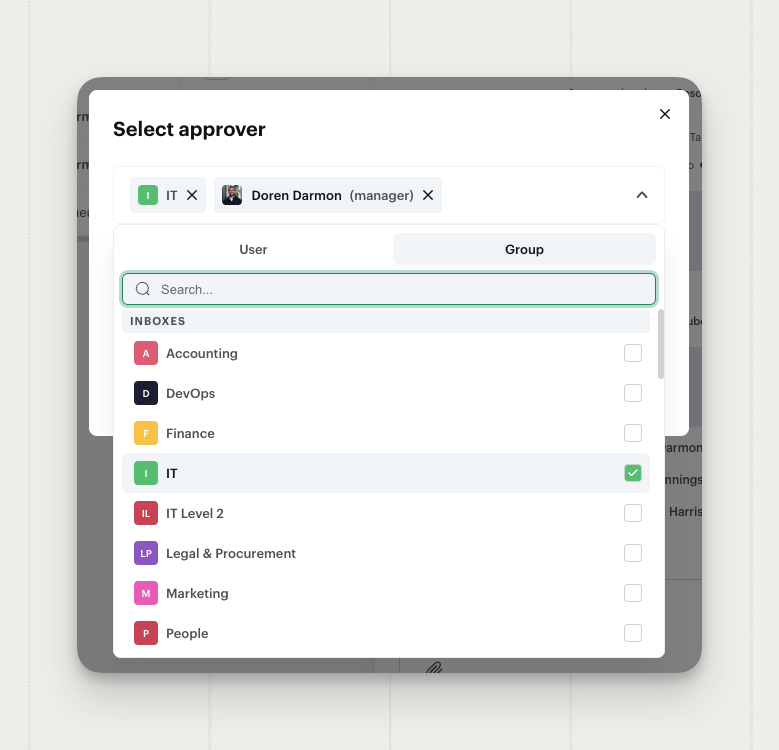
You can now set a team or an inbox as an approver anywhere Siit runs an approval. The approver selector gains a Group tab next to the existing people list, and any member of the chosen team or inbox can sign off.
- Team and inbox approvers. Pick a team or an inbox from the new Group tab, alongside individual people, and combine both in the same step.
- Everywhere approvals run. Covers approval policies, workflow approval steps, playbook approvals, request manual approvals, and app access manual actions.
- Team or inbox as app owner. Set a team or an inbox as an app's owner or owner backup, so app access approvals and manual actions route to the group instead of one person.
- Clear accountability. When a team or inbox approves or rejects, the request shows which member took the action.
Route approvals to the team that owns the decision, instead of naming one person and hoping they're online.
Where to find it: the approver selector, under the new Group tab.
Available on all plans.

Approval Rounds in Approval Policies
Approval policies now support multiple sequential rounds. Each round runs only after the previous one is approved, and a rejection at any stage cancels everything downstream.
- Sequential rounds. Add as many approval rounds as the policy requires. Siit triggers each one only after the previous round is fully approved.
- Rejection stops the chain. If any round is rejected, Siit cancels all subsequent rounds automatically.
- Provisioning after final sign-off. Siit fires app access provisioning only once every round is approved, so nothing gets granted mid-chain.
Use rounds when a single approval step isn't enough: manager first, then security, then finance. Each approver group sees the request only after the previous group signs off.
Where to find it: Settings → Approval policies → [Policy] → Add another round of approval
Available on the Pro plan.
Updated App Access Question in Service Forms
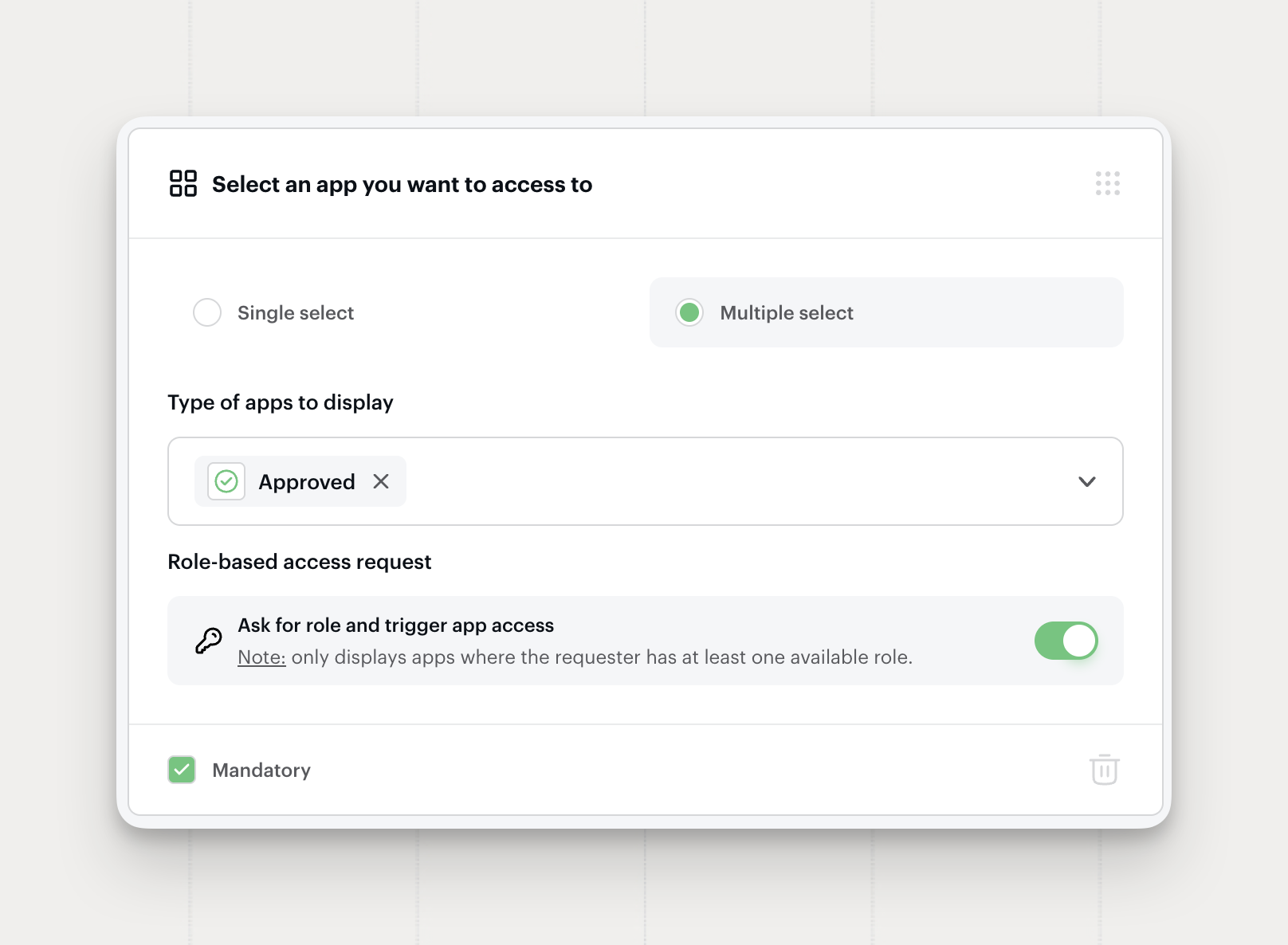
The app access question card in the service form editor got a design refresh. The Type of apps to display and Role-based access request sections are clearer and more compact, with the configuration controls shown directly on the card.
Where to find it: Service Catalog → [Service] → Form → App access question
Available on the Pro plan.

Cancel and Follow Up on Pending App Access
The cancel and reminder actions now extend to app access approvals. You can cancel a stalled app access approval or nudge the approver directly from the request, the same way you already can for standard approvals.
- Cancel. Cancel a pending app access approval and Siit marks it as expired. A confirmation step prevents accidental cancellations.
- Send reminder. Nudge the app access approver with a one-click reminder. Siit logs it as an event on the request timeline.
Where to find it: open the app access card on any request with a pending approval, then use the ⋯ menu.
Available on the Pro plan.

Triage Agent Now Reads Attachments
The Triage Agent can now read the files an employee shares during intake, not just their text. When someone attaches a screenshot, image, document, or spreadsheet while describing a problem, the agent analyzes its contents and uses them as extra context to triage the request.
- Better service matching. A screenshot of an error screen or an app helps the agent route to the right service, even when the written message is vague.
- Fuller requests. Details visible in the attachment, like error messages, device info, or order numbers, can pre-fill form fields and the description.
- Fewer back-and-forths. The employee doesn't have to re-type what's already visible in the file they shared.
Attachment understanding works within the same conversational intake, on top of everything the agent already reads: knowledge base, services, form fields, and user data.
Available on the Pro plan.
Freshservice Two-Way Sync Control
You can now decide exactly what syncs between a Siit request and its linked Freshservice ticket, with the same per-direction control already available for the other ticketing tools. For each event, in each direction, you pick the behavior Siit applies.
- Per-direction control. Set From Siit to the ticket and From the ticket to Siit separately, so each side behaves the way you want.
- Behavior per event. Choose how Siit reacts when a ticket is resolved, an assignee changes, a note is added, or a new message is posted.
- Workspace-level escalation. Freshservice escalates at the Workspace level, so tickets land in the right place.
Where to find it: Settings → Integrations → Freshservice
Available now for Freshservice.
New MCP Tools: Requests, Workflows & App Access Roles
The Siit MCP server gains a new set of tools, so AI agents and custom integrations can do more with requests, workflows, and app access roles over the Model Context Protocol.
- Restore requests.
unarchive_requestbrings an archived request back, the counterpart to archiving. - Read attachments.
fetch_attachmentpulls an attachment on a request, with its file metadata and content. - Manage workflows. List, fetch, and create workflows, and read the workflow manifest schema to see every valid trigger, condition, and action.
- Manage app access roles. List, fetch, create, update, and delete app access roles, and read the provisioning actions schema for each.
Where to find it: MCP tool reference
Available now on the Siit MCP server.
Linear, Trello, Zendesk, Intercom & Freshdesk: Two-Way Sync Control
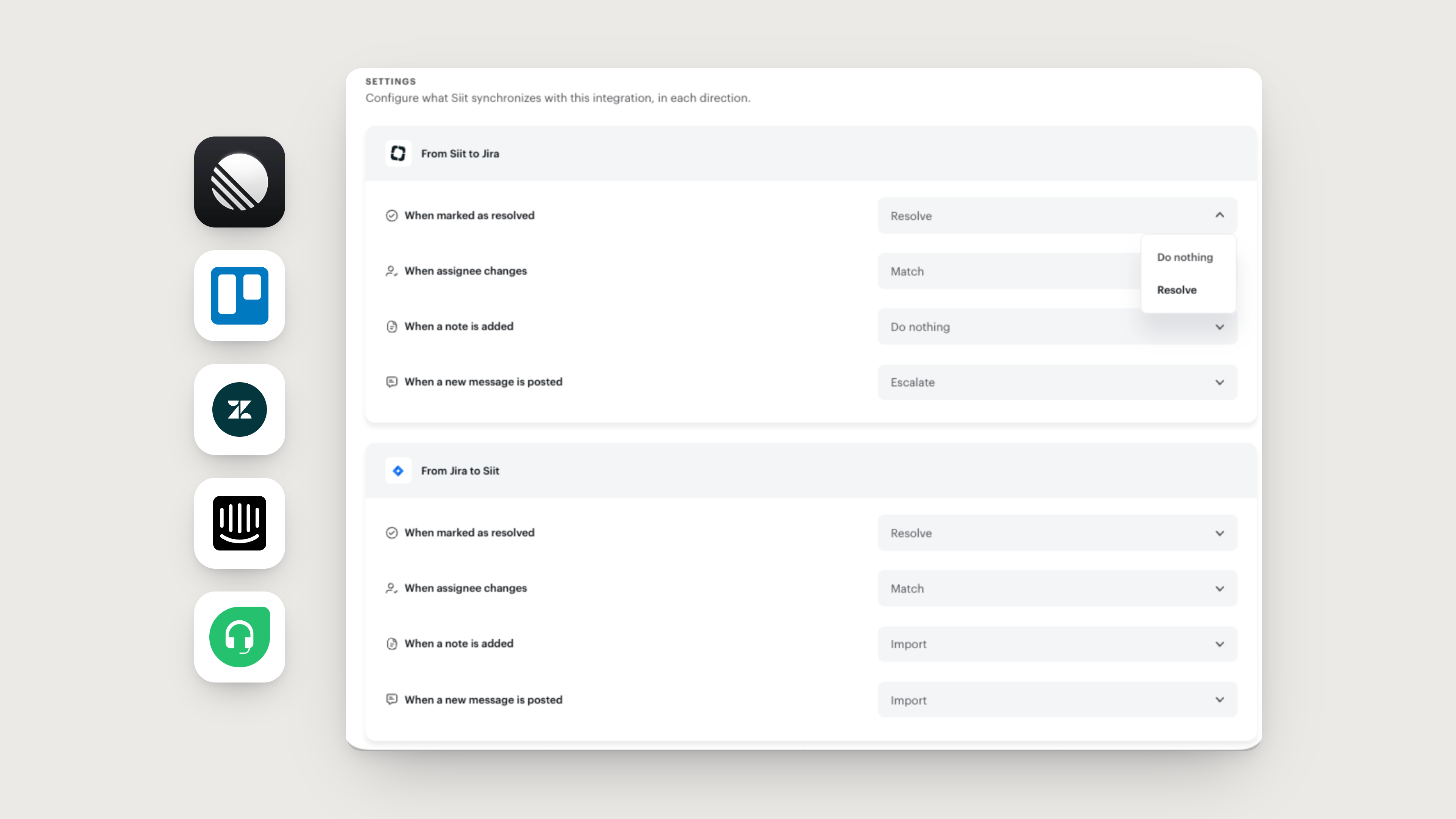
You can now decide exactly what syncs between a Siit request and its linked Linear, Trello, Zendesk, Intercom, or Freshdesk ticket. For each event, in each direction, you pick the behavior Siit applies, from resolving to matching to doing nothing at all.
- Per-direction control. Set From Siit to the ticket and From the ticket to Siit separately, so each side behaves the way you want.
- Behavior per event. Choose how Siit reacts when a ticket is resolved, an assignee changes, a note is added, or a new message is posted.
- Status mapping on escalation. Map how a resolved request translates into each tool, so tickets land in the right state.
Turn on the behaviors your team relies on, leave the rest as Do nothing, and Siit and your ticketing tools stay aligned automatically.
Where to find it: Settings → Integrations → Linear / Trello / Zendesk / Intercom / Freshdesk → Settings
Available now for Linear, Trello, Zendesk, Intercom, and Freshdesk.

Pending Approvals View in the Slack Home
Pending approvals now have their own view in the Siit Slack app Home, alongside your request views, so each one stays focused on a single task.
- Dedicated Pending Approvals view. All pending approvals appear under their own filter, separate from Assigned to Me and Assigned to my Inbox.
- Cleaner request views. The other views show only requests, with no approval items mixed in.
Where to find it: open the Siit app in Slack, then the Home tab.
Available on all plans.

Admins Can Now Submit Requests on Behalf
You can now choose who's allowed to submit requests for other employees. Alongside managers, workspace admins can create requests on behalf of anyone in the company, not just their own reports.
- Two independent toggles. Turn on Managers for their direct report, Siit admins for anyone, or both.
- Broader coverage. Admins handling access requests, equipment orders, or onboarding tasks can submit directly, for any employee, without switching context.
Where to find it: Settings → Requests → Request on behalf
Available on all plans.

App Access History in the People Profile
A person's Activity tab now includes their app access events, so admins can track every access request for an employee without leaving their profile.
- App access on the timeline. Each access event shows what was requested and its current status, from pending through provisioned or deprovisioned, alongside the person's other request history.
- Full audit trail. One view for an employee's complete access history, from the initial request through provisioning.
Where to find it: People → [Person] → Activity
Available on the Pro plan.

Cancel and Follow Up on Pending Approvals
You can now cancel a pending approval or nudge the approver, right from the approval line in the request thread. No need to close the whole request when an approval stalls.
- Cancel approval. Cancel a pending approval and Siit marks it as expired. A confirmation step prevents accidental cancellations.
- Send reminder. Nudge the approver with a one-click reminder. Siit logs it as an event on the request timeline.
Where to find it: open any request with a pending approval and use the icons next to the approver's name.
Available on all plans.
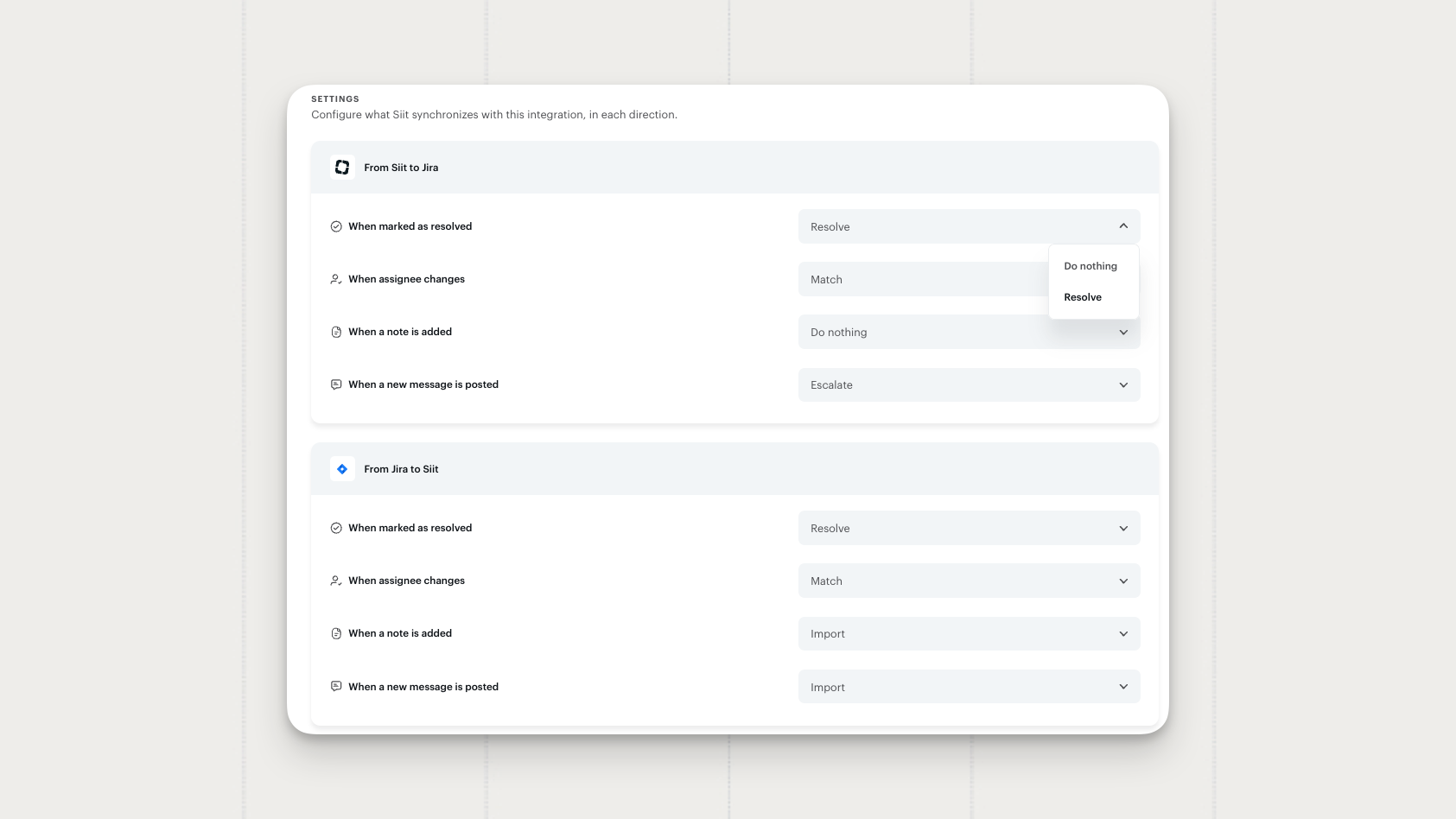
Jira & JSM Integration: Two-Way Sync Control
You can now decide exactly how a Siit request and its linked Jira or Jira Service Management ticket stay in sync. For each event, in each direction, you pick the behavior Siit applies, from resolving to matching to doing nothing at all.
- Per-direction control. Set From Siit to Jira and From Jira to Siit separately, so each side behaves the way you want.
- Behavior per event. Choose how Siit reacts when a ticket is resolved, an assignee changes, a note is added, or a new message is posted.
- Capability-aware options. Each direction only offers the actions it can perform, so you never set a behavior the tool can't honor. It also keeps a private note from surfacing as a public comment.
- JSM Customer Request Type. Map the Customer Request Type on escalation so tickets land in the right portal queue.
Turn on the behaviors your team relies on, leave the rest as Do nothing, and Siit and Jira stay aligned automatically.
Where to find it: Settings → Integrations → Jira → Jira settings
Available now for Jira and Jira Service Management, with more providers coming soon.

New "Assigned to my Inbox" View in Slack
The Siit app Home now separates what's assigned to you from what's sitting in your inboxes. Assigned to Me shows only your own requests, and the new Assigned to my Inbox view covers everything across the inboxes you're part of.
- Assigned to Me, focused. This view shows just the requests on you, without your team's inbox traffic mixed in.
- Assigned to my Inbox. A dedicated view for every request across the inboxes you belong to.
- Filters. Narrow either view by status and by inbox to land on what needs attention.
Where to find it: open the Siit app in Slack, then the Home tab.
Available on all plans.
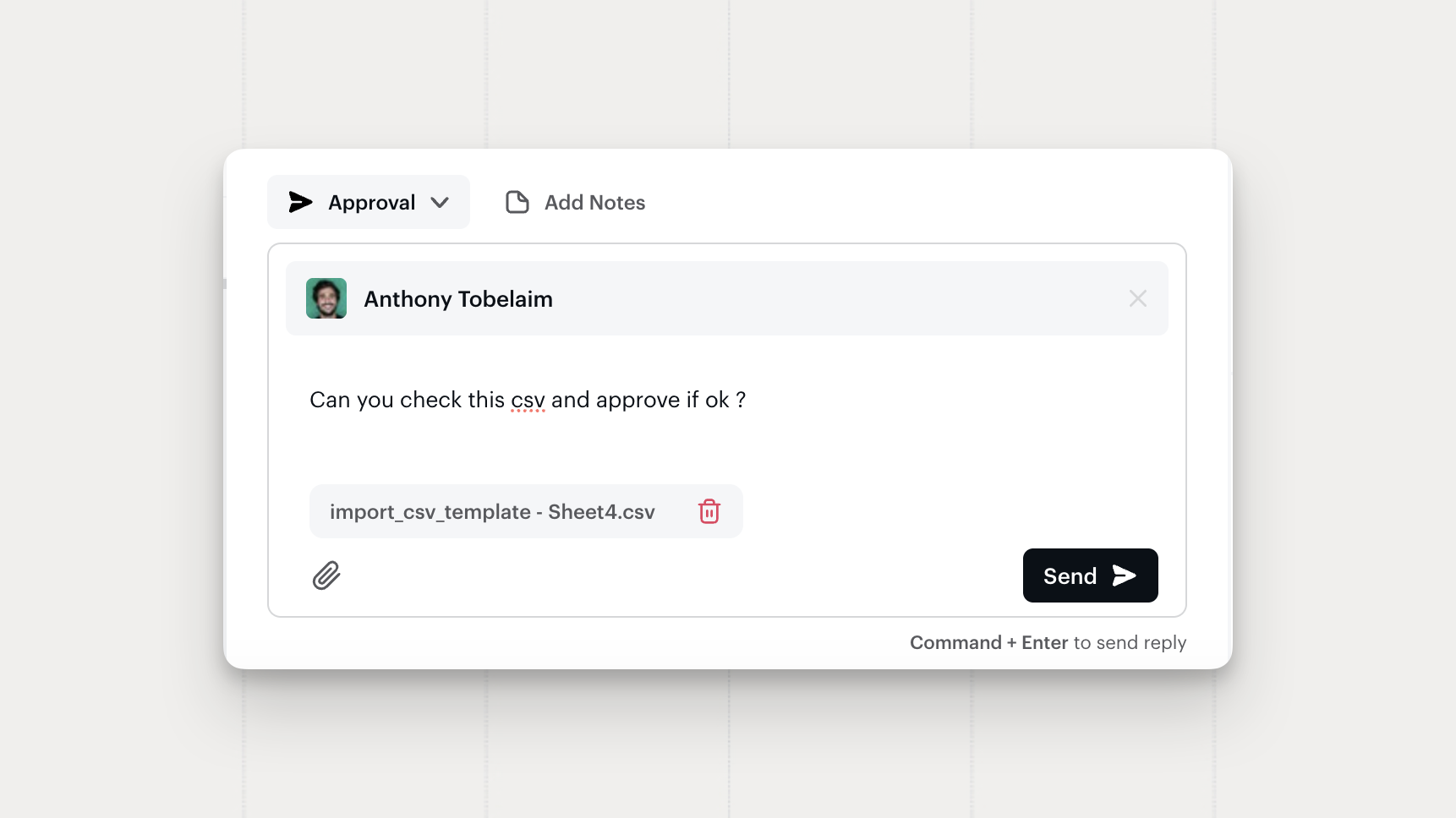
Attachments in Manual Approvals
You can now attach files when sending a manual approval from a request. Approvers get them alongside the approval message in Slack, Microsoft Teams, or email.
Add documents, images, or PDFs straight to the approval, so approvers have the context they need on the spot: a contract, a purchase order, a bank instruction, whatever the decision depends on.
Available on all plans.
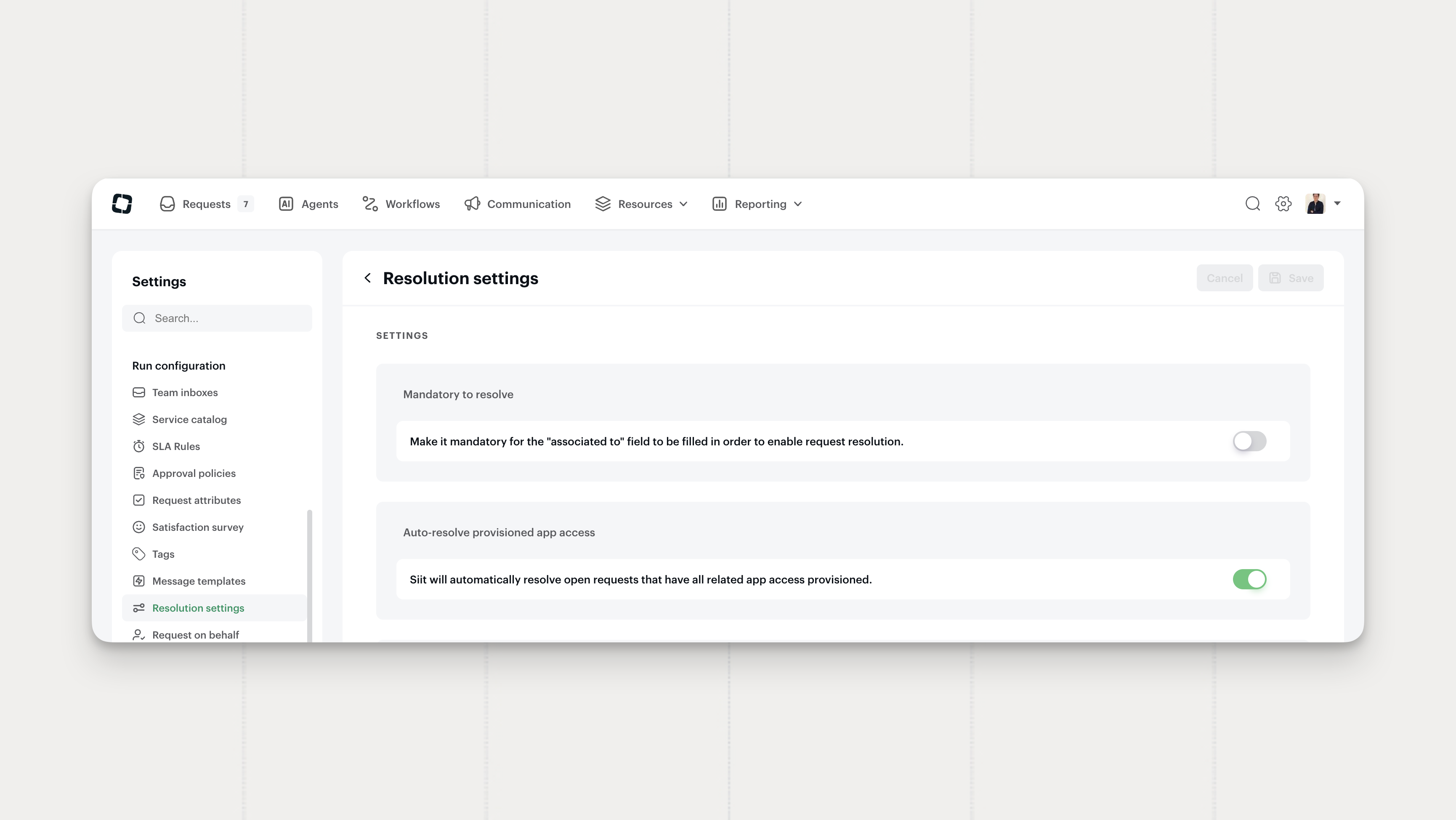
Auto-Resolve Requests Once App Access Is Provisioned
Siit can now resolve a request automatically once every app access item on it is provisioned, with no manual status change.
- Automatic resolution. When all app access records on a request reach the provisioned state, Siit marks the request resolved and logs a dedicated closing event on the timeline.
- On by default. The setting is already active in your workspace. Turn it off in Resolution settings if your team prefers to resolve these requests manually.
Handy for access-only requests where provisioning is the last step: the request resolves itself, and the timeline shows exactly why.
Where to find it: Settings → Resolution settings
Available on the Pro plan.

App Access Actions in the Employee Portal
Approvers and app owners can now handle app access straight from the Self-Service Portal: approve, reject, provision, and deprovision, without switching to Slack, Teams, or the admin console.
- Approvals. Approve or reject pending app access requests from the Pending approval tab.
- Provisioning. Mark access as provisioned or confirm a deprovisioning outcome from the same tab.
App access actions now work across every point of contact: Slack, Microsoft Teams, the Self-Service Portal, and the admin console. The portal closes the last gap for non-admin users, who already had these actions in Slack and Teams.
Available on the Pro plan.
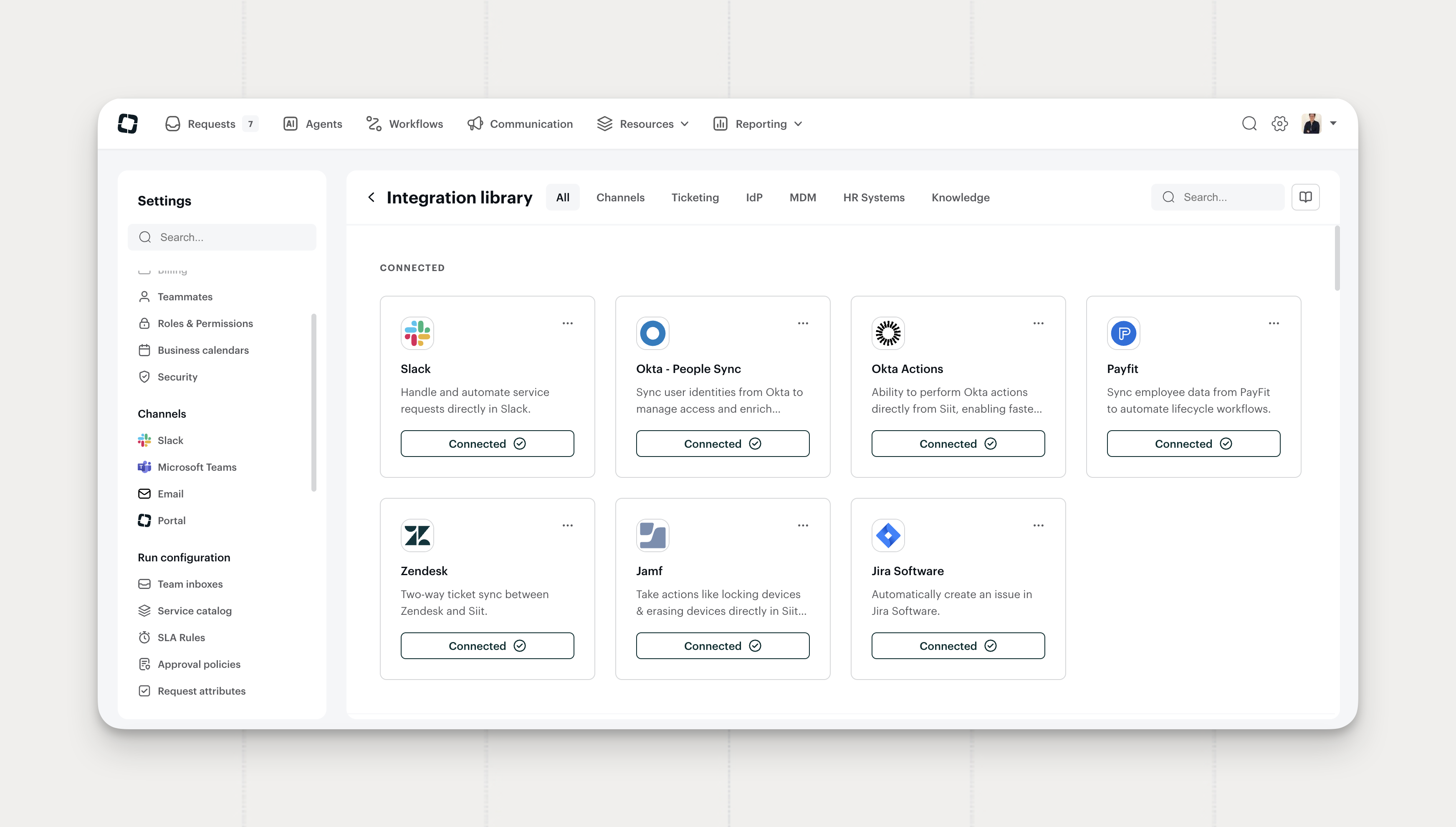
Revamped Integration Library
The integration library now groups integrations by category and surfaces the ones you've already connected first.
- Category sections. Integrations are grouped by type (Channels, Ticketing, IdP, MDM, HR Systems, Knowledge), so you can scan straight to what you need.
- Connected first. Connected integrations move to the top. Any category with at least one connected app leads the page.
- Category tabs. Filter to a single type from the tabs, or stay on All for the full list.
- Refreshed cards. Each integration card has a cleaner layout and clearer hierarchy.
Where to find it: Settings → Integration library
Available on all plans.
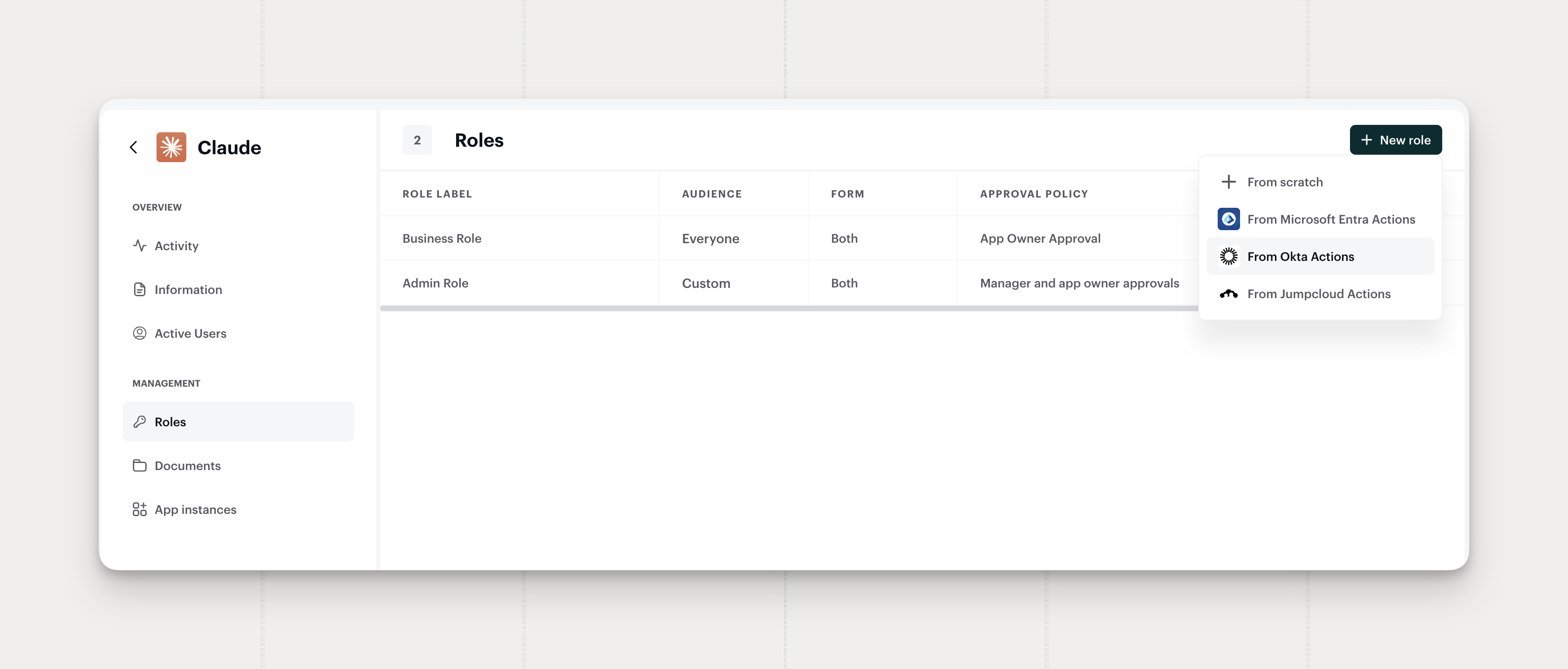
Set Up Roles from Your IdP
You can now create an app's Roles straight from the groups already defined in your identity provider. Siit reads your Okta, Microsoft Entra ID, Google Workspace, or JumpCloud setup, lists the groups linked to the app, and lets you pick which ones become Roles.
- Group detection. Siit scans the connected IdP and surfaces every group tied to an app, flagging any group already used in another Role.
- Bulk creation. Select several groups and create all their Roles in one action.
- Two entry points. Start from the
App → Rolestab on any app, or from the IdP's integration settings page.
Connect your IdP, pick the groups, and the Roles are ready.
Available on the Pro plan.
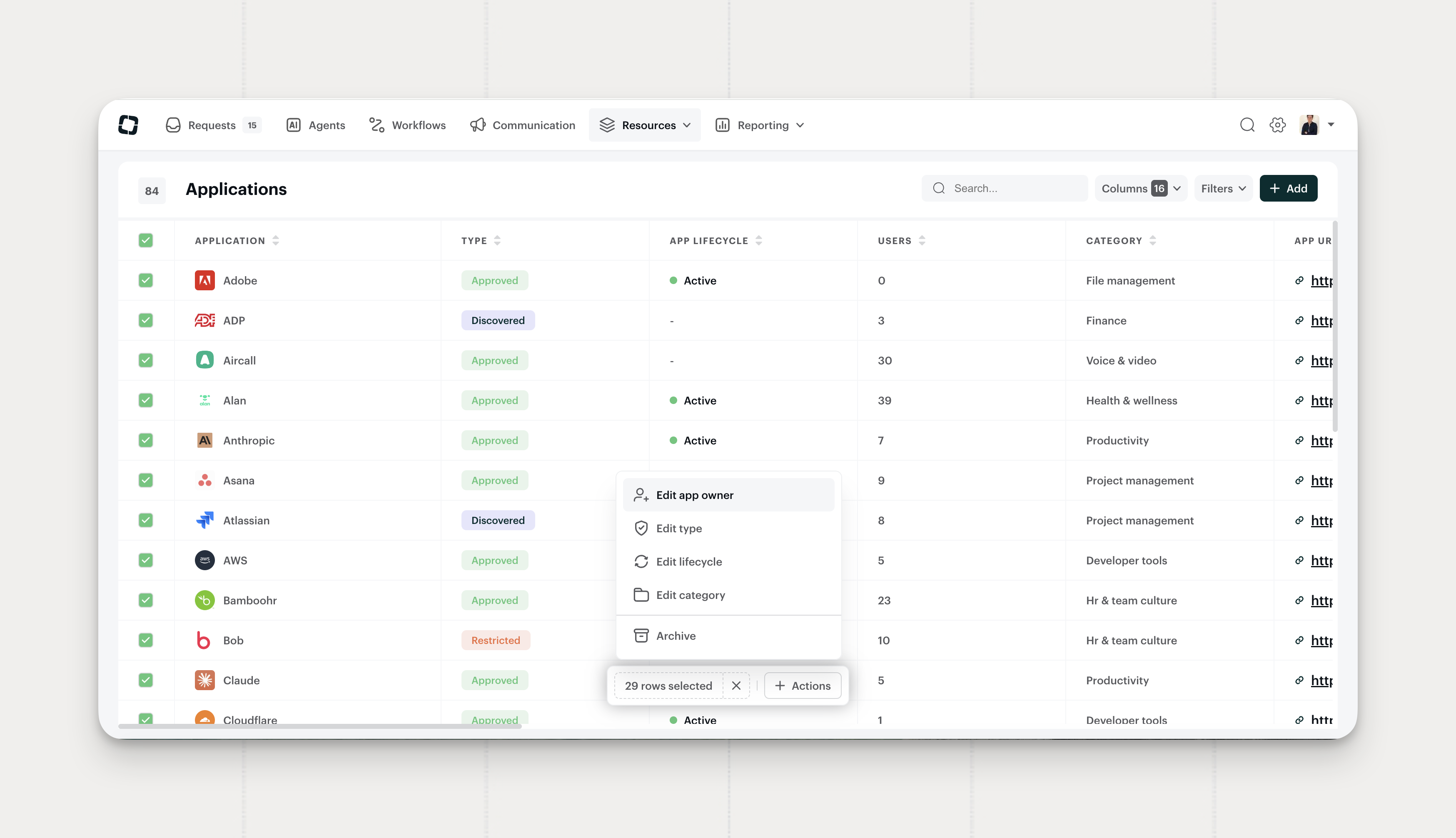
Bulk Actions on Apps
Select several apps from the list and update them in one step, instead of opening each record.
- Owner. Reassign ownership across a set of apps at once.
- Type. Change the app type for multiple records together.
- Lifecycle. Update lifecycle status in bulk.
- Category. Recategorize a batch of apps in a single action.
- Archive. Archive apps together once they're no longer in use.
Where to find it: select apps in the Applications list, then open the bulk actions menu.
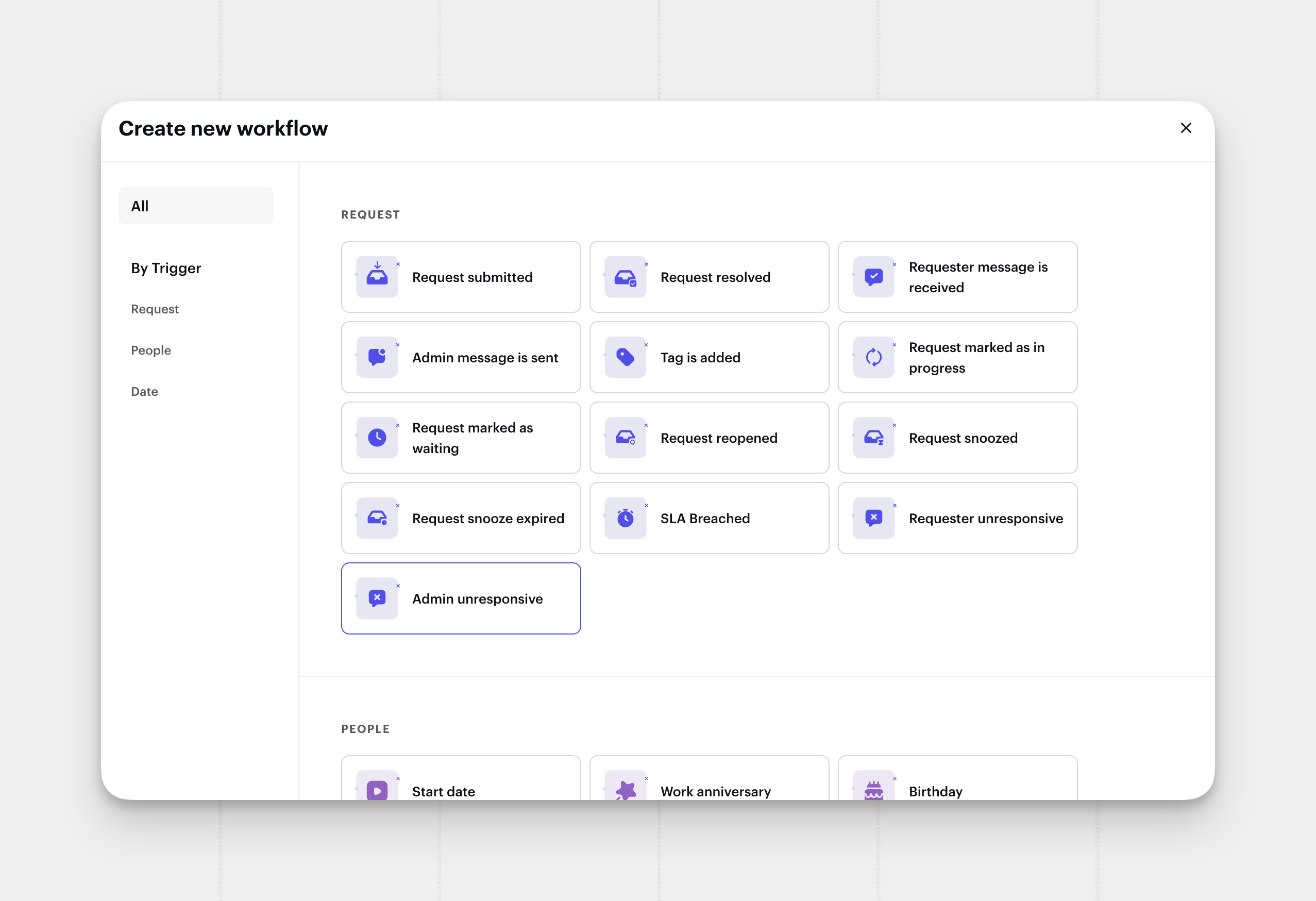
Admin Unresponsive as a Workflow Trigger
Workflows can now fire when an admin goes quiet on a request. It mirrors the existing Requester unresponsive trigger, watching the other side of the conversation.
- Set a threshold. When a requester sends a message and the assigned admin doesn't reply within the window you set, the workflow fires.
- Automatic reset. The timer stops the moment the admin replies or solves the request. A second requester message while it's running won't restart the count.
Use it to escalate stale requests, reassign to a backup admin, or send a reminder before SLA timers run out.
Where to find it: Workflows → Triggers → Admin unresponsive
New MCP Tools: Create Requests & Workflows
The Siit MCP server can now create requests and workflows, not just act on existing ones. Use it from Claude, Cursor, or any MCP-aware app. Use it from Claude, Cursor, or any MCP-aware app, to spin up an admin request mid-incident or stand up a workflow without leaving the conversation.
- Create requests. Generate a new request from a prompt, currently the Admin request type only.
- Create workflows. Build a new workflow from a plain-language description, without opening Siit.
Note: these tools require new scopes. Disconnect and reconnect your MCP integration to enable them.
Updating existing workflows through MCP is coming in the next release.
Available now in the Siit MCP server.
Jira & JSM Integration: Advanced Settings
You can now control exactly where escalated tickets land in Jira and Jira Service Management. Set which projects Siit can reach and how tickets get created when a request is escalated.
- Scope. Pick the projects or boards Siit can use, so the escalation picker only shows what's relevant.
- Escalation behavior. Set the status, assignee, and ticket type applied to tickets created from Siit.
- Field mapping. Map Siit request details to the matching fields in your ticketing tool, so context carries over.
The result: escalations land in the right project, with the right owner and the right details, every time.
Coming soon to Linear, Zendesk, Freshservice, and more.
Available now for Jira and Jira Service Management.
New MCP Tools
The Siit MCP server can now take action across Siit, not just read from it, directly from your LLM client: Claude, Codex, Copilot, Mistral, Dust, or any MCP-aware app.
- Agent execution. Pull a request's full event timeline and the AI agent's execution logs.
- People. Create, update, and merge users, archive or restore them, and pull teams, departments, office locations, and legal entities for context.
- Service catalog. Create and update services, and add, edit, or remove custom form fields on any service.
- Knowledge base. Draft, update, and publish articles, then archive outdated ones or send them back to draft.
- CMDB. Add and edit apps and equipment instead of only browsing them, and open any record in full detail.
Security is unchanged. Every tool runs on behalf of the authenticated user and stays scoped to exactly what that person can see and do in Siit, nothing more. Authenticated, scoped, and auditable by design.
Available on all plans.
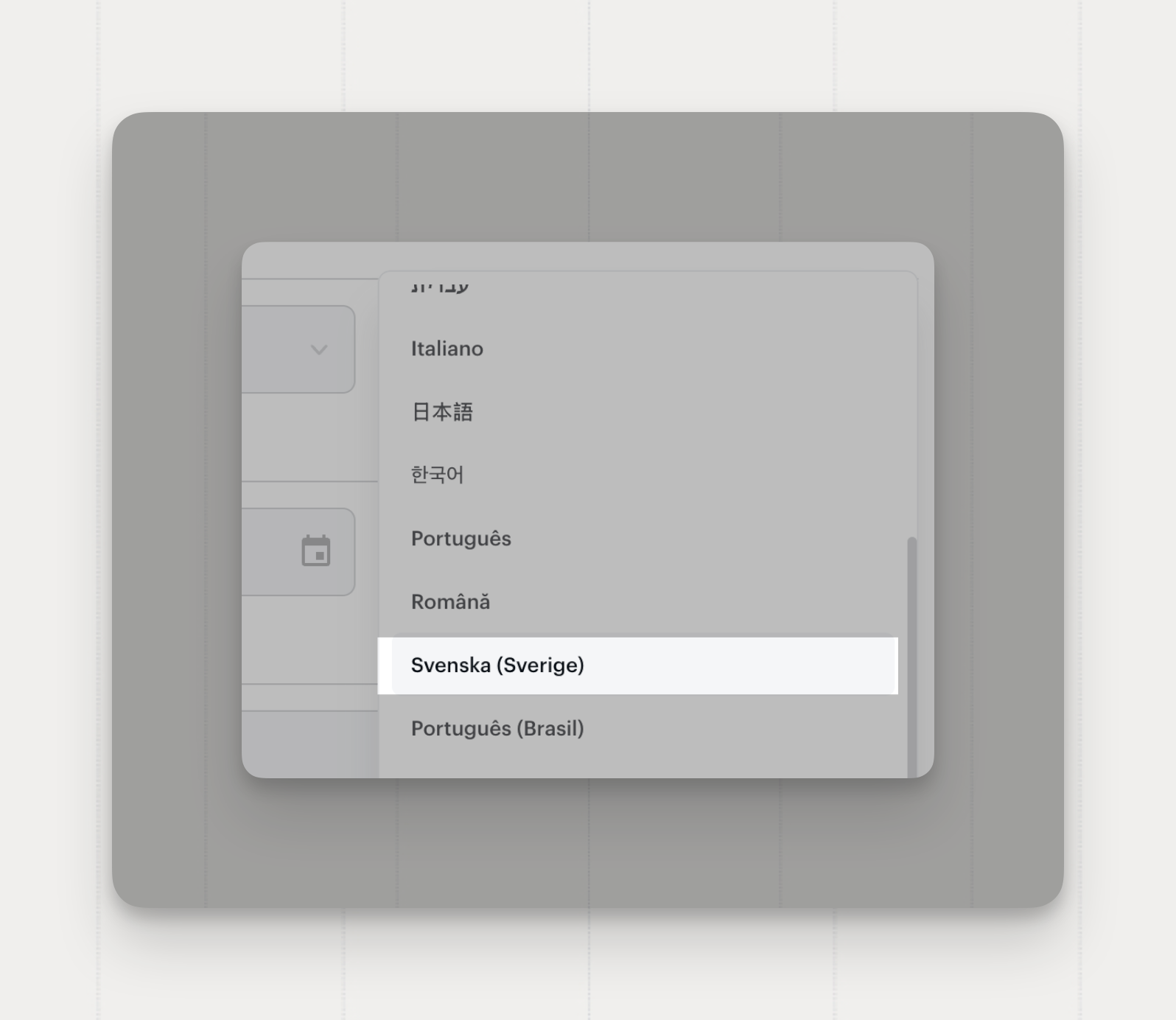
Swedish Is Now Supported
🇸🇪 Siit can now be used in Swedish, alongside the other languages it already supports.
Where to find it:
Select Svenska (Sverige) from the language picker in the Employee Profile.
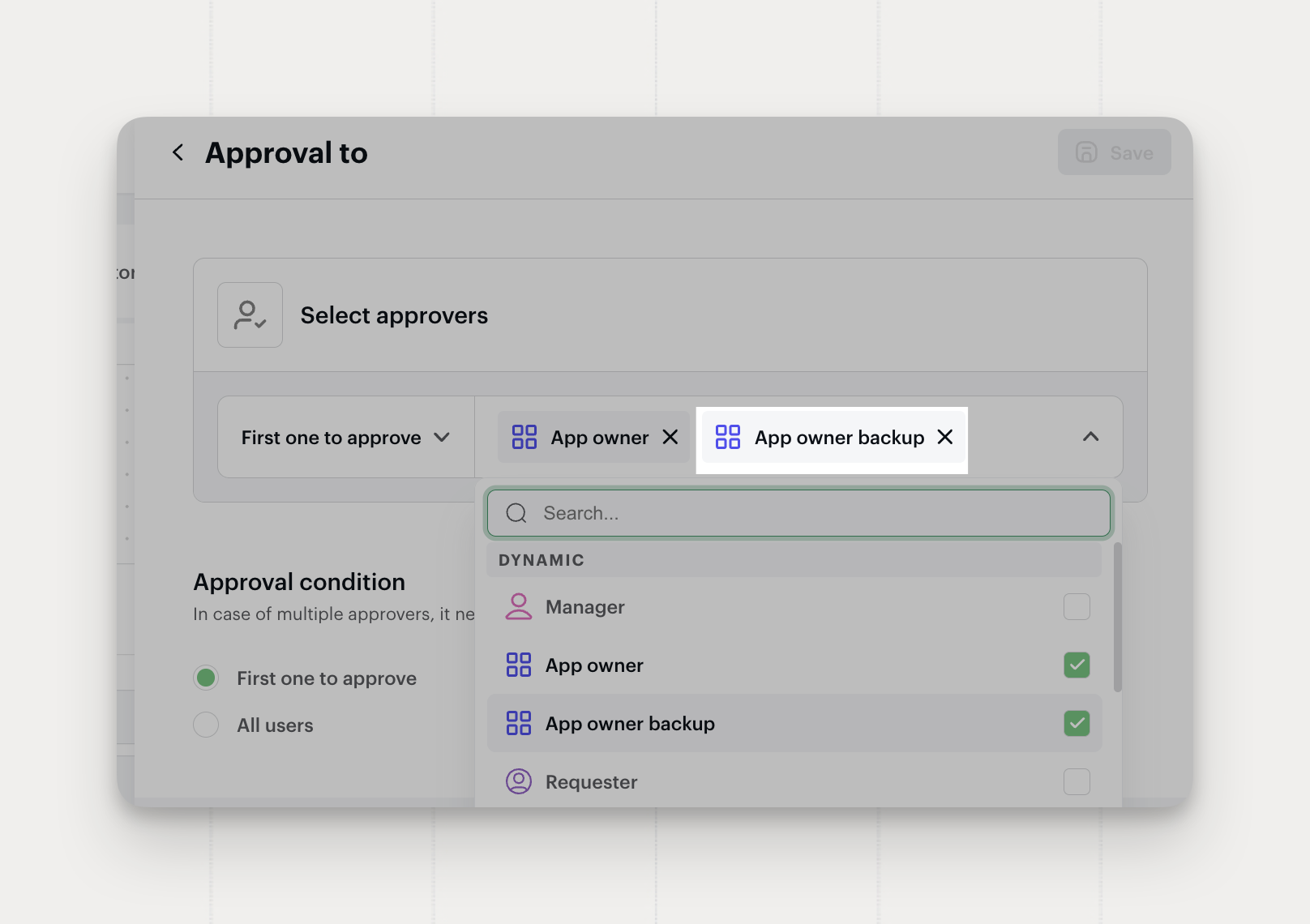
App Owner Backup
Every app can now have a backup owner: a single fallback contact for when the primary owner is away, so approvals and access requests keep moving.
Once set, the backup can stand in for the app owner across two places:
- Workflows. Pick the backup as an approver or assignee in any rule. If the primary owner is out, the workflow falls back to them automatically.
- Provisioning. Assign the backup as the responsible contact in a role's provisioning method.
Where to configure→
Open an app in your catalog and fill in the App owner backup field. One user, no groups.
Available on all plans.
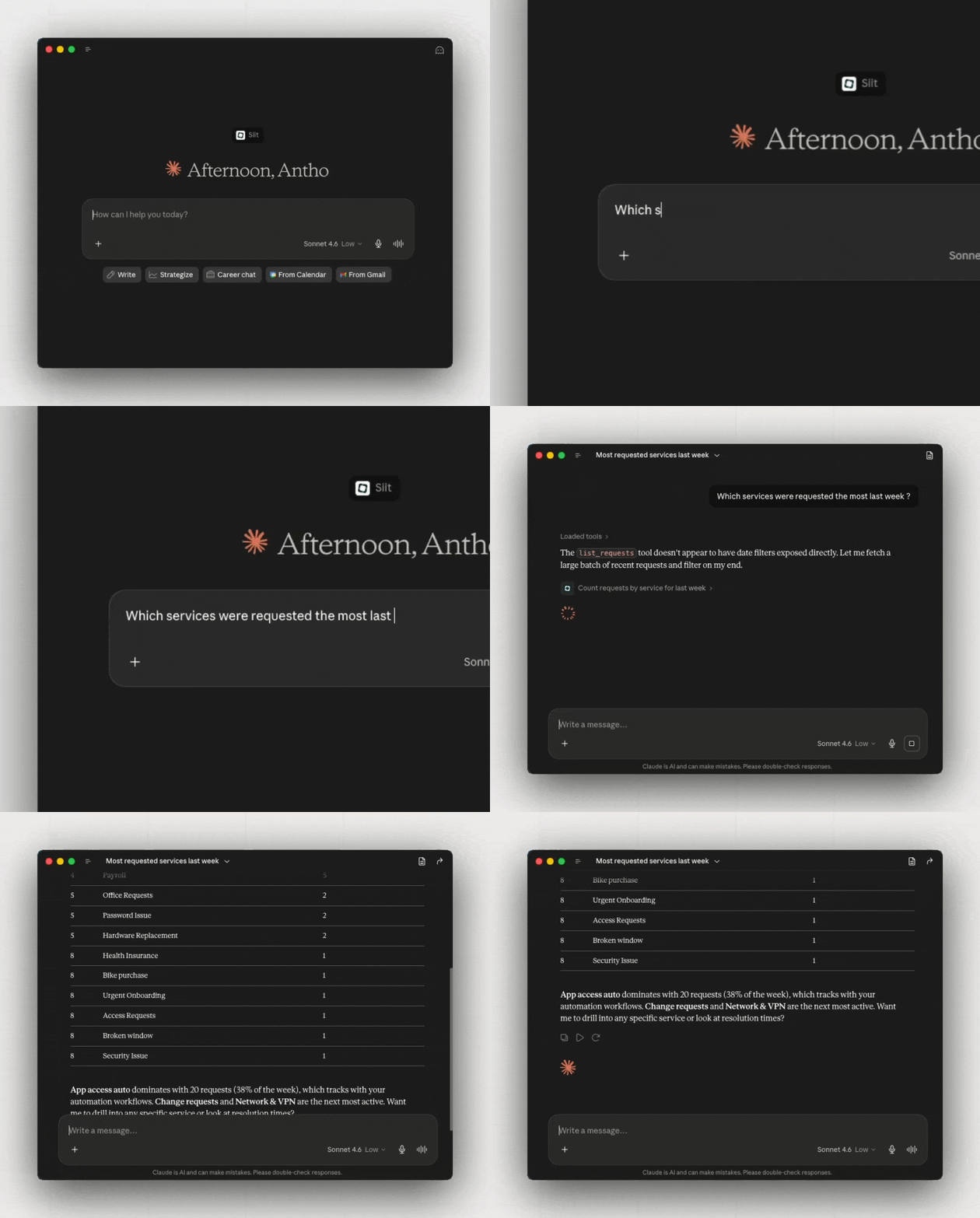
MCP Server
Siit now speaks MCP. Connect any MCP-compatible client to your service desk and read or act on requests without opening Siit. Works with Claude, Cursor, Codex, VS Code, Windsurf, Zed, and any other MCP-compatible client.
What you can read
- Requests. List open requests with full context (requester, status, linked apps, equipment, and SLA), or fetch any single request with all its nested detail.
- People. Look anyone up by name, department, location, groups, and more.
- Catalog. Browse your apps, services, equipment, inboxes, and tags so your tools have the context to act.
What you can act on
- Updates. Change status, assignee, priority, tags, and linked apps or equipment directly from your client.
- Replies. Send a message or add an internal comment without switching tabs.
Security
Built on OAuth 2.1. Every action runs on behalf of the authenticated user and is scoped to exactly what you can see and do in the Siit dashboard, nothing more. Authenticated, scoped, and auditable by design.
Available on all plans.
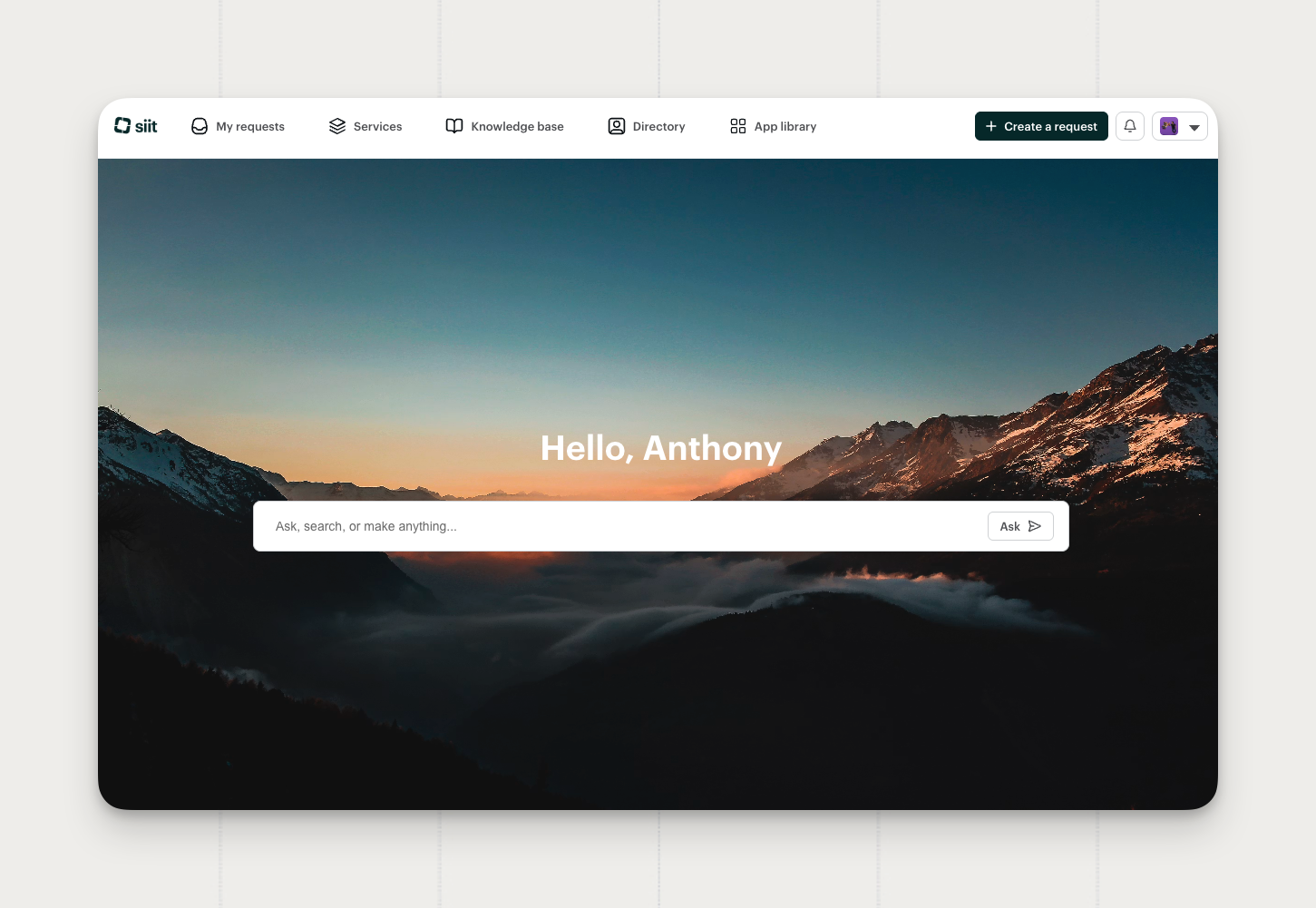
Home Page on the Portal
Say hello to the Portal's Home page. Instead of landing on a list of tabs, employees now arrive on a single search bar, where they can ask a question and get an answer right away.
- Employees can ask anything and the Triage Agent replies with the answer, or turns it into a request for your team when it needs a human.
- The Ask button stays on every other tab, so nothing changes in the rest of the Portal.
Setup note
The Home page is off by default on existing portals. Admins turn it on from the Portal navigation settings, so your current setup stays exactly as it is until you opt in.
Available on all plans.
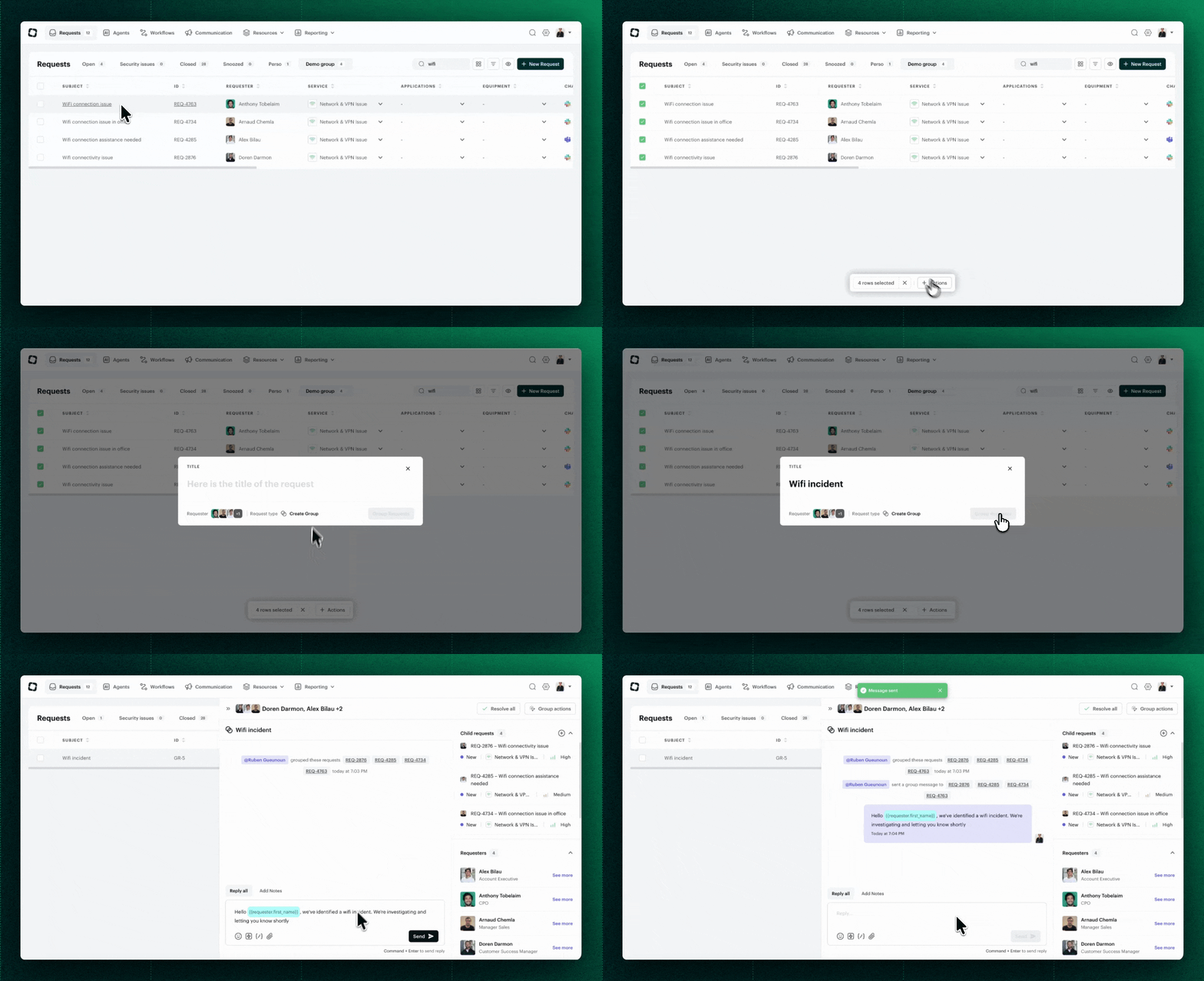
Grouped Requests
Related requests can now be grouped and handled as one. Act on the group once and the change reaches every request inside it.
- Reply or post an internal note on the group, and it lands in every request's thread.
- Set the assignee, priority, or service once, and every request inherits it.
- The group opens in its own overlay with a timeline spanning every request, so the full picture stays in one place.
- Open any single request to work it directly, or pull it out of the group when it no longer belongs.
Requesters never see any of this. Each keeps their own conversation, and when the last request leaves the group, it dissolves on its own.
Where to find it:
Select two or more requests in the Requests list, then Actions > Group.
Available on all plans.
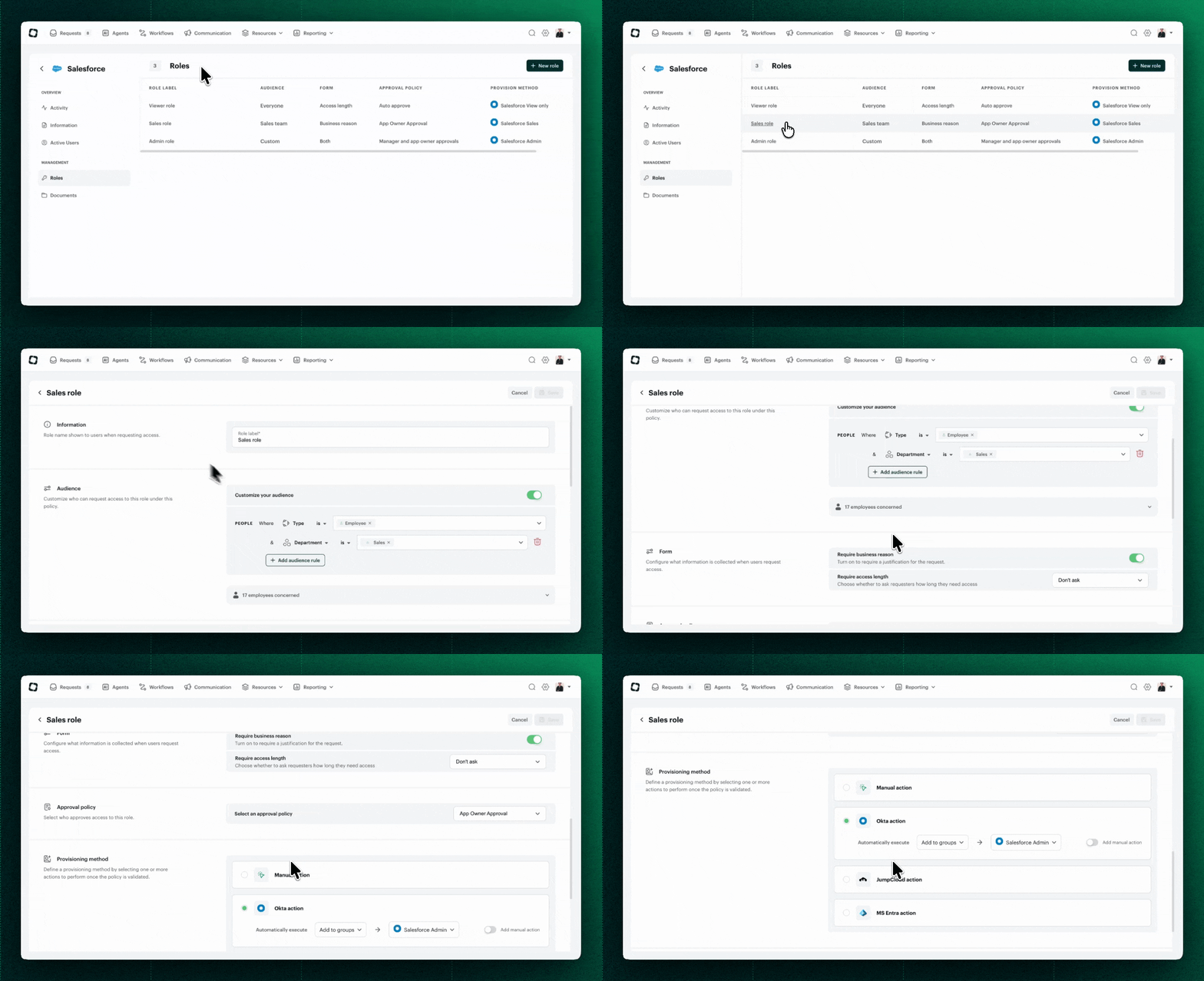
App Access Policies
App Access is now generally available. Decide who can request each app, how it's approved, and how access gets granted, all from a per-app Roles setup.
- Roles. Each app has its own Roles on the
App → Rolestab. A Role connects an audience, an approval policy, optional form fields (access length, business reason), and how access is provisioned. - Approval Policies. Build an approval flow once in
Settings → Approval Policies, then reuse it on any Role across your apps. - Provision method. Grant access automatically (add to a group or app instance), route it to the app owner to handle manually, or combine both in a two-step flow.
- App Access records. Each grant tracks its own lifecycle and audit trail, separate from the request that created it. Scheduled deprovisioning runs even after the request closes.
One request can open access across several apps, each managed independently from there.
Where to find it: App → Roles tab and Settings → Approval Policies
Available on the Pro plan.
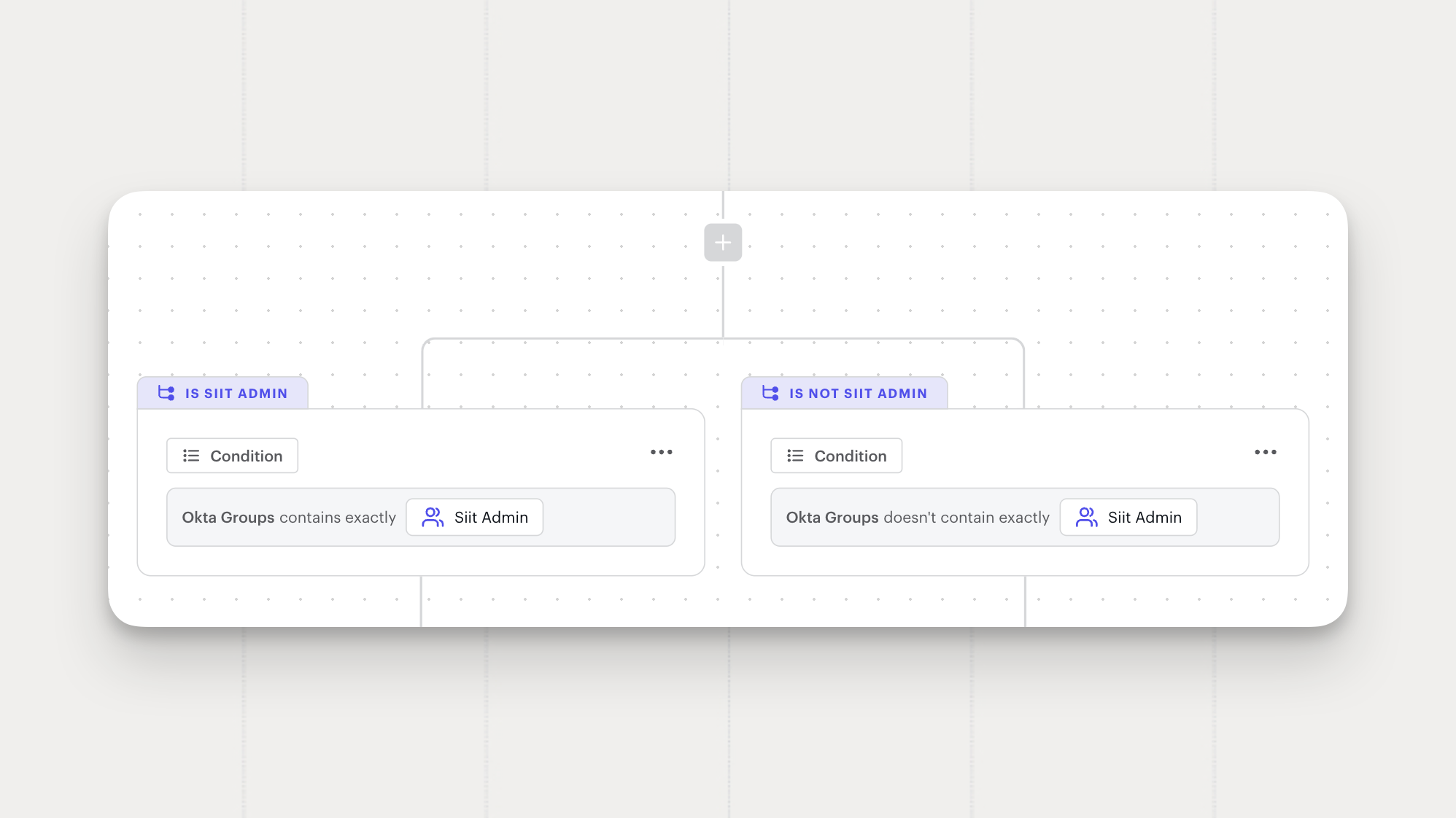
IdP provider as a Workflow condition
Workflows can now branch based on the requester's identity provider.
Add IdP provider as a condition in any workflow branch to route requests differently depending on whether the requester is managed in Okta, Microsoft Entra ID, Google Workspace, or JumpCloud.
Available on all plans.
Triage Agent improvements
Five improvements to the Triage Agent this release, from clearer conversation endings to a new home in Microsoft Teams.
- Clearer conversation exits: When the Triage Agent ends a conversation, it now explains why and points the requester to what comes next: create a request, keep talking in the thread, or move to a private message once a request exists.
- Slack channel recognition: Mention a Slack channel in a conversation and the Triage Agent resolves it correctly when it routes or tags the request.
- Pre-filled handoff: When the Triage Agent hands off to a human, it pre-fills the request form with everything it gathered in the conversation.
- Suggestions in the requester's language: The Triage Agent now translates suggested articles to match each requester's language setting, so people get recommendations they can actually read.
- Microsoft Teams personal app: The Triage Agent now runs in the Microsoft Teams personal app, so employees can start a conversation in a private chat instead of posting in a channel.
Available on Pro. Essentials and Standard plans get a free 14-day trial.
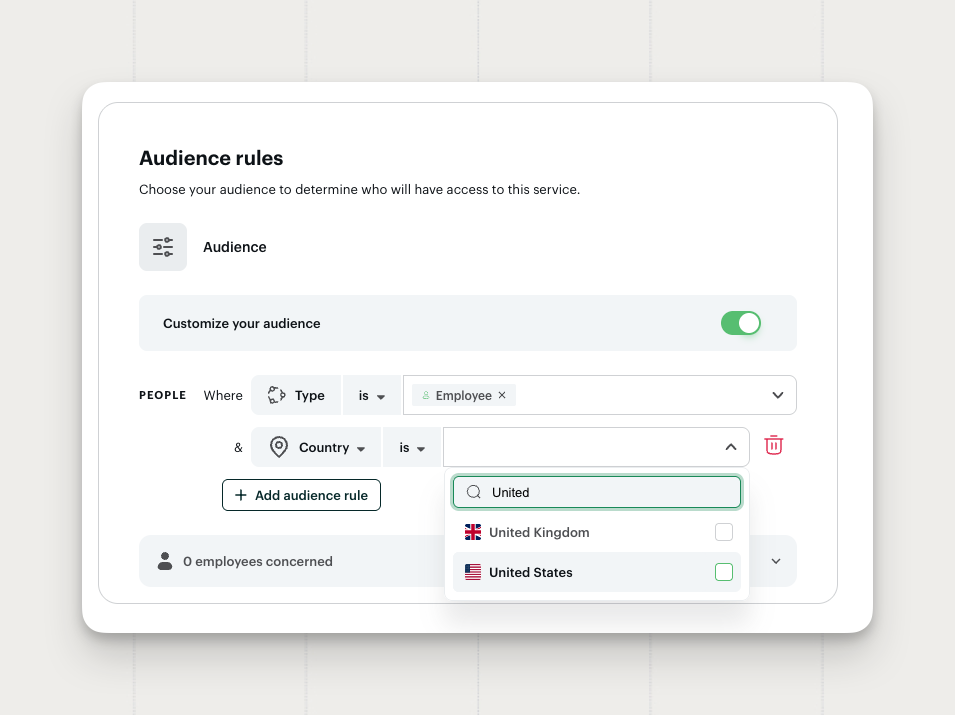
Country in Audience Rules
Audience rules now support Country as a filter. Target services, workflows, articles, portal access, and application roles to people in specific countries without maintaining separate groups for each one.
- Country field: Filter audiences by the country on each person profile.
- Combines with existing filters: Use country alongside department, role, location, and other fields inside the same audience rule.
Available on all plans.
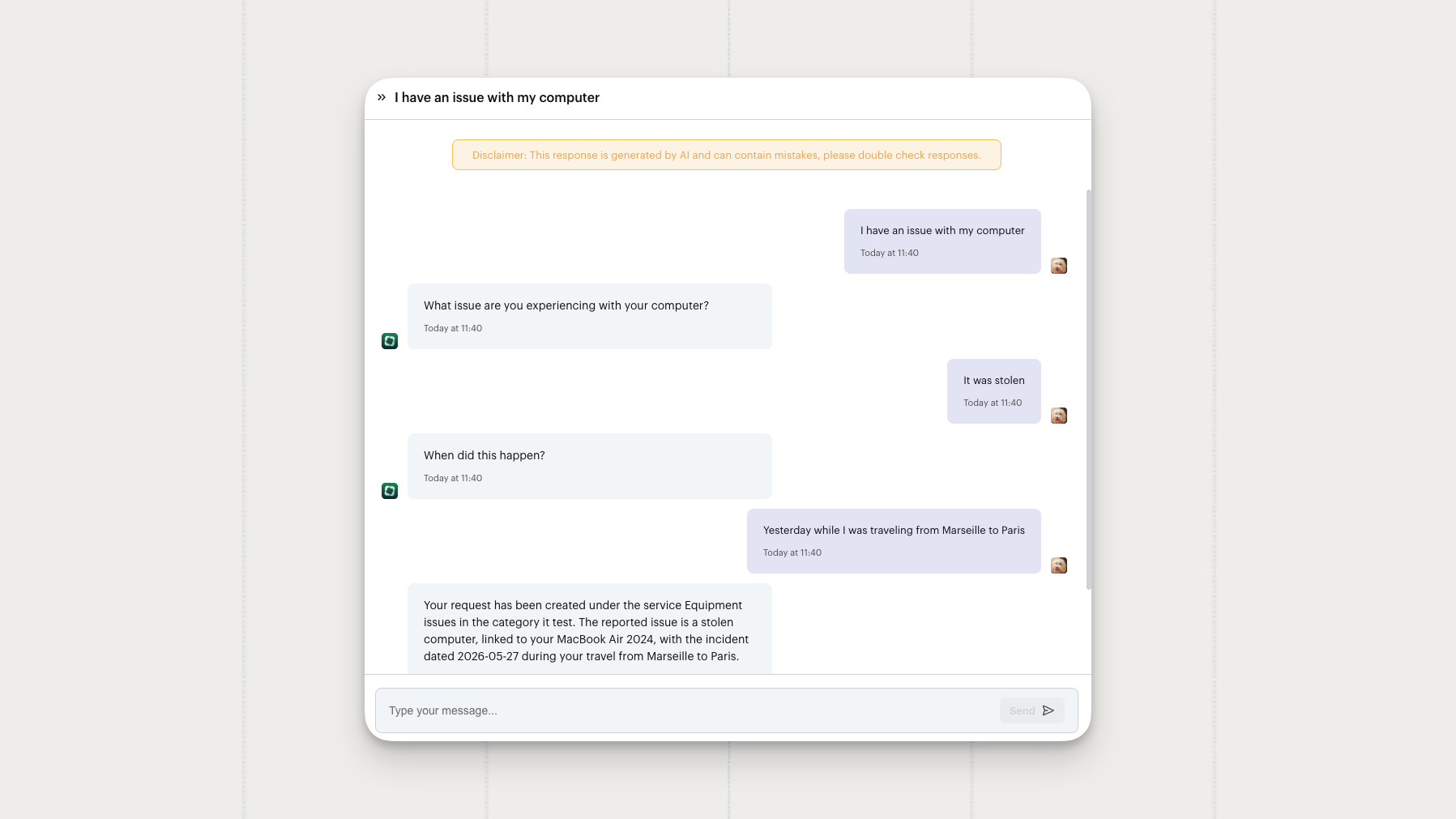
Clarification format options for the Triage Agent
You can now choose how the Triage Agent asks clarifying questions to fit the style your team prefers.
- Bundled clarifications. The agent groups every question it needs into a single message and waits for one combined reply.
- Sequential clarifications. The agent asks one question at a time and waits for the answer before moving to the next, like a conversation.
Available on the Pro plan. Reach out to your CSM to activate and pick the format that fits your team.
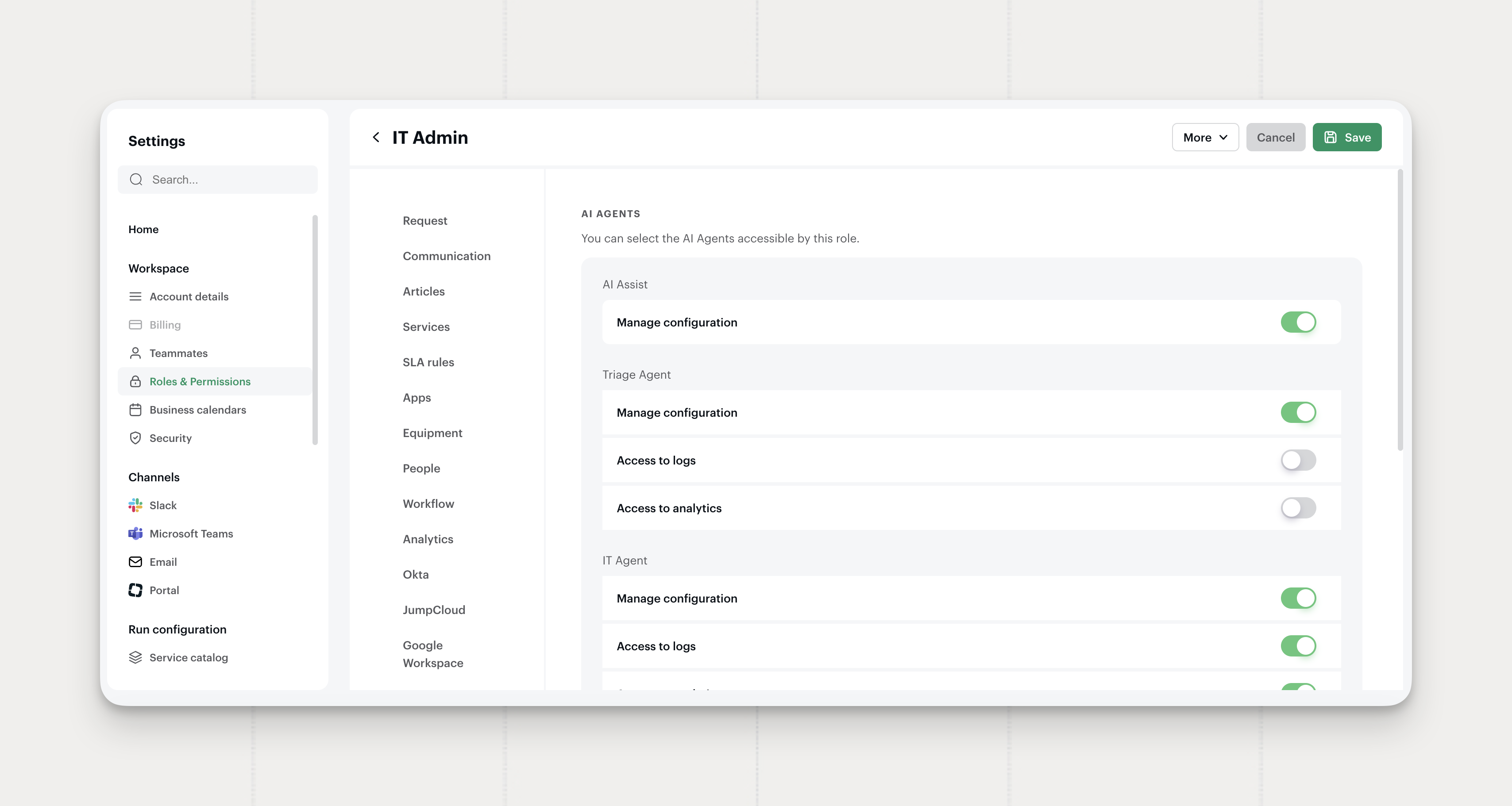
Permissions per AI Agent
Each AI agent now has its own permission set. Admins control access agent by agent, instead of through a single broad setting.
What's new:
- Per-agent configuration control: Decide independently who can edit each AI agent's setup, including its playbooks.
- Scoped logs and analytics: Grant or revoke access to an agent's logs and analytics on the same matrix.
- Independent of request management: AI agent access no longer depends on the broad request management permission, so narrower role scopes are now possible.
Where to find it: Roles & Permissions → AI Agents.
Available on all plans.
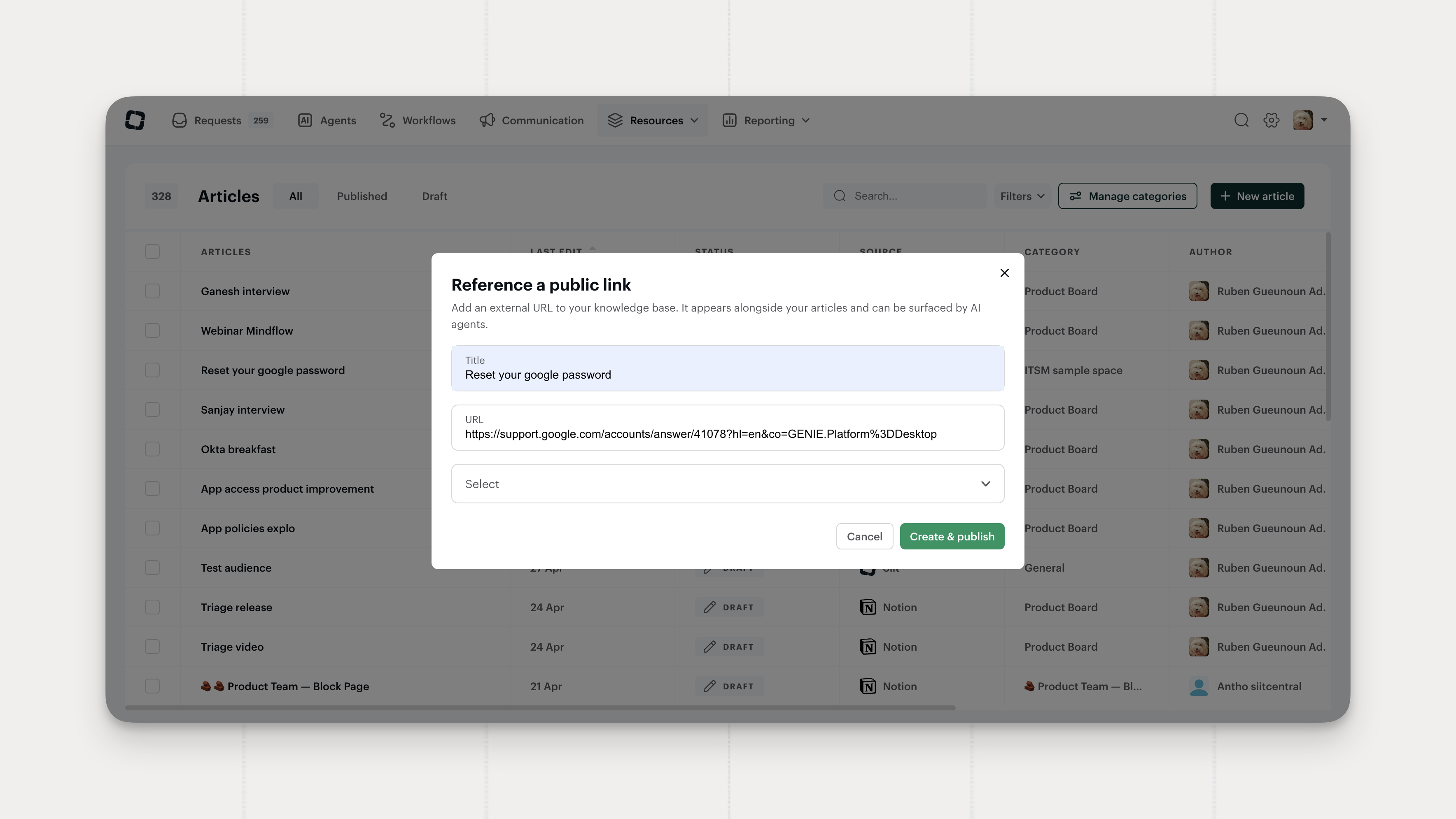
External public resources in the Knowledge Base
Any public URL can now be added as a knowledge resource, alongside articles synced from Notion, Confluence, and Slab.
- The Triage Agent picks them up automatically in article suggestions, treating them like any other article.
- The IT Agent uses them only when explicitly set up,; either added to its configured knowledge, or referenced inside a playbook.
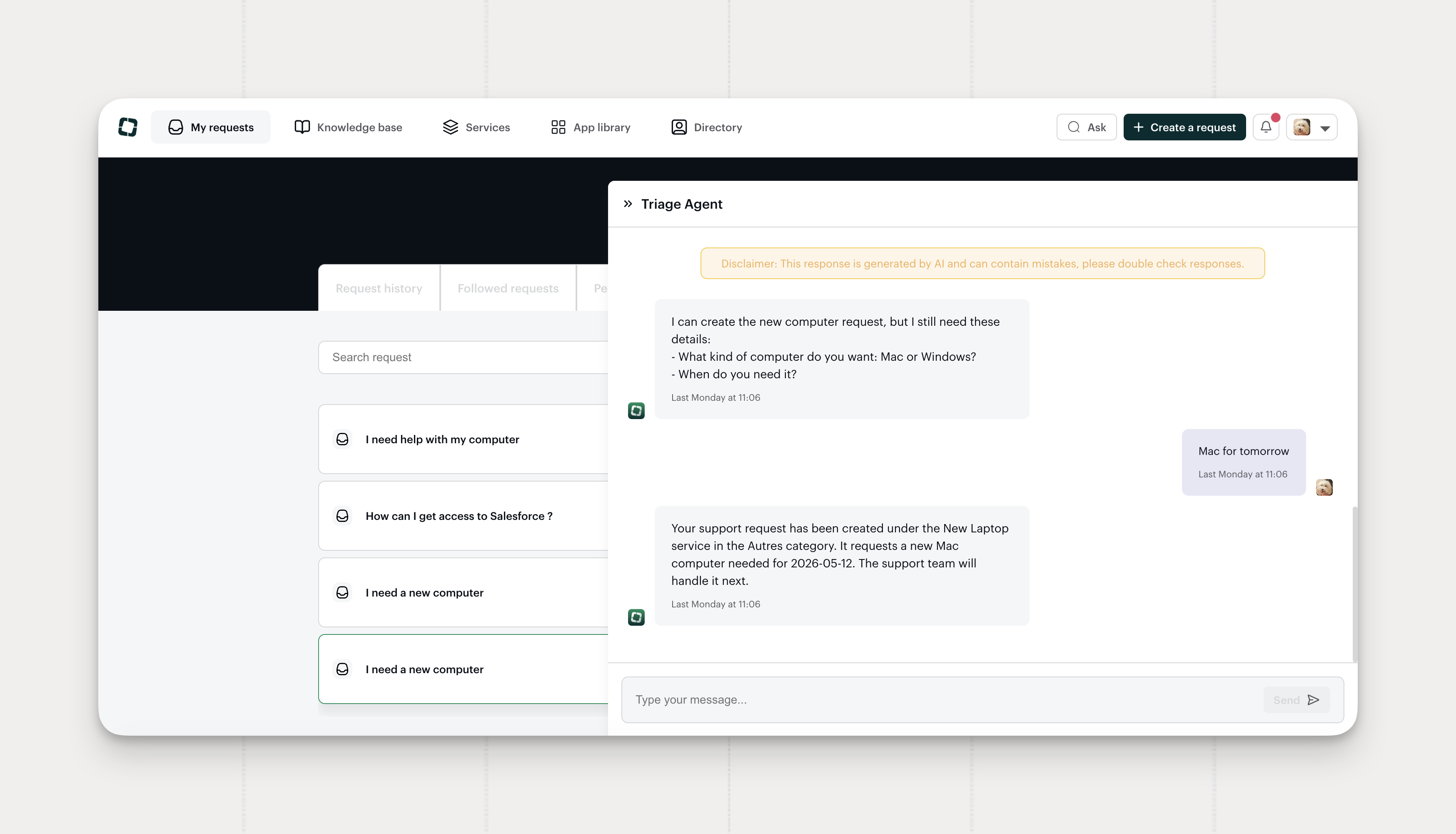
Triage Agent on the Portal
Employees can now reach the Triage Agent directly from the Portal, the same way they already do in Slack and Microsoft Teams.
The Ask button opens a conversation from anywhere in the Portal, and a new AI tab keeps every conversation in one place, so employees can come back to a thread later or jump straight to the request it became.
Note
- If you already had AI Assist on the Portal, the Triage Agent replaces it automatically.
- If you don't have AI on the Portal yet, turn on the AI feature from Portal settings
Available on the Pro plan.
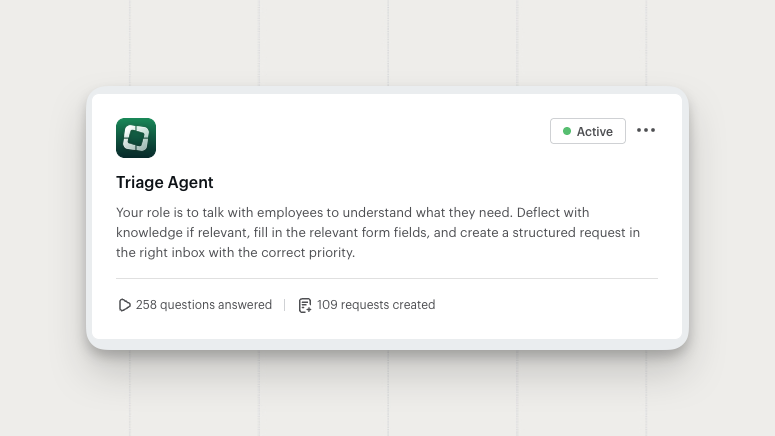
Triage Agent
Meet the Triage Agent, Siit's newest AI agent dedicated to request intake. It runs the full intake conversation in Slack and Teams: deflecting what doesn't need a ticket, asking the right questions when necessary, filling the fields, and setting the priority. All before anyone on your team gets pinged.
What's new
- Collects every required custom form field through conversation
- Sets priority, tags, and the right service automatically
- Attaches the full intake conversation to the request timeline
By the time a request hits your queue, the service is set, the fields are filled, the priority is right. Your team just acts.
Setup note: Make sure there is a clear description in each service's About field. The Triage Agent uses it to match incoming requests to the right service.
Configure: Settings → Agents → Triage Agent
Available on Pro. Essentials and Standard plans get a free 14-day trial.
Heads up: Starting May 27th, the Triage Agent takes over all request intake from the current AI Assist feature, which will be discontinued. Existing configuration migrates automatically, no action required.

Request table improvements
Shape the request list around how each team works.
- Reorder columns per view: Drag columns into the order you want. The order saves to the view, so anyone opening it sees the layout you set.
- Search inside a view: Find a specific request without rebuilding filters.
- Cleaner filter selection: Selected values stack at the top of multi-value filter dropdowns, so picking and reviewing them takes fewer clicks.
- More room in the views bar: The "All views" label is now an eye icon, leaving space for the views you use most.
Every view now reflects a specific way of working, without affecting how others see the queue.
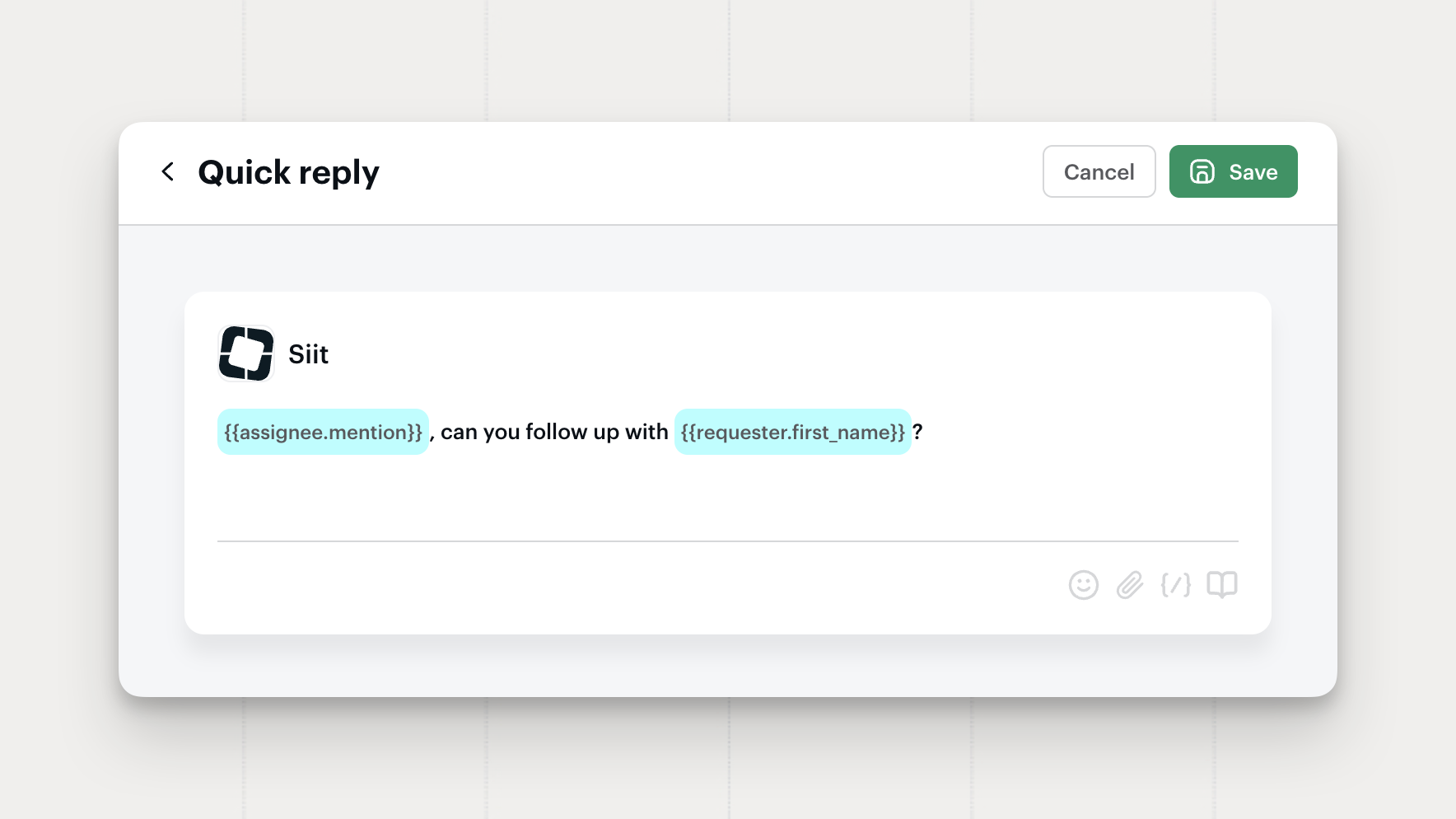
Assignee Mention in Quick Replies
Workflow quick replies now include an Assignee variable.
When the workflow fires, {{assignee.mention}} notifies the admin assigned to the request.
Add it from the variable picker, under Assignee.

Slack Group Mentions in Playbooks and Quick Replies
Playbook instructions and workflow quick replies now support Slack user group mentions alongside people, teams, and inboxes.
Type @ in the editor to mention any user group configured in your Slack workspace, like @security or @on-call-eu.
The right people get notified at the right step, without manual coordination.
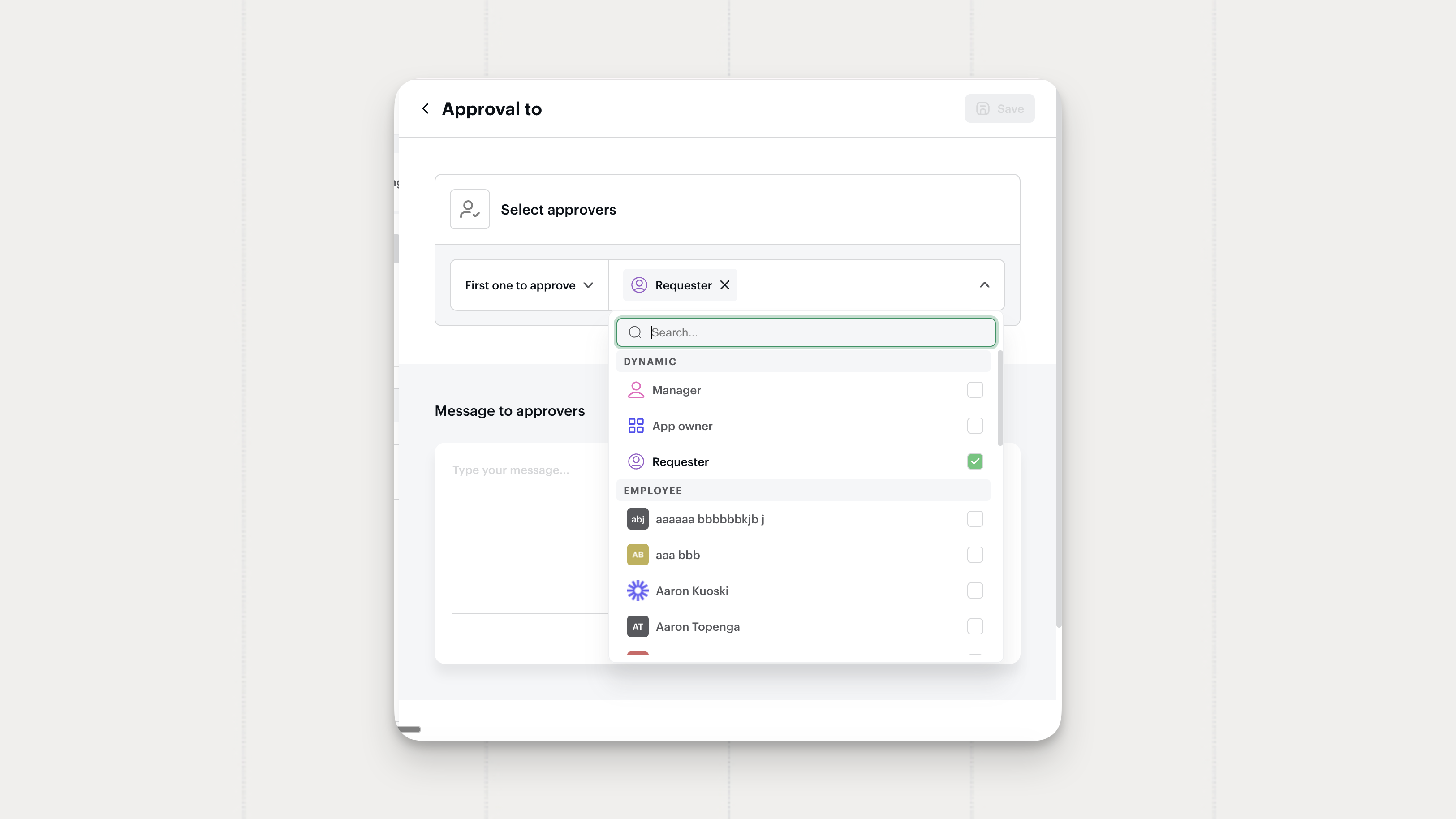
Requester as a Dynamic Approver
Approval actions now include Requester as a dynamic approver option, alongside Manager and App owner.
- Assigns the approval step to the person who submitted the request
- Available under the Dynamic section in any Approval action's approver picker
- Works alongside existing logic settings, including "First one to approve"
Use it when a workflow needs the requester to confirm or validate something before the next step runs.