17 Knowledge Base Article Templates
A knowledge base article template stops every password reset DM, VPN complaint, and "can you give me access" ping from becoming another mini-ticket. Each one pulls your IT service desk away from real work.
In practice, most shared documentation habits break for the same structural reason. Every article looks different, uses different headings, and buries the one step an employee actually needs. Without a consistent knowledge base article template, employees skip the docs and DM you instead.
This guide gives you 17 copy-paste knowledge base templates for internal IT and beyond. You also get reusable section snippets, a table matching knowledge base article types to requests, and formatting rules that make articles findable. Paste any of them into Word, Google Docs, Notion, or Confluence and publish today.
TL;DR:
- Knowledge base templates are pre-built article frameworks that give your internal documentation a consistent structure, cutting writing time and improving self-service adoption.
- The 17 templates cover daily IT requests, lifecycle workflows, policies, troubleshooting, release notes, SOPs, and reusable knowledge base sections.
- Every template doubles as a free knowledge base template for Word, Google Docs, or Notion, and a dedicated section covers internal vs customer-facing variants.
What Are Knowledge Base Templates?
Knowledge base templates are pre-designed article frameworks that standardize how internal documentation gets organized, written, and maintained. Rather than starting from a blank page every time you need to document a process, templates provide ready-made sections, headings, and prompts that guide you through a consistent format.
Think of them as blueprints for your documentation. A troubleshooting template might include sections for symptoms, possible causes, and escalation paths. An onboarding template might include tool access checklists, policy links, and key contacts. The structure stays the same; only the content changes.
This consistency matters more than it seems. When you are the one writing most of the documentation across IT, HR, and Operations, knowledge article templates are the only thing keeping those articles navigable. They turn scattered tribal knowledge into a searchable, maintainable system that employees use, instead of DMing you directly in Slack every time they need a Wi-Fi password.
Why Should You Use Knowledge Base Templates?
Templates save you from solving the same formatting problem every time someone documents a process. But the benefits run deeper than time savings alone.
- Consistency across departments. When you hand a template to someone on your HR team or operations team, the article they produce matches yours. Employees learn to navigate articles quickly regardless of who wrote them.
- Faster content creation. You shouldn't spend 45 minutes deciding how to structure an article about resetting MFA when a template provides the framework upfront.
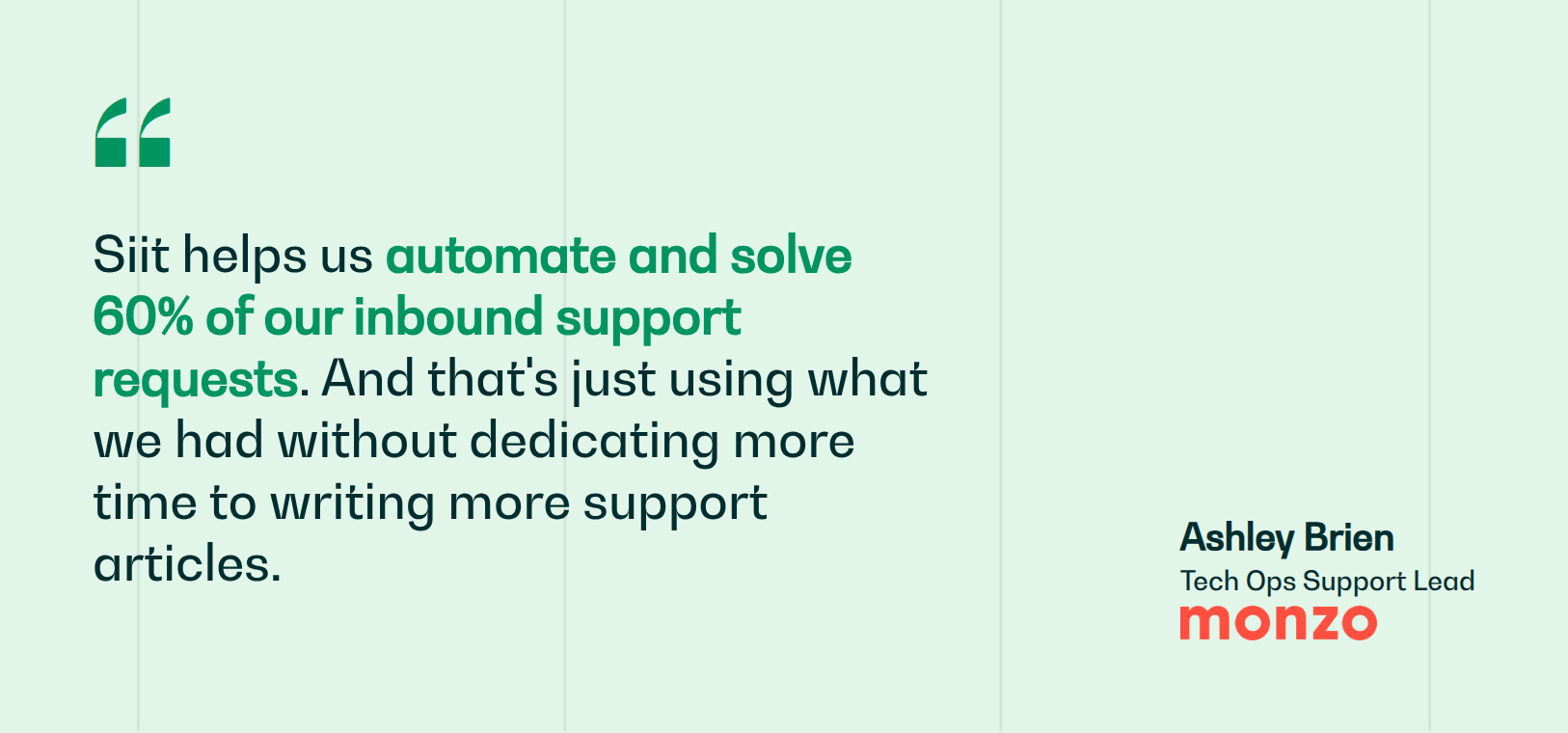
- Reduced ticket volume. Structured articles carry real deflection weight: Monzo's IT team automates and solves 60% of its inbound support requests with Siit.
- Improved discoverability. Templates that include consistent metadata, tags, and title formatting make articles easier to find through search. If employees search or ask before they browse, articles without a predictable naming convention become harder to find, which is where letting staff help themselves pays off.
- Easier maintenance. When every article follows the same structure, you know which fields to check for staleness and where to find them.
If you are the only IT person (or one of two), you feel every one of these in a single week. Consistency means fewer follow-up DMs, discoverability means fewer duplicate requests, and maintenance means fewer escalations caused by an outdated screenshot or a renamed button.
What Should Every Knowledge Base Template Include?
Regardless of template type, every article needs a descriptive title (written the way employees would type it into a search bar), a purpose statement, prerequisites, step-by-step instructions, and an escalation path for when self-service doesn't solve the problem. These five elements appear in every template below.
Two additional fields make the difference between documentation that gets maintained and documentation that rots: related article links (so a VPN troubleshooting guide connects to the remote work policy and VPN setup guide) and a last-updated date with a named owner. Visible dates can help employees trust articles more when the content is recent, and you can maintain them more reliably when your name is attached. A well-run internal system connects these elements automatically.
The Anatomy of a Knowledge Base Page Template
Every template in this guide follows the same knowledge base article format, top to bottom. If you want a quick reference for your IT service desk, save the checklist below and pin it wherever your team drafts articles. Each item maps to a field in the templates that follow.
- Title: verb-led, written in the words employees search
- Metadata: tags, department, lifecycle stage
- Summary: two to three sentences on what the article covers and who it's for
- Body sections: steps, symptoms, requirements, or checklist items
- Escalation path: exactly what to do if self-service fails
- Related links: connected how-tos and policies
- Feedback prompt: a "was this helpful" signal that flags weak articles
- Owner and last updated: a named maintainer and a visible date
10 Knowledge Base Templates for Internal IT
Below are 10 templates built for internal IT operations. Each one follows the same structural principles: a clear title, a purpose line, the fields you need, and an escalation path. Copy them into your wiki, fill in the brackets, and publish.
1. How-To Request
Use this for any repeatable employee request: tool access, permission grants, equipment orders.
Title: How to Request Access to [Tool Name]
Summary: Use this article if you need access to [Tool Name] for your role. It covers who can request access, what steps to follow, and how long approval typically takes.
Who can request this: All full-time employees. Contractors need manager approval before submitting.
Prerequisites: You will need your manager's name and a brief description of why you need the tool.
Steps:
- Open your company's service desk channel in Slack or Teams.
- Submit an access request and select [Tool Name] from the application list.
- Fill in the required fields: your team, role, and reason for access.
- Your manager receives an approval notification. Most approvals complete within a few hours.
- Once approved, you will receive a confirmation message with login instructions.
If this does not resolve your issue: Message the IT channel directly with your request ID and a screenshot of any error you see.
Expected turnaround: Same business day for standard requests. Requests requiring security review may take up to 48 hours.
Related articles: [How to Request a New Laptop], [How to Reset Your Password], [Software Access Policy]
Last updated: [Date] | Owner: [Your name]
2. Troubleshooting Guide
Use this when employees encounter a known error or recurring issue that has a documented fix. Separating basic and advanced steps keeps the fast fixes visible and stops employees from bailing out at step one.
Title: Troubleshooting: [Issue Name]
Summary: Follow these steps if you are experiencing [brief description of the problem]. This guide covers common causes and how to resolve them without IT intervention.
Symptoms: [Describe what the employee sees: error messages, unexpected behavior, missing access.]
Possible Causes: [List 2-3 root causes so employees understand what triggers the issue: outdated client, expired credentials, network restrictions.]
Basic Troubleshooting Steps:
- [Simplest fix first: restart, clear cache, check connection.]
- [Next diagnostic step.]
- [Last step that requires no special permissions.]
Advanced Troubleshooting Steps:
- [Step requiring a settings change, reinstall, or admin tool.]
- [Step requiring credential resets or configuration edits.]
If the issue continues: Submit a request in the IT support channel with the following: your device type, operating system, the error message (screenshot preferred), and what steps you already tried.
Related articles: [Link to related how-to or policy doc.]
Last updated: [Date] | Owner: [Your name]
3. FAQ Collection
Use this to group related questions that don't need full standalone articles. Best for topics that generate multiple short questions.
Title: FAQs: [Topic Area]
Summary: Answers to the most common questions about [topic]. If your question isn't covered here, submit a request in the IT support channel.
Q: [Question 1] A: [Answer in 2-3 sentences. Link to a detailed guide if the answer requires more than a paragraph.]
Q: [Question 2] A: [Answer.]
Q: [Question 3] A: [Answer.]
Still have questions? Submit a request in the IT support channel and reference this FAQ. Include what you already tried so we can skip the basics.
Related articles: [Link to detailed guides for topics covered in the FAQ.]
Last updated: [Date] | Owner: [Your name]
4. Policy Reference
Use this for company policies that employees need to consult without submitting a request. HR, compliance, and IT security teams rely on these, and the same structure works as an HR knowledge base template for your HR team's policy library.
Title: [Policy Name] Policy
Summary: This document outlines [what the policy covers]. It applies to [who it applies to: all employees, contractors, specific departments].
Policy scope: [Define what is and isn't covered.]
Key requirements: [List the 3-5 most important rules or obligations. Use plain language.]
How to comply: [Specific actions employees need to take, if any.]
Exceptions and approvals: [Describe how to request an exception and who approves it.]
Related articles: [Link to related policy documents, request forms, or how-to guides.]
Last updated: [Date] | Owner: [Your name]
5. Onboarding Checklist
Use this for new hire documentation. Role-specific versions reduce the wave of first-week tickets.
Title: Onboarding Checklist: [Role or Department]
Summary: Everything you need to get set up in your first week as a [role] on the [department] team.
Day 1: Essentials
- Laptop received and powered on
- Company email activated
- Slack workspace joined
- [Core tool 1] access confirmed
- [Core tool 2] access confirmed
Day 2-3: Team Setup
- 1:1 with manager completed
- Team channels joined in Slack
- [Department-specific tool] access confirmed
- Read [required policy doc]
Day 4-5: Self-Service Orientation
- Bookmarked the IT support channel
- Tested submitting a practice request
- Reviewed the knowledge base for your department
If something is missing: Message the IT support channel with your name, role, and what you still need. Include your manager's name for faster routing.
Related articles: [Link to tool-specific how-to guides, password reset, VPN setup.]
Last updated: [Date] | Owner: [Your name]
6. Software Installation Guide
Use this when rolling out a new tool or when employees need to self-install approved software.
Title: How to Install [Software Name]
Summary: Follow these steps to install [Software Name] on your company device. This guide covers [Mac/Windows/both].
Requirements: [Operating system version, available disk space, admin permissions if needed.]
Steps (Mac):
- [Step 1.]
- [Step 2.]
- [Step 3.]
Steps (Windows):
- [Step 1.]
- [Step 2.]
- [Step 3.]
Verification: [How to confirm the installation worked: launch the app, check the version number, test a specific function.]
If this does not resolve your issue: Submit a request in the IT support channel. Include your device model, OS version, and a screenshot of any error message.
Related articles: [Link to related tool onboarding guide, access request template.]
Last updated: [Date] | Owner: [Your name]
7. Permission Change Request
Use this when employees need elevated or modified access to a system they already use.
Title: How to Request a Permission Change for [System Name]
Summary: Use this process if you need a different access level in [System Name], such as admin rights, billing access, or a role change.
Who can request this: Any employee with an existing account in [System Name]. New accounts use the [How-To Request] template.
Prerequisites: Your current access level and a description of what you need and why.
Steps:
- Open the IT support channel and submit a permission change request.
- Select [System Name] and specify the permission level you need.
- Include a brief business justification (one sentence is fine).
- Your manager and the system owner will receive approval requests.
- Once approved, the change takes effect within [timeframe].
If this does not resolve your issue: Message the IT channel with your request ID. Permission changes requiring security review may take longer.
Related articles: [Link to access request template, role-based access policy.]
Last updated: [Date] | Owner: [Your name]
8. Hardware Request or Replacement
Use this for laptop replacements, monitor requests, peripheral orders, or damaged equipment.
Title: How to Request [Hardware Type]
Summary: Use this process to request a new or replacement [hardware type]. This covers eligibility, approval, and expected delivery timelines.
Eligibility: [Who qualifies: all employees, specific roles, replacement cycles.]
Steps:
- Submit a hardware request through the IT support channel.
- Select the hardware category and specify your needs.
- Your manager receives an approval notification.
- Once approved, IT processes the order. Standard items ship within [timeframe].
- You will receive tracking information and setup instructions.
For damaged equipment: Include a photo of the damage and a brief description of what happened. This helps IT determine whether to repair or replace.
Related articles: [Link to device setup guide, return policy, onboarding checklist.]
Last updated: [Date] | Owner: [Your name]
9. Security Incident Report
Use this when employees need to report a potential security issue: phishing, lost devices, unauthorized access.
Title: How to Report a Security Incident
Summary: Use this process if you suspect a phishing attempt, lost or stolen device, unauthorized access, or any other security concern. Report immediately; do not wait.
What counts as a security incident: Suspicious emails or links you clicked, a lost or stolen company device, unauthorized access to accounts or data, unusual system behavior you cannot explain.
Steps:
- Do not forward suspicious emails. Take a screenshot instead.
- Submit an urgent request in the IT support channel and select "Security Incident."
- Include what happened, when it happened, and what device or account is affected.
- IT will acknowledge within [timeframe] and provide next steps.
What to expect: IT may ask you to change passwords, disconnect from the network, or provide additional details. Follow their instructions immediately.
Related articles: [Link to phishing awareness guide, remote work security policy, device policy.]
Last updated: [Date] | Owner: [Your name]
10. Offboarding Procedure
Use this when an employee is departing. Ensures clean access removal and equipment return.
Title: Offboarding Checklist: [Department]
Summary: Steps to complete when an employee leaves the [department] team. Covers access revocation, equipment return, and knowledge transfer.
Manager responsibilities:
- Submit offboarding request at least [timeframe] before last day
- Confirm list of systems the employee has access to
- Identify knowledge transfer needs (shared docs, project handoffs)
IT responsibilities:
- Revoke access to all systems listed on the employee's account
- Disable email and messaging accounts per retention policy
- Collect company devices and peripherals
Departing employee responsibilities:
- Return all company equipment to [location or shipping instructions]
- Transfer ownership of shared documents to manager or successor
- Remove personal files from company devices
If something is missed: Submit a request in the IT support channel referencing the offboarding ticket. Late access revocations should be flagged as urgent.
Related articles: [Link to equipment return policy, data retention policy, access request template.]
Last updated: [Date] | Owner: [Your name]
7 More Knowledge Base Article Templates Worth Adding
The 10 templates above cover the requests that hit your IT service desk daily. These seven knowledge article templates cover the documentation that prevents tickets before they exist: first-use guides, change communication, standards, and vocabulary. Add them as your knowledge base templates library matures, one at a time, starting with whichever gap generates the most confusion.
11. Getting Started Guide
Use this for a new user's first hour with a tool. It's the article that stops the "I have access, now what?" follow-up ticket. For a small IT service desk, it gives employees a clear first win before they ask for live help.
Title: Getting Started with [Tool Name]
Summary: A first-time walkthrough of [Tool Name] for new users. Covers setup, your first task, and where to go next.
Prerequisites: [Account approved, SSO configured, required role assigned.]
Account and access setup:
- [Sign in via SSO or activation link.]
- [Complete profile or workspace setup.]
- [Join the relevant team or project space.]
Your first task:
- [Walk through one core action end to end.]
- [Show the expected result so users know it worked.]
You're set up when: [Success criteria: you can log in, see your team's workspace, and complete [core action].]
Next steps: [Link to the tool's how-to guides and FAQ collection.]
If you get stuck: Submit a request in the IT support channel with a screenshot of where you stopped.
Last updated: [Date] | Owner: [Your name]
12. Release Notes
Use this every time a tool your employees rely on changes. Publishing release notes preempts the "why does this look different" ticket wave. It also gives your service desk one place to point people when a button, workflow, or requirement changes overnight.
Title: Release Notes: [Tool Name] [Version Number]
Release date: [Date]
What changed:
- New features: [What was added and where to find it.]
- Fixes: [Bugs resolved in this release.]
- Deprecations: [What was removed or will stop working, and by when.]
Known issues: [Anything still broken, plus workarounds.]
Upgrade instructions: [What, if anything, employees need to do: update the client, clear cache, re-authenticate.]
Related articles: [Link to the tool's getting started guide and troubleshooting guide.]
Last updated: [Date] | Owner: [Your name]
13. Best Practices Guide
Use this when there's a right way and a painful way to do something, and you keep seeing the painful way. It works best for processes where mistakes create rework, delays, or security exposure. For a small team, this is the article that turns repeated corrections into a standard everyone can follow.
Title: Best Practices: [Process or Tool Name]
Overview: [What this guide covers and who should follow it.]
Why it matters: [The concrete cost of doing this wrong: security exposure, rework, delays.]
Recommended approach:
- [Step 1 of the recommended way.]
- [Step 2.]
- [Step 3.]
Common mistakes: [List 2-3 mistakes you see repeatedly and what to do instead.]
Related policies: [Link to the policy reference articles this guidance supports.]
Last updated: [Date] | Owner: [Your name]
14. Integration Guide
Use this when two systems need to talk to each other and the setup involves credentials, configuration, and inevitable errors. The extra structure matters because integration failures often hide in authentication, permissions, or sync logs. A clear guide keeps employees and admins from repeating the same setup checks in every request thread.
Title: How to Connect [System A] to [System B]
Summary: Configuration steps for the [System A]-[System B] integration, including authentication, testing, and common errors.
Systems involved: [System A version/plan, System B version/plan.]
Prerequisites: [Admin access required, API access turned on, approvals needed.]
Authentication and credentials: [Where to generate the API key or OAuth connection, and where to store it. Never paste credentials into the article itself.]
Configuration steps:
- [Step 1.]
- [Step 2.]
- [Step 3.]
Testing and validation: [How to confirm the integration works: trigger a test event, check the sync log.]
Troubleshooting common errors: [List 2-3 error messages verbatim and their fixes.]
If the issue continues: Submit a request in the IT support channel with the error message and the step where setup failed.
Last updated: [Date] | Owner: [Your name]
15. Video Tutorial
Use this for visual, multi-step processes where a two-minute recording beats twenty screenshots. Always pair the video with written steps so the article stays searchable. The transcript summary also helps employees who are scanning from Slack or Teams and do not want to open a full recording.
Title: Video: How to [Task Name]
Video: [Embed video here.]
Written summary: [Two to three sentences on what the video covers and how long it runs.]
Chapters:
- [00:00] [Intro and prerequisites]
- [00:45] [Step one]
- [01:30] [Step two]
- [02:10] [Verification]
Prerequisites: [Access or setup required before following along.]
Key steps (transcript summary): [Numbered written version of the steps for employees who search instead of watch.]
If this does not resolve your issue: Submit a request in the IT support channel and reference the timestamp where you got stuck.
Last updated: [Date] | Owner: [Your name]
16. Glossary Entry
Use this to define internal terms, acronyms, and tool names. New hires burn hours decoding vocabulary that a glossary answers in seconds. A short glossary entry also gives support teams a stable link when a request fails because the employee does not know what a system or policy term means.
Title: Glossary: [Term or Acronym]
Definition: [Plain-language definition in one or two sentences. No circular definitions.]
Context and usage: [An example sentence showing how the term is used at your company.]
Related terms: [Link to related glossary entries.]
Owning team: [Which team owns this term or system.]
Last updated: [Date] | Owner: [Your name]
17. Standard Operating Procedure (SOP)
Use this for procedures where the "who" matters as much as the "how": audits, incident response, recurring maintenance. Unlike a how-to guide, an SOP assigns roles and holds up under compliance review. That makes it useful when the article has to prove the organization follows the same process every time, with a record an auditor can trace.
Title: SOP: [Procedure Name]
Scope and applicability: [What this procedure covers, which teams it applies to, and when it triggers.]
Roles and responsibilities: [Who initiates, who executes, who approves, who verifies.]
Procedure:
- [Step 1.]
- [Step 2. Include decision points: if X, go to step 3; if Y, escalate.]
- [Step 3.]
Compliance and audit notes: [What must be logged, where records live, retention requirements.]
Review cycle: [How often this SOP gets reviewed, e.g., quarterly.]
Related articles: [Link to relevant policies and escalation contacts.]
Last updated: [Date] | Owner: [Your name]
Each of these works as a knowledge base template Word file too. If your HR team or operations team keeps documentation in Word or Google Docs rather than a wiki, paste the template in, fill the brackets, and save a master copy. The structure survives the format change.
Reusable Section Templates for Any Knowledge Base Article
Article-level templates aren't the only reusable unit. Section-level blocks let you assemble a nonstandard article from proven parts, and the checklist and escalation blocks double as a lightweight knowledge base form template for request intake pages. Copy any of these five snippets into an existing article.
Summary block:
Summary: Use this article if [situation]. It covers [scope] and takes about [time] to complete.
Task / checklist block:
Before you start:
- [Requirement 1]
- [Requirement 2]
- [Requirement 3]
Further reading block:
Related articles: [How-to guide] | [Policy reference] | [Troubleshooting guide]
Escalation / contact block:
If the issue continues: Submit a request in the [channel name] with your device type, a screenshot of the error, and the steps you already tried. Urgent issues: flag the request as [priority label].
Formatted table block:
Internal vs Customer-Facing Knowledge Base Templates
Everything above is scoped to an internal knowledge base template library: it assumes shared context like tool names, Slack channels, and a named IT support channel. The internal set also doubles as an HR knowledge base template collection, since the policy, onboarding, and offboarding formats work for your HR team without modification. Customer-facing articles need different assumptions, because readers have no internal context, no Slack workspace, and no patience for your acronyms.
If you also own a customer-facing help center, adapt the templates in three ways. Strip internal jargon and channel references, replace the IT escalation path with a "contact support" block that lists public channels, and add product context an outsider needs. One note on scope: a knowledge base website template, meaning the layout and navigation of a public help center, is a separate design project; the article-level templates here work inside whichever site you already run.
Here is a customer-facing FAQ variant, followed by a product overview template for evaluation-stage readers. Use the FAQ variant when support questions are short and repeatable. Use the product overview when readers need context before they can choose the right guide.
Customer-facing FAQ variant:
Title: [Product Name] FAQs: [Topic]
Q: [Question written the way a customer searches it] A: [Plain-language answer, 2-3 sentences, no internal terms. Link to a detailed guide for anything longer.]
Still stuck? Contact support at [public support channel or email]. Include your account name and what you already tried.
Product Overview / Comparison
Use this when readers need to understand what a product does and whether it fits, either as a public product page in your help center or as internal tooling documentation for teams choosing between approved options. It is most useful before a reader commits to a setup guide, access request, or troubleshooting path. Keep the comparison honest so the article reduces mismatched requests instead of creating them.
Title: [Product Name] Overview
What it's for: [The product's purpose in one or two sentences.]
Key features:
Strengths: [Where this product genuinely shines.]
Limitations: [What it doesn't do well. Honesty here builds trust and reduces mismatched requests.]
Pricing: [If applicable: plan tiers or internal license notes.]
Recommended use cases: [Who should use this and for what.]
Last updated: [Date] | Owner: [Your name]
Knowledge Base Article Template Formatting Best Practices
Templates give you structure, but two formatting habits determine whether anyone reaches the answer. Most advice on how to write a knowledge base article starts with the body. Start with the title and the navigation instead, because employees can decide quickly whether an article looks like it will help.
Add a Table of Contents with Anchor Links
Long template pages, FAQ collections, and SOPs work better with anchor links because readers can jump straight to their section instead of scrolling. If your wiki generates these from headings automatically, use that; in Markdown you can build one by hand. Place the table of contents near the top so the article feels navigable before the reader hits the first long section. Copy this pattern into any long article:
## In this article
- [Symptoms](#symptoms)
- [Basic troubleshooting steps](#basic-troubleshooting-steps)
- [Advanced troubleshooting steps](#advanced-troubleshooting-steps)
- [If the issue continues](#if-the-issue-continues)
Write Titles Employees Actually Search
A title is a search query in disguise, so write it the way an employee would type it into a search bar. That means the title should match the requester's words before it matches your internal taxonomy. The clearer the title, the less work your service desk has to do routing people to the right article.
Three rules keep titles findable:
- Lead with an action verb. "How to Connect to the VPN" beats "VPN Connectivity Information" every time.
- Use the reader's words, not yours. Employees search "can't log in," not "authentication failure remediation." Skip internal jargon and system codenames.
- Include the error message or symptom verbatim. If the client shows "connection failed," put "connection failed" in the title or symptoms field, because that exact string is what gets searched.
How Do You Choose the Right Template for Each Article?
Start with your ticket data, not your assumptions. Pull your top 20 most frequent request types from the past quarter and map each one to a template category. Use the table below as a first pass before you customize the template for your internal audience. This table maps common knowledge base article types to the requests they handle best:
- Match template to content type. A recurring "how do I" question maps to a how-to template. A known bug or error maps to troubleshooting. A policy question maps to a reference document.
- Consider your audience. IT documentation for your engineering team can include technical depth and command-line examples. An HR policy article for all employees should use plain language and shorter sections.
- Assess integration needs. Templates become significantly more valuable when they connect to your service desk. If your knowledge base lives in Notion or Confluence, choose templates with metadata compatible with your connected tooling. Articles surfaced automatically during request intake can deflect more tickets than articles in a standalone wiki. For access and device requests, Siit can pull employee data from Google Workspace, add users to Okta groups, lock or wipe a lost device through Jamf, and surface Notion or Confluence articles from Slack or Teams.
- Plan for maintenance. Pick templates that include ownership fields and review date prompts, because a knowledge management template without a named owner and review cycle rots quietly. Outdated articles can waste employee time and erode trust in your documentation system.
What Do Sample Knowledge Base Articles Look Like?
Bracket-fill scaffolding shows structure, but knowledge base article examples show the finished product. The troubleshooting template below is filled in. VPN issues make a good first target because they repeat: Qonto's IT team documented a recurring VPN issue and reduced the related ticket volume by around 80% with Siit. Use sample knowledge base articles like this one as internal writing references so contributors see a finished example before they start.
Title: Troubleshooting: VPN Won't Connect on Company Laptops
Summary: Follow these steps if the VPN client shows "connection failed" or keeps disconnecting. Most cases resolve in under five minutes without IT help.
Symptoms: "Connection failed" error on launch, repeated disconnects, or no access to internal tools while working remotely.
Possible Causes: Outdated VPN client, expired sign-in session, or hotel/café Wi-Fi blocking the connection behind a captive portal.
Basic Troubleshooting Steps:
- Quit and restart the VPN client.
- Confirm you are signed in with your company account, not a personal one.
- On public Wi-Fi, open any webpage in a browser first to clear the captive portal, then reconnect.
Advanced Troubleshooting Steps:
- Update the VPN client to the latest version from the self-service portal.
- Sign out fully, then sign back in to refresh your credentials.
If the issue continues: Submit a request in the IT support channel with your device type, OS version, and a screenshot of the error.
Related articles: [VPN Setup Guide] | [Remote Work Policy]
Last updated: [Date] | Owner: [IT team]
How Do You Roll Out Templates Without Getting Overwhelmed?
You don't need to document everything at once. Pull the 10 request types that generate the most tickets for your IT service desk, write one article each from the templates above, and give every article a named owner with a review date so maintenance has an accountable human, not a hopeful "someone." Then measure deflection over 30 days, and count a ticket as deflected only when the employee resolved the issue without contacting you, because page views alone rarely prove deflection. Recruit contributors by handing them a filled-in sample, not a blank template, since people copy examples faster than they follow instructions.
Templates only deflect when they appear at the moment of interruption. If employees still DM you instead of searching, the answer has to reach them in the thread where they asked. Siit puts intake there: requests arrive inside Slack or Teams, and the knowledge base gets checked on the employee's behalf before they finish submitting. No portal adoption required.
Build a Knowledge Base Article Template Library That Deflects Tickets
A strong knowledge base article template library gives every repeated request the same foundation: searchable titles, clear steps, escalation paths, related links, and visible ownership. Start with the highest-volume IT requests, then add HR, operations, policy, and SOP templates as the questions repeat. Success looks like fewer interruptions and cleaner handoffs.
Siit turns those templates into an active support layer, connecting your knowledge base to Slack and Teams and surfacing answers before a ticket is created. Monzo's IT team automates and solves 60% of its inbound support requests with Siit. Pair the templates with a knowledge management framework so ownership, review cycles, and deflection measurement stay part of the system.
Because Siit uses admin-only pricing, you are not charged for every employee who reads an article or submits a request. Book a demo to see it running on your own templates.



FAQ

Track completion rates rather than views by monitoring whether employees resolve issues without contacting support after reading an article. Set up tracking pixels or exit surveys asking "Did this solve your problem?" and compare ticket volumes before and after publishing specific articles. The cleanest proxy is a before-and-after comparison on a single request type: publish one article, hold everything else steady, and watch whether that request type's volume drops over the following month.
A how-to guide teaches employees to complete a task themselves and focuses on individual execution, while an SOP assigns roles across multiple people and documents who initiates, approves, and verifies each step. Use how-to guides for repeatable self-service tasks like requesting software access or resetting passwords. Use SOPs when accountability matters for compliance, when a process crosses departments, when decisions branch based on conditions, or when auditors need to trace who did what and when.
Employees choose the path of least resistance, and searching a separate wiki takes more effort than pinging IT. Deploy an AI agent layer directly in Slack that intercepts requests and surfaces relevant articles before a ticket forms. When documentation appears at the exact moment of need, inside the conversation thread, employees use it without being told to. Track which articles deflect successfully and which get bypassed to identify documentation gaps requiring rewrites or better tagging.
Review frequency depends on article type and change velocity. High-traffic troubleshooting guides should be audited quarterly, while stable policy documents can run on six-month cycles. Triggered reviews work best: schedule checks after major software releases, security incidents, or when feedback flags signal confusion. The key metric is employee behavior. If repeat tickets spike for documented issues, your content has likely drifted from reality. Assign each article a named owner with calendar reminders rather than relying on ad-hoc updates.
Remove internal references like channel names, Slack workspaces, system codenames, and unexplained acronyms. Replace escalation paths with public support contacts such as email or ticketing URLs. Add product context outsiders need: feature availability by plan tier, account prerequisites, and settings locations. Rewrite titles using customer search language, which differs from employee terminology. Test discoverability with external keyword research instead of internal ticket tags to ensure customers can find answers.